AI Pose Changer
Change how a person stands, sits, or turns in a photo.
Real edits
Before and after
Real edits made on ZMS AI. Pick one, then try the same edit with its photos in one click.
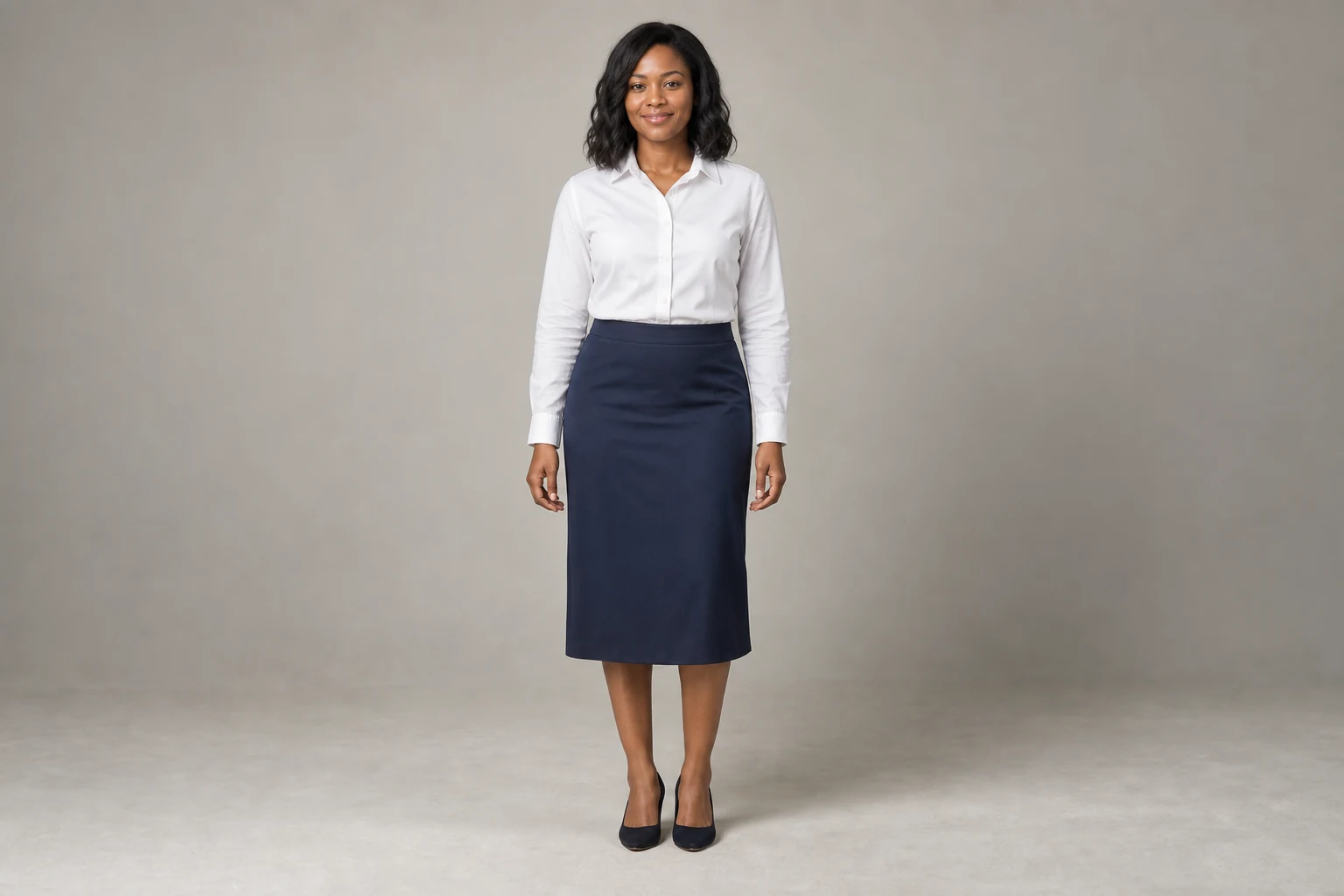
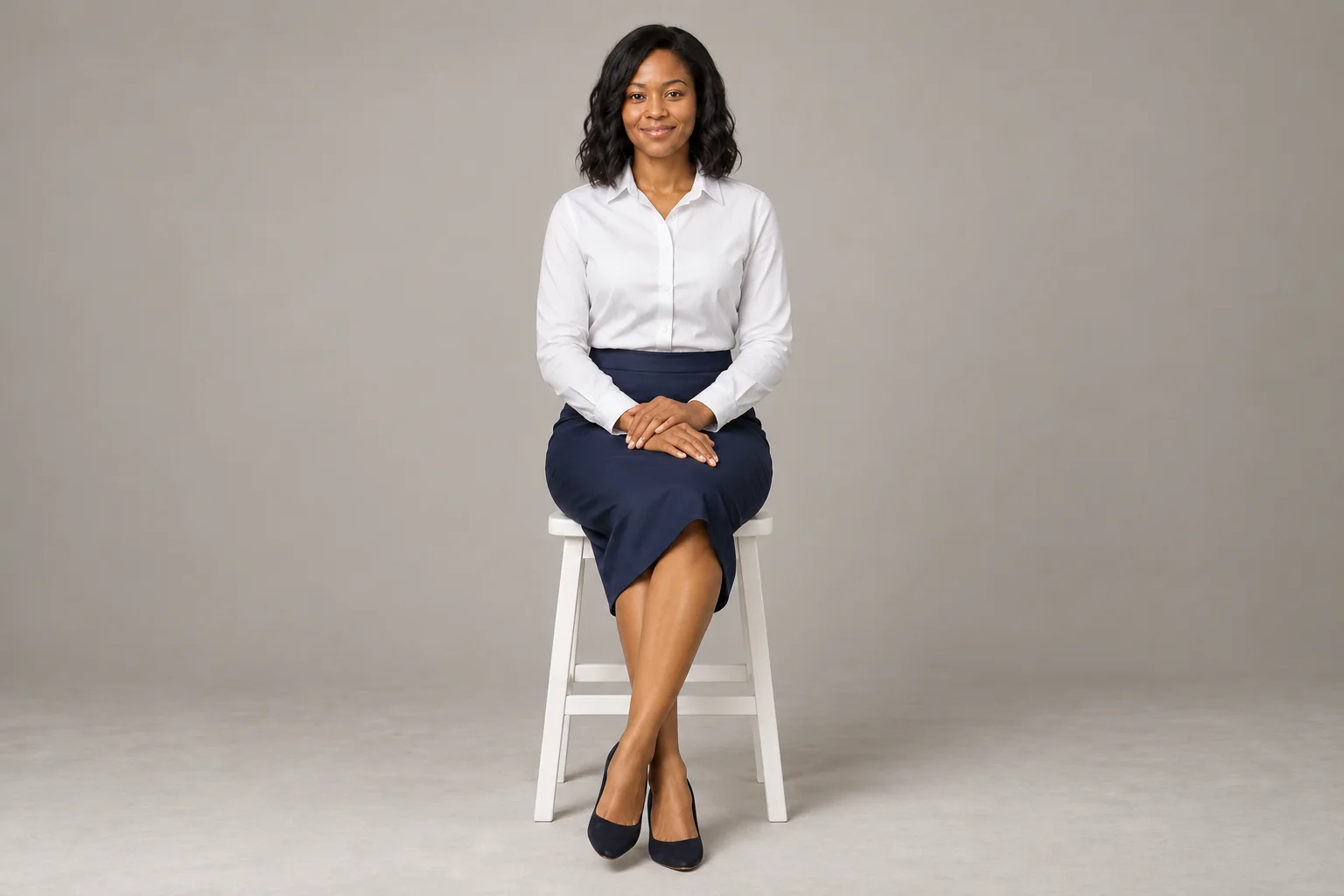
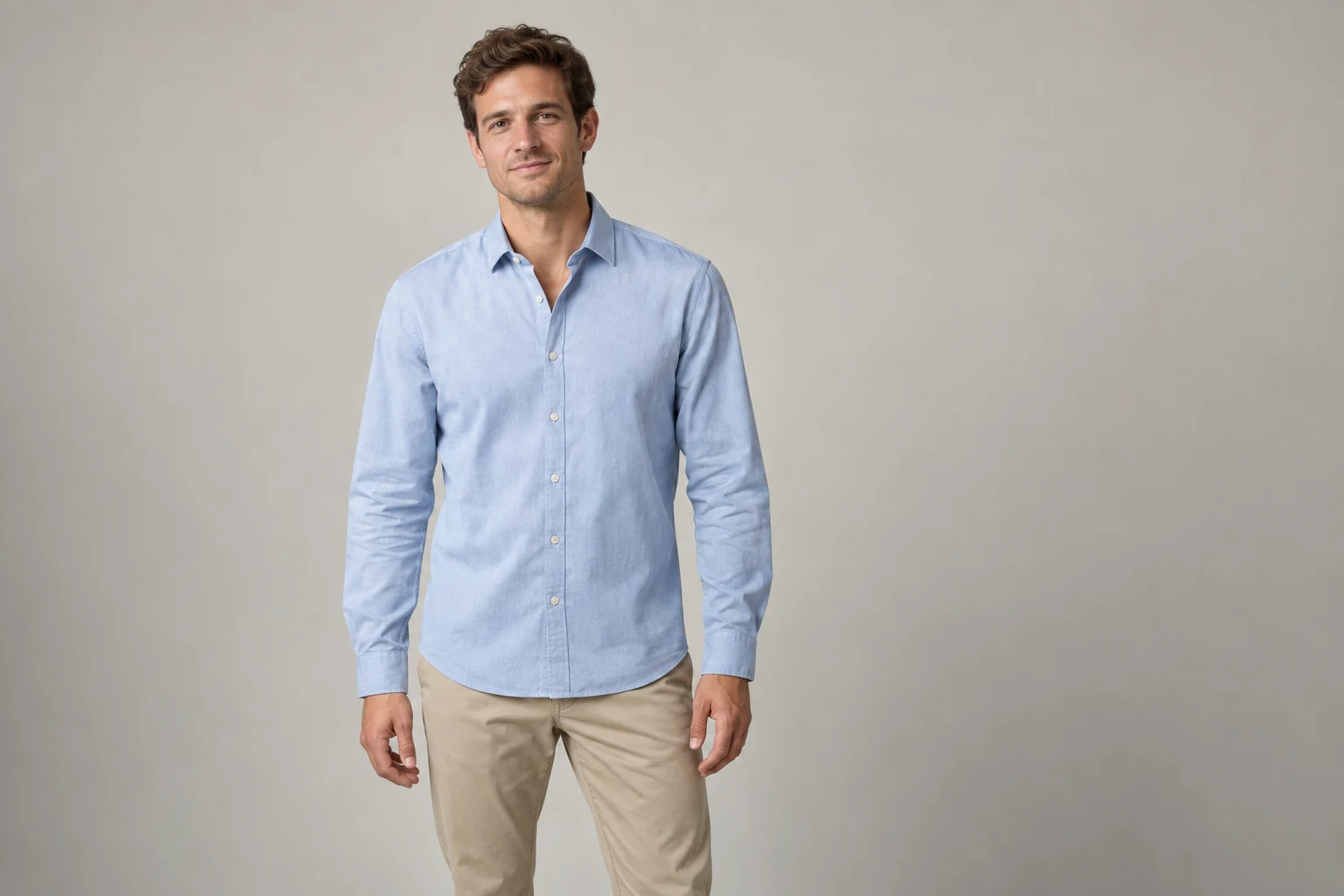
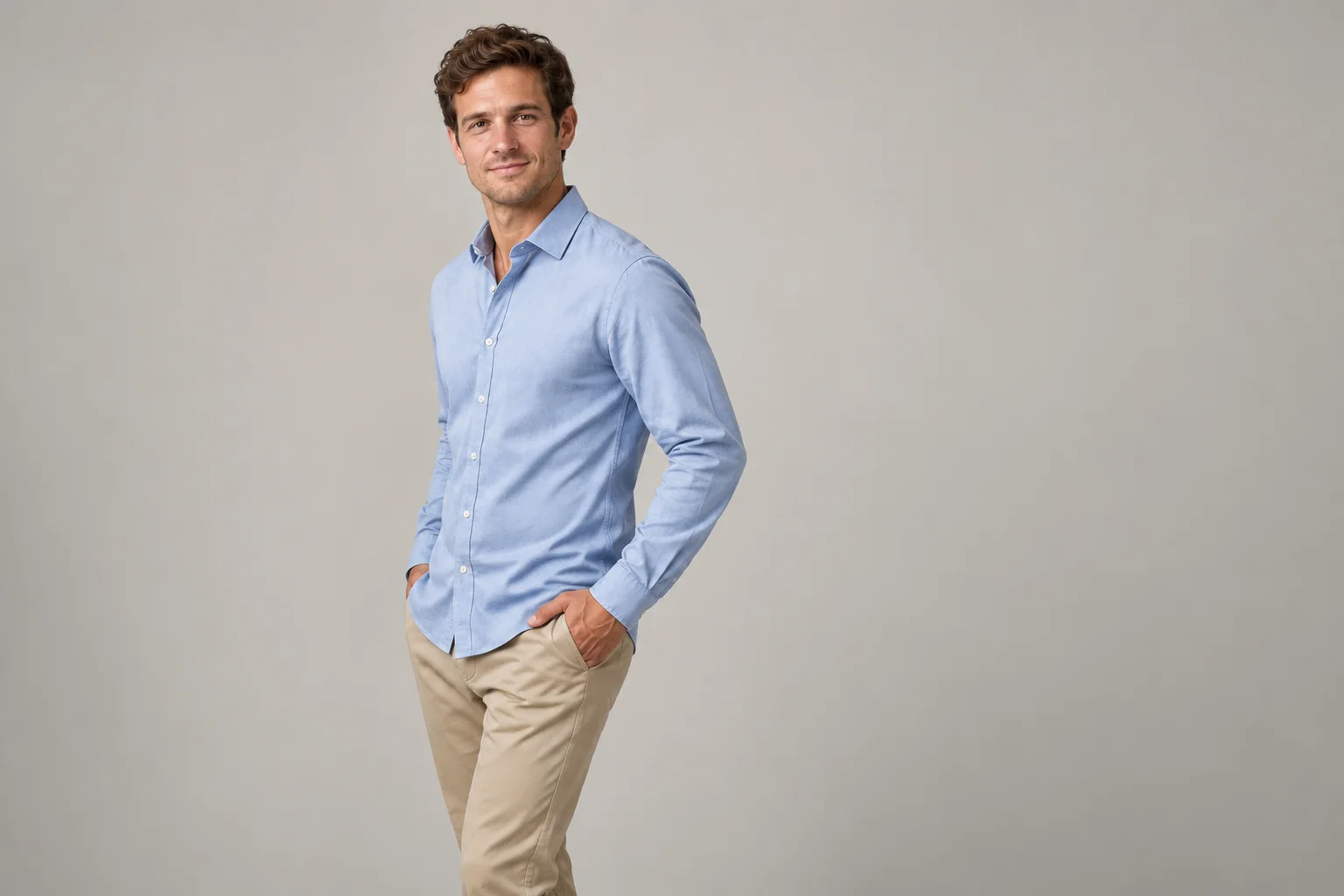
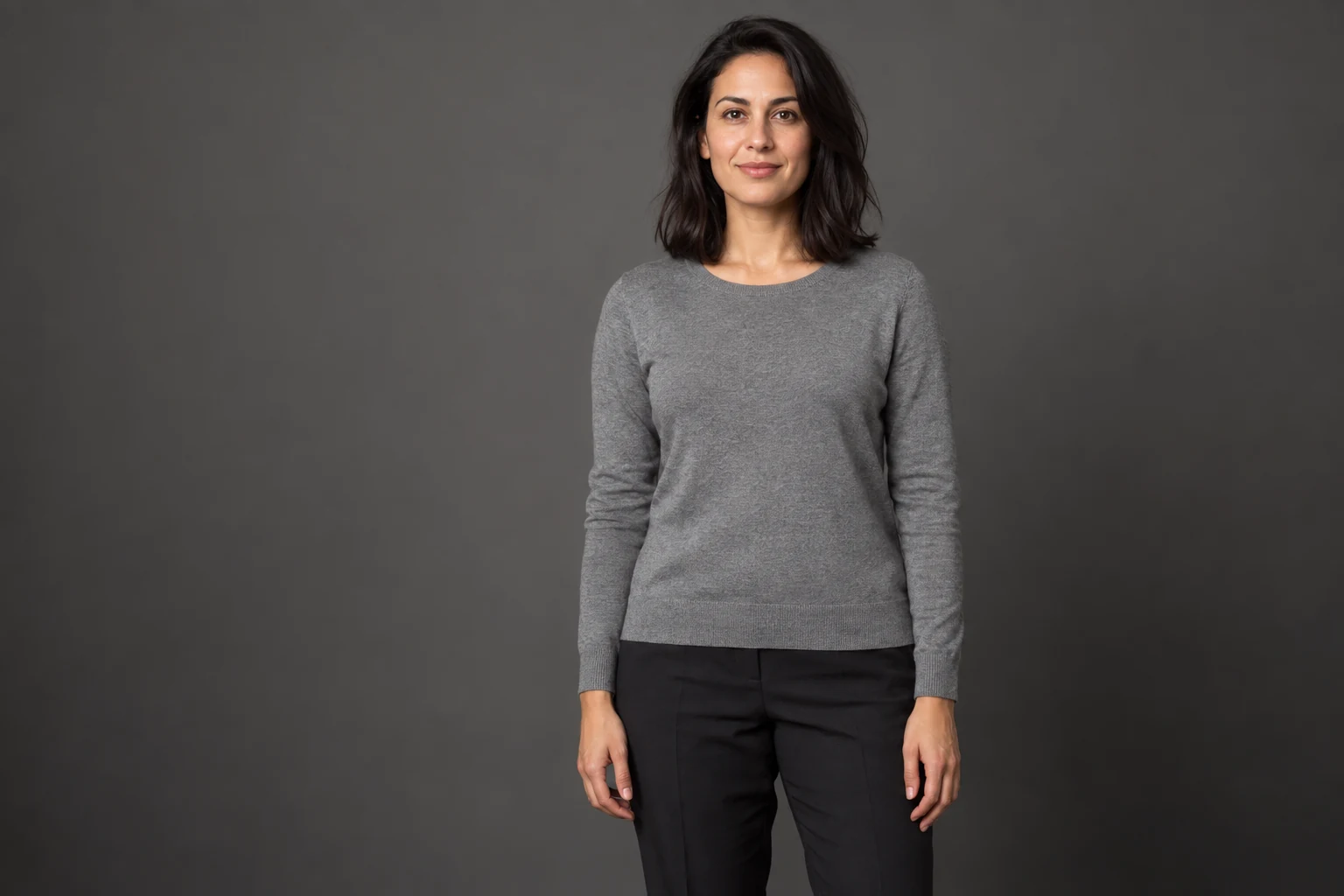
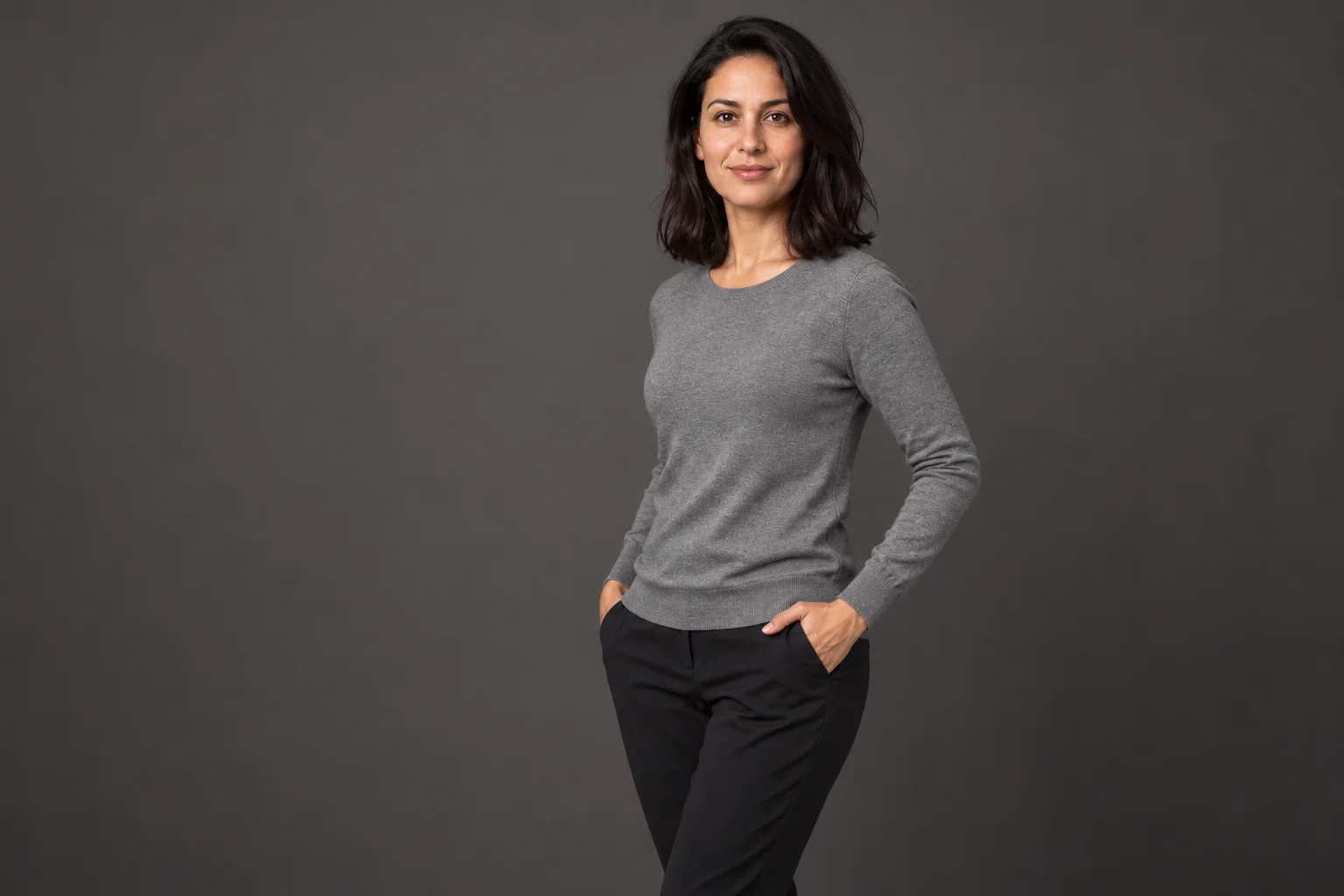
Pose library
Poses to try
Real results from these prompts. Add your own photo, then use a prompt as it is or adjust it.
 Waist-up photo
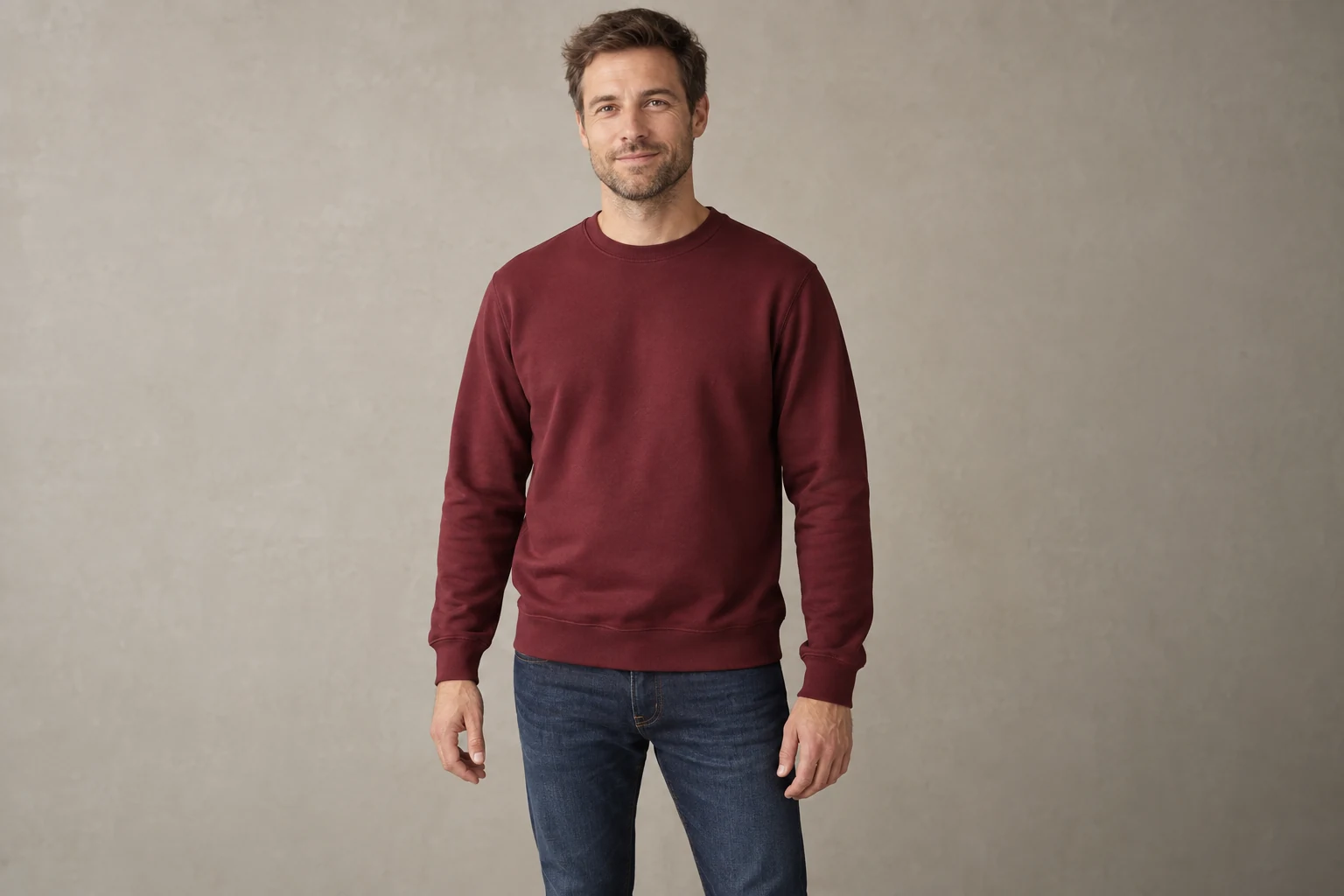 Before
Arms crossed
Arms crossed loosely at chest height, shoulders relaxed, with a small smile toward the camera. Keep the face, hair, outfit, and background from the photo.
 Full-body photoBefore
Over the shoulder
Body turned in profile toward the left edge of the photo, looking back at the camera over the left shoulder with a soft smile. Keep the face, hair, outfit, and background from the photo.
 Full-body photoBefore
Leaning on a wall
Leaning the left shoulder against a plain light wall at the right edge of the photo, ankles crossed, arms relaxed at the sides. Keep the face, hair, outfit, and the rest of the background from the photo.
 Waist-up photo
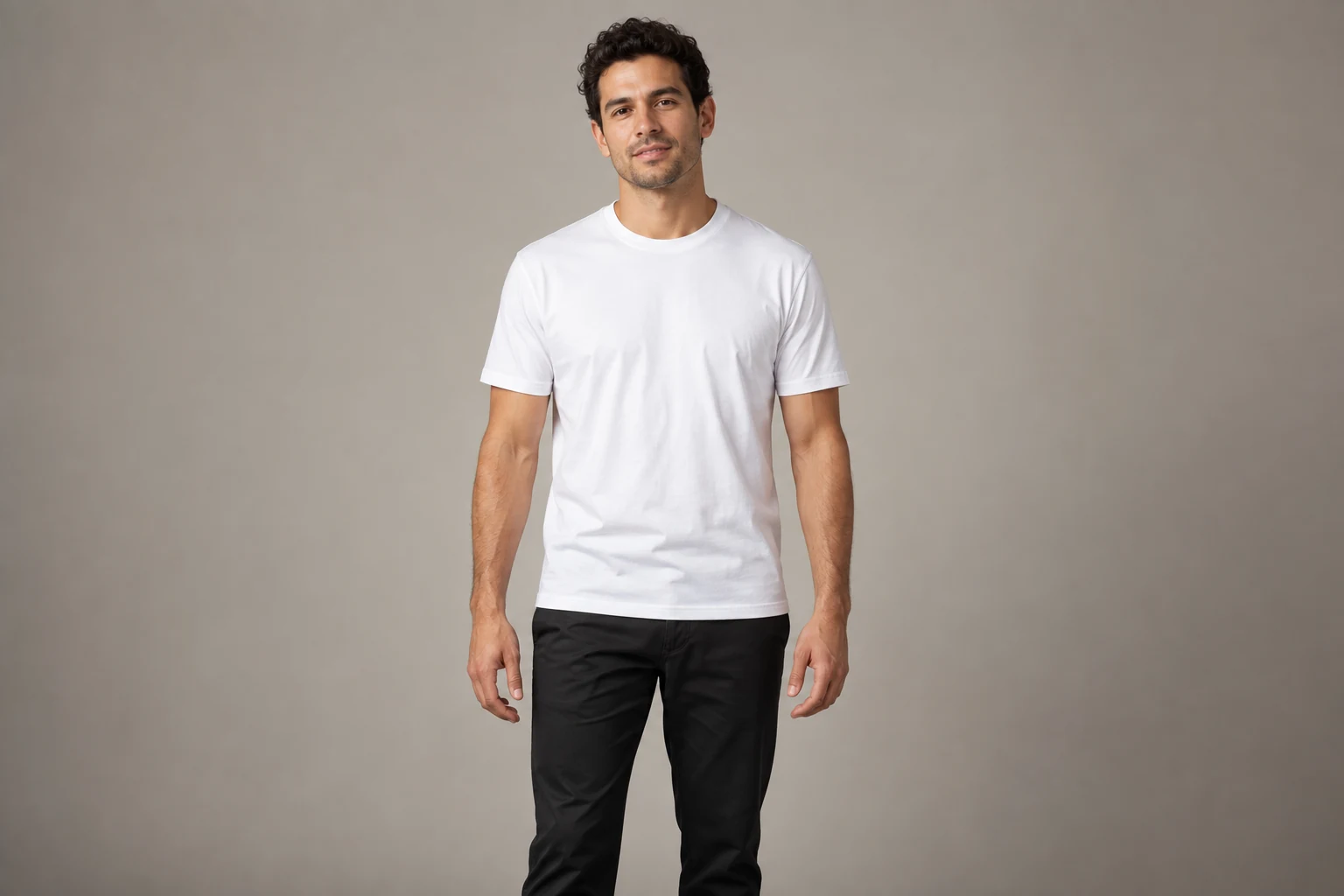 Before
Hands on hips
Both hands on the hips with elbows out, chest open and chin level, standing tall with a confident smile. Keep the face, hair, outfit, and background from the photo.
How it works
How to change a pose in a photo
- Person photoStep 1
Add a person photo
Upload one photo of the person. A clear shot works best; use a full-body photo for sitting, walking, or changing the feet.
- Pose reference (optional)
Match the pose in the reference photo: the same three-quarter turn with both hands in the trouser pockets, relaxed shoulders, and the face toward the camera. Keep her face, hair, gray knit top, black trousers, and the dark studio background.
Generate · 12 creditsStep 2Describe the pose
Say where the body and limbs should end up. For an exact pose, add a second photo as a pose reference; it only guides the body position.
- ResultStep 3
Get the edit
A 1K edit uses 12 credits and a 2K edit uses 20. Compare the result with your original before you use it.
Prompt guide
How to write a pose prompt
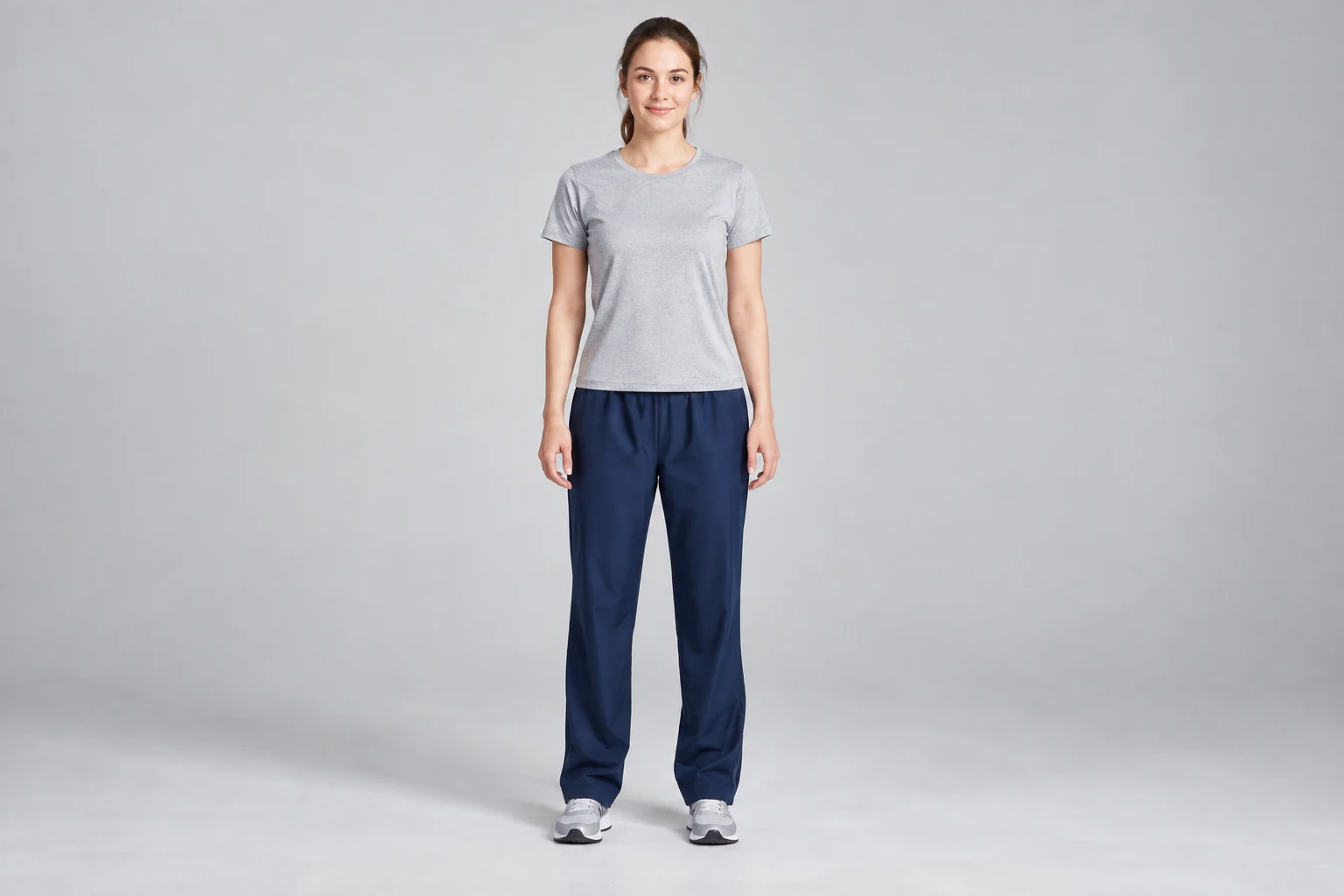
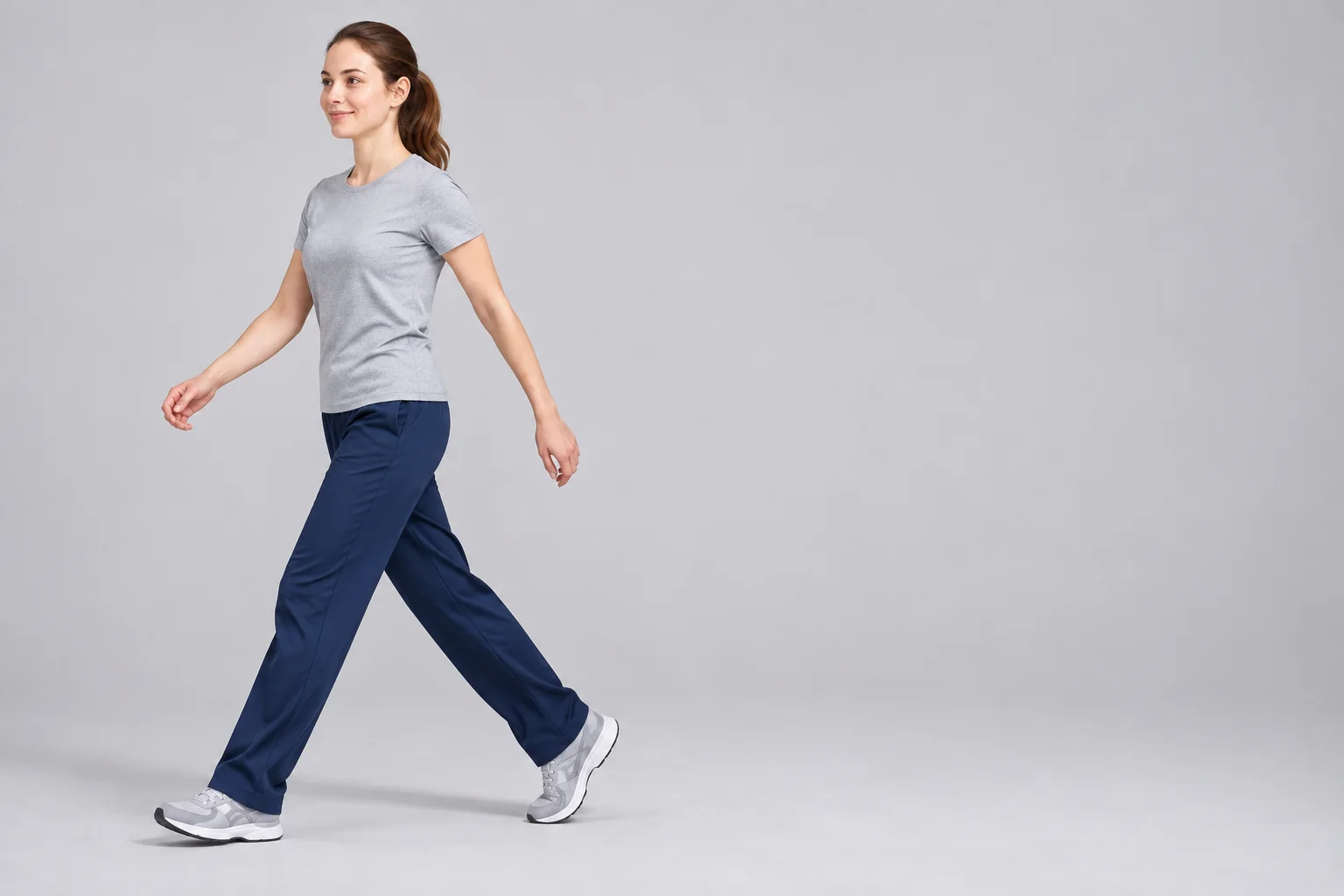
This is the exact prompt behind the walking edit, split into the four parts that matter.
BeforeThe prompt behind this edit
Walking mid-stride toward the left edge of the photo: right foot forward, left heel lifting, arms swinging naturally in opposition. Head turned slightly toward the direction of travel. Keep her face, ponytail, gray T-shirt, navy track pants, sneakers, and the plain studio background.
The pose
Start with the pose in a few words so the rest of the prompt has a frame.
Direction
Name directions by the photo’s edges. “Turn right” can be read from either side.
Where each limb ends up
Describe the end position of the feet, arms, and head rather than the movement.
What should stay
Name what to keep. Listing each item helps it come through unchanged.
Use a pose reference for exact poses. Upload a second photo that shows the pose. Your person photo still supplies the face, clothing, and background.
Check the details. Compare the face, hands, and clothing with your original. If something drifts, ask for a smaller change.
Before you start
What works well, and what’s harder
A good starting photo does most of the work.
One personPlain backgroundHands in viewFeet in frameWorks well
- One person in a clear, well-lit photo
- Standing to sitting, walking, leaning, or a turned stance
- Arm, hand, and head changes on waist-up photos
- Simple props named in the prompt, such as a stool or a wall
Harder
- Group photos, or a second person in the frame
- Fine hand detail, such as interlaced fingers or small objects
- Body parts missing from the original, such as feet in a waist-up photo
- Large camera changes, such as a view from behind or above
Use cases
What people use it for
Product and fashion photos
Get more frames from one shoot: walking, seated, and turned versions of the same outfit. To change the outfit too, use AI Clothes Changer.
Profile and team photos
Turn a stiff, straight-on photo into a relaxed lean or crossed arms while the face and background stay recognizable.
Social posts
Try a wave, a walk, or a seated pose from a photo you already have, then pick an aspect ratio that suits the post.
Storyboards and character sheets
Show one character in several poses for a pitch or a comic. To create a new scene from scratch, start in the AI Image Generator.
At a glance
- Person photo
- 1
- Optional pose reference
- +1
- Credits per 1K edit
- 12
- Credits per 2K edit
- 20
About AI Pose Changer
AI Pose Changer on ZMS AI changes how a person stands, sits, or turns in a photo you already have. Upload one person photo, describe the new pose in plain language, and optionally add a second photo that shows the body position you want.
The editor starts from the person, clothing, and setting in your photo while it moves the body. Use it to adjust a profile photo, plan a lookbook frame, or try a gesture for a social post. To change the outfit instead, use AI Clothes Changer.
Each edit runs on GPT Image 2 as a reference edit: your photo goes in as the source, the description says what should move, and an optional second photo shows the target pose. Results come back at 1K or 2K in the aspect ratio you pick.
AI Pose Changer FAQ
Can I change a pose with just one photo?
Yes. Upload one person photo and describe the new pose. A pose reference is optional.
What does a pose reference do?
It shows where the body and limbs should go. Your person photo still supplies the face, clothing, and background.
Will the face and outfit stay the same?
AI Pose Changer is asked to keep them, but details near moved joints or newly visible areas can be redrawn. Compare the result with your original before using it.
Can I keep the original background?
Ask for it by name, for example “keep the plain studio background”. Areas the body moves away from are filled in, so busy backgrounds may change slightly.
Which photos work best?
One person facing the camera, with the body parts you want to move in view. Use a full-body photo for sitting, walking, or foot changes; waist-up is enough for arms and shoulders.
Can I use a group photo?
Use a photo with one person. Crop to the person you want to edit before uploading.
How many credits does a pose edit use?
12 credits at 1K and 20 at 2K. The Generate button shows the total before you submit. See Pricing for credit packs.
Which aspect ratio should I pick?
Match your photo, such as 3:2 for a landscape shot or 2:3 for a portrait, so nothing is cropped or stretched. Choose it with resolution in the settings menu under the prompt.
Do I need an account?
You can add photos and a description first. Sign in to generate; your photos and description are kept while you sign in.
Where do I find my results?
Each edit appears in the Tasks panel while it runs and is saved to My Creations when it finishes.