Gemini Omni 1.2 Flash AI Video Generator

Create short videos from text, frames, or references. Edit or extend existing clips, then review your settings and credit estimate before generating.

Loading video generator

What Is Gemini Omni 1.2 Flash?

Gemini Omni 1.2 Flash is Google’s model for creating short videos and editing existing footage. The video tools on ZMS AI bring different models into one place, so start by deciding what you want the clip to show and what material you already have.

A short scene can work around a single reveal, a shift in lighting, or a camera move that ends on the subject. Write the action in the order you want it to happen. If a detail needs to stay the same, name it early and make it easy to check in the finished clip.

Gemini Omni 1.2 Flash Video Examples

See how a text prompt, two frames, mixed references, and an existing clip shape four different videos. Compare the three-second source clip with the six-second greenhouse video. The extension adds three seconds at 360p.

Loading an example replaces your prompt, settings, and inputs. Review the estimate before generating.

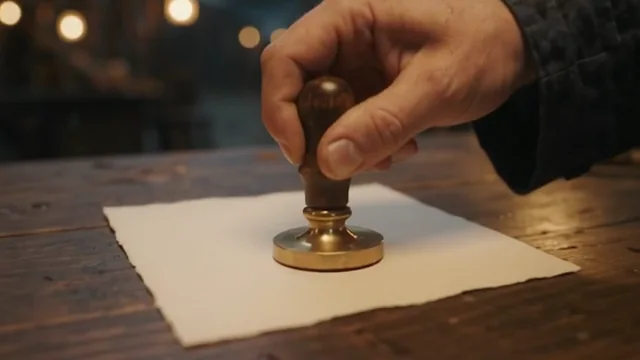
Rainy Night Market StampGemini Omni 1.2 Flash · Recorded on ZMS · Text to video · 360p · 15 seconds · 16:9
Prompt, settings & inputs
Prompt used

A small brass stamp at a rainy night market. In one continuous, slow tabletop tracking shot, a paper vendor presses the stamp into deep red ink, carries it steadily across the wooden counter, and stamps a cream card. Begin in a close-up over the ink pad and end on the crisp circular print. Warm lantern light, soft rain on canvas, and a distinct stamp impact. No captions, branding, or faces.

Settings & inputs
Version
1.2
Input mode
Text to video
Requested duration
15 seconds
Resolution
360p
Aspect ratio
16:9

Watch for: Follow the stamp from the ink pad to the card, then look for the circular print.

Porcelain Lighthouse RevealGemini Omni 1.2 Flash · Recorded on ZMS · First / last frame · 360p · 3 seconds · 9:16
Prompt, settings & inputs
Prompt used

Begin exactly on the supplied close-up and pull smoothly back to the supplied final composition. Reveal the full red paper boat on the folds of blue fabric. Keep the white lighthouse upright and keep the roof and single red stripe consistent. One continuous move, ending on the wider frame.

Settings & inputs
Version
1.2
Input mode
First / last frame
Requested duration
3 seconds
Resolution
360p
Aspect ratio
9:16
Inputs used

Watch for: Compare the opening close-up with the wider final frame, where the red paper boat comes into view.

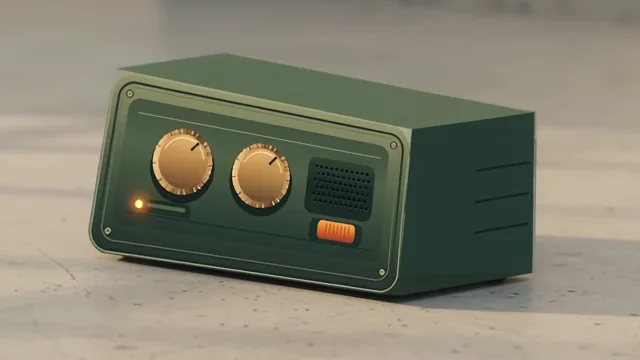
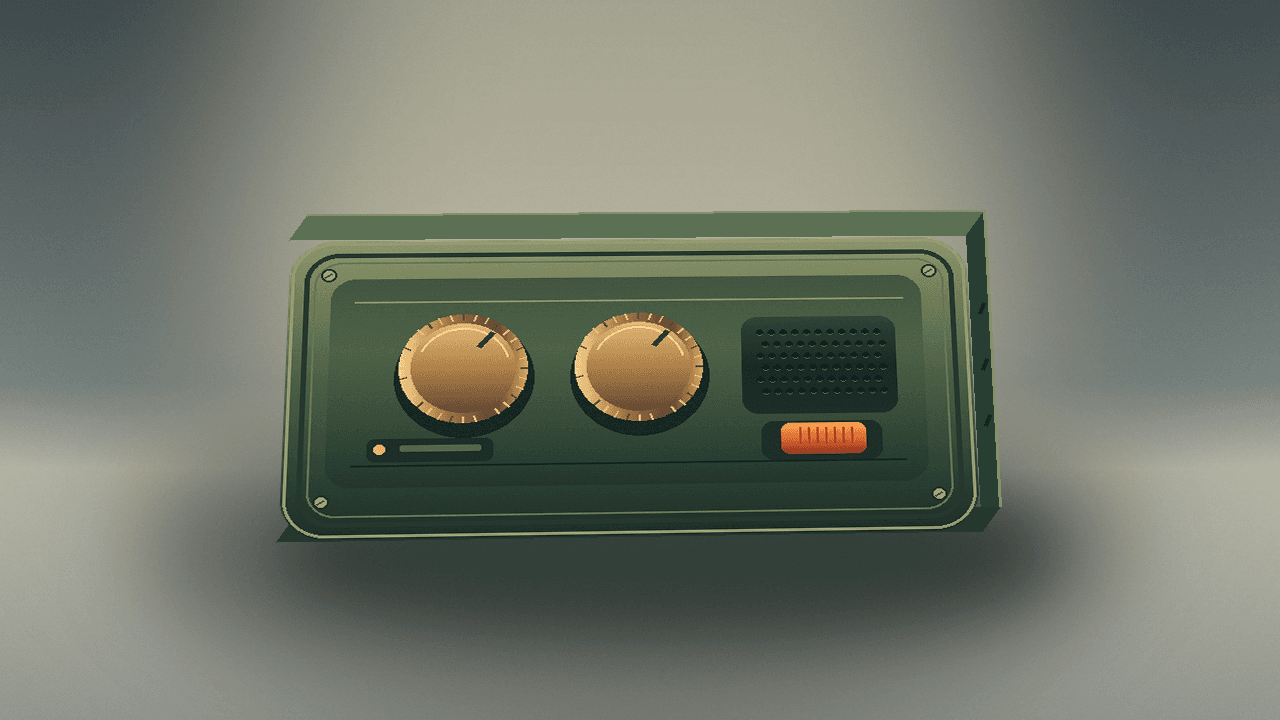
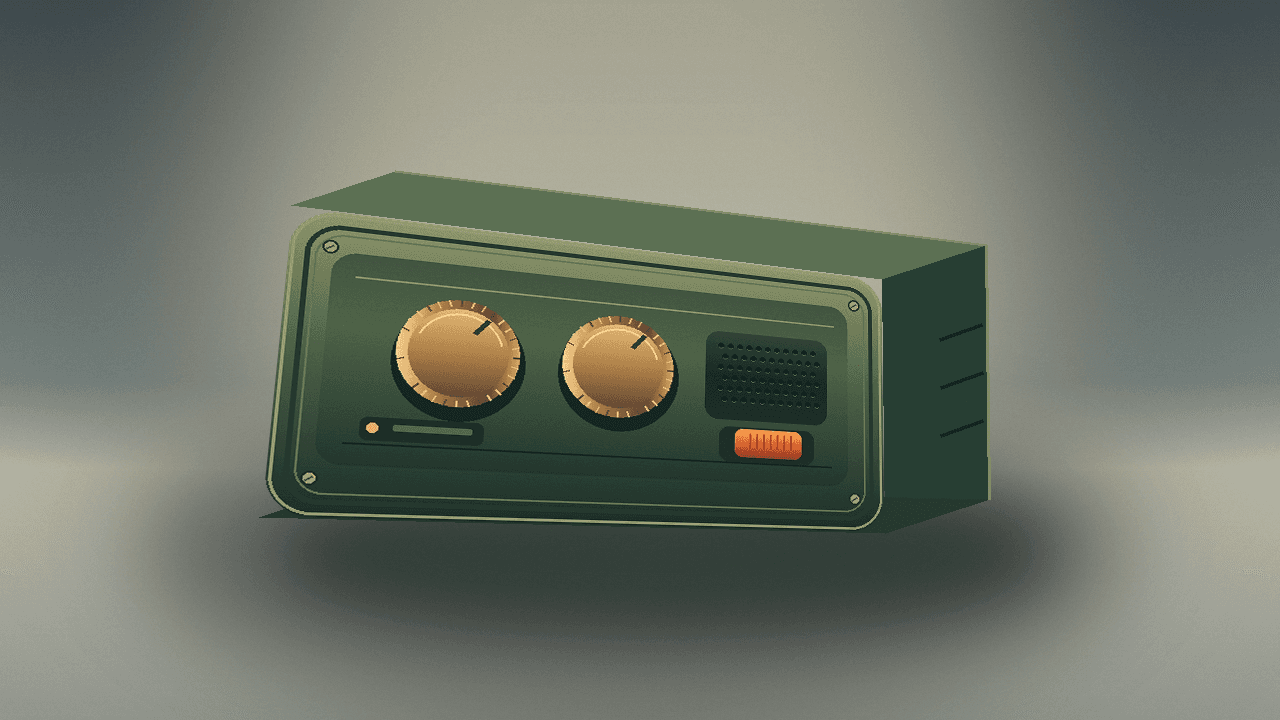
Field Recorder Product RevealGemini Omni 1.2 Flash · Recorded on ZMS · Mixed references · 360p · 3 seconds · Auto aspect ratio
Prompt, settings & inputs
Prompt used

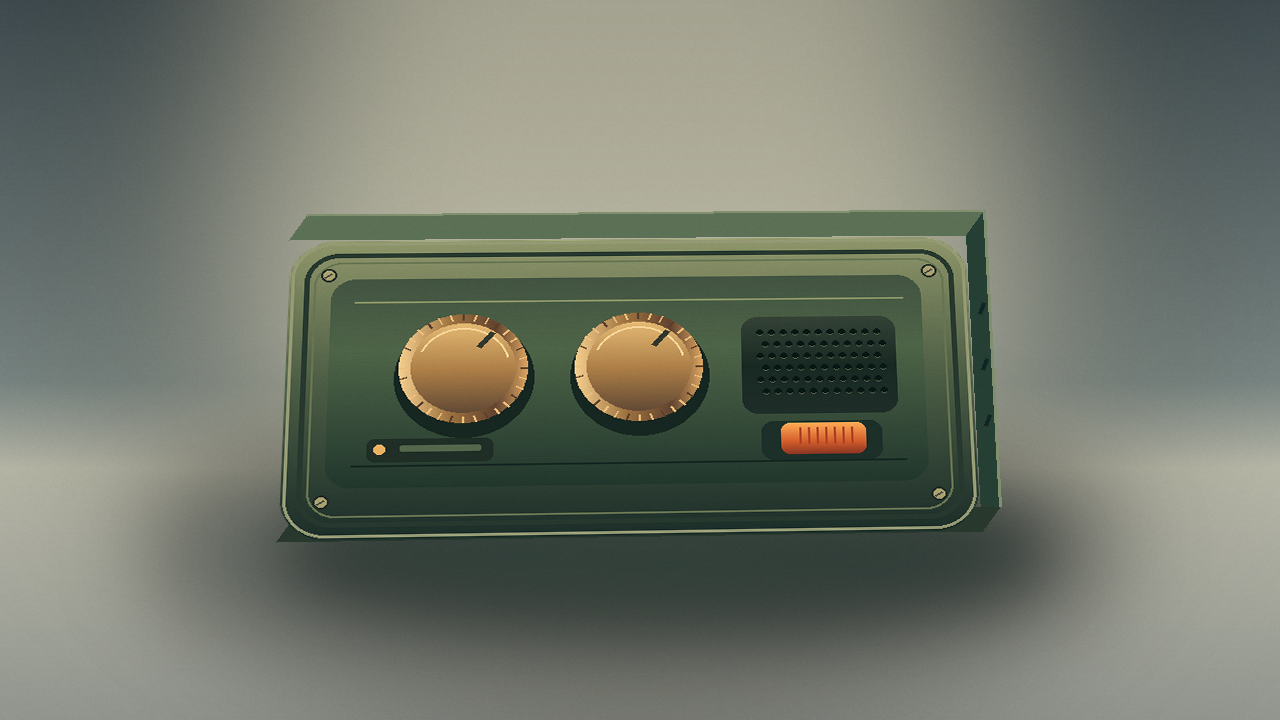
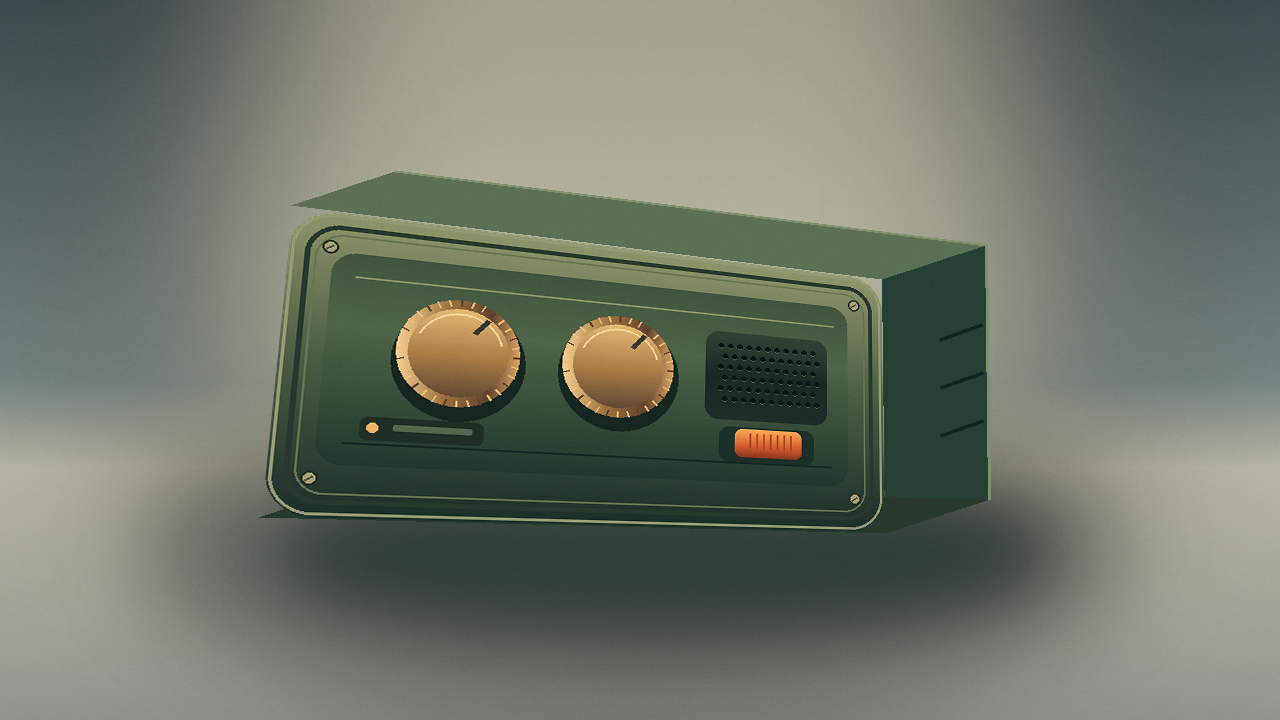
Use the front and angled images for the recorder’s design and the short clip for the pace of the camera move. Keep the two brass dials, orange switch, olive body, and grille consistent. Move gently closer and to the right over a pale concrete surface.

Settings & inputs
Version
1.2
Input mode
Mixed references
Requested duration
3 seconds
Resolution
360p
Aspect ratio
Auto

Watch for: Compare the recorder’s two brass dials and orange switch with the image references, then compare the movement with the source video.

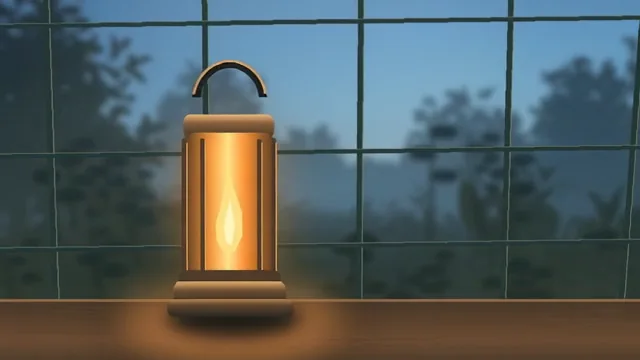
Greenhouse Lantern at DawnGemini Omni 1.2 Flash · Recorded on ZMS · Video extension · 360p · 3 seconds added
Prompt used
Prompt used

Continue the supplied greenhouse shot with a steady rightward drift and a subtle push forward. Keep the same amber lantern, table, and window geometry. Let faint blue dawn light build gradually in the distant glass. Maintain continuity with the final source frame.

Watch for: At the three-second mark, compare the lantern, table, and window lines as the camera continues to drift right.

Video Modes and Inputs

Choose a starting point for your scene. The input and duration limits depend on whether you are creating, editing, or extending a clip. Browse the AI Video Generator to explore other workflows.

Starting pointWhat to specify
Text promptPlan a 3–15-second clip. Describe the subject, action, setting, and camera movement, then give the scene one clear endpoint.
Starting imageOne image sets the opening composition for a 3–15-second clip. Describe what moves and what stays in place.
First and last framesTwo images set the start and end of a 3–10-second clip. Choose frames with enough in common for the transition you want.
Visual referencesUse up to 10 images and 3 videos to guide a 3–10-second clip. An image can define a product’s appearance, while a video can show the motion you want.
Video editingPlan an edit around 3 to 15 seconds of source footage. Use up to 10 reference images to guide the change, then describe what to preserve.
Video extensionPlan to add 3–10 seconds to the end of a source clip. Describe what should happen next in the shot.

Aspect Ratio, Resolution, and Sound

Framing options depend on the input. Choose a resolution for the intended use and check fine details and motion at that size.

Aspect ratio

Text-to-video uses 16:9 or 9:16. Image and reference modes can use either ratio or follow the input’s framing. Editing and extension have no separate aspect-ratio setting.

Resolution

The resolution options are 360p, 720p, 1080p, and 4K. Google’s model uses upscaling for 1080p and 4K.

Sound

Google documents synchronized sound for Gemini Omni 1.2 Flash. For a finished clip with sound, check whether each sound enters at the right moment.

Credits by Resolution

Choose a resolution, then multiply its rate by the applicable duration. New clips use the requested output length. Video edits round the source duration up to the next whole second when needed. Extensions use the seconds added.

ResolutionCredits per second
360p6
720p20
1080p32
4K70

Gemini Omni 1.2 Flash FAQ

What changed from Gemini Omni 1.1 Flash?

Google extended ordinary clip generation from up to 10 seconds in 1.1 to up to 15 seconds in Gemini Omni 1.2 Flash. The earlier Gemini Omni Flash workspace explains the 1.1 workflow and its controls.

Do I need an image to start?

You can describe a new scene entirely in text. Use an image when the opening composition or the look of a specific subject needs to guide the shot.

When should I supply a last frame?

Supply a last frame when the final composition matters, such as a product that must end centered for a cut to the next clip. Keep the opening and ending images compatible with the movement you describe.

What is a reference video useful for?

A short reference clip can show how a subject moves or how the camera travels. In Google’s API it guides visual details for a new generation. Audio in that reference clip is ignored.

Can I upload an audio reference to the Gemini API?

Google’s Gemini API currently accepts text, images, and video as inputs and can return video with its own audio track. It does not accept a separate audio input.

Is 4K a native output resolution?

Google lists 4K as an upscaled output for Gemini Omni 1.2 Flash. Check framing and timing in a smaller draft before choosing a higher-resolution export.

How do I ask for one continuous shot?

Describe one camera move from the start to the final framing. Ask for a continuous take and give the action an endpoint, such as a close view of the object on a table.

How should I describe an edit to an existing clip?

Name the change, then identify what should stay. To change the setting, for example, describe the new background and ask to retain the subject, framing, and movement.

How do I check the cost of a clip on ZMS AI?

Set up the task and read the estimate before selecting Generate. Check the new estimate if you change your settings or inputs.

Can I reuse a video example?

Use this example loads the prompt, settings, and inputs for the text, frame, and mixed-reference examples. For the greenhouse extension, copy the prompt and open the source clip to prepare your own task.