Create a short video from a text prompt, a starting image, or up to seven image references. Direct the motion, then check how the finished clip looks and sounds.
Loading generator…
What Is Grok Imagine Video 1.5?
Grok Imagine Video 1.5 turns a written scene, a starting image, or a set of image references into a short clip with generated sound. ZMS AI brings video and image tools into one workspace, so you can plan a shot and prepare the still image it needs.
Think about what your clip needs to show in motion. A product teaser might reveal a label as the camera moves closer. A background loop might need only a slight shift in light. When planning a cover or thumbnail, choose a frame where the subject reads clearly even at a small size.
Grok Imagine Video 1.5 Examples
Compare a clip made from text, two clips animated from stills, and a scene guided by seven images. Open any example to see its prompt, settings, and source images.
Loading an example replaces your prompt, settings, and inputs. Review the estimate before generating.
Citrus Soda PourGrok Imagine Video 1.5 · Recorded on ZMS · Text to video · 720p · 5 seconds · 9:16Prompt, settings & inputs
Prompt used
Vertical macro shot of a clear tumbler on a dark counter. A thin stream of orange soda lands on one large ice cube; bubbles climb and the stream stops. Keep the camera locked and the rim in frame. Warm window light, a brief fizz that follows the pour.
Settings & inputs
Version
1.5
Input mode
Text to video
Requested duration
5 seconds
Resolution
720p
Aspect ratio
9:16
Watch for: Watch the bubbles build around the ice cube as the glass fills and the pour stops.
Porcelain Lighthouse PullbackGrok Imagine Video 1.5 · Recorded on ZMS · Image to video · 720p · 5 seconds · 720 × 1280Prompt, settings & inputs
Prompt used
Start from the supplied close-up of the white porcelain lighthouse. Pull back smoothly to reveal more of its dark blue fabric setting. Keep the lighthouse upright, with one red stripe and the same porcelain texture throughout.
Watch for: Compare the opening still with the wider view. The lighthouse stays upright and keeps its single red stripe.
Tabletop Design DisplayGrok Imagine Video 1.5 · Recorded on ZMS · Reference to video · 720p · 4 seconds · 16:9 · 7 imagesPrompt, settings & inputs
Prompt used
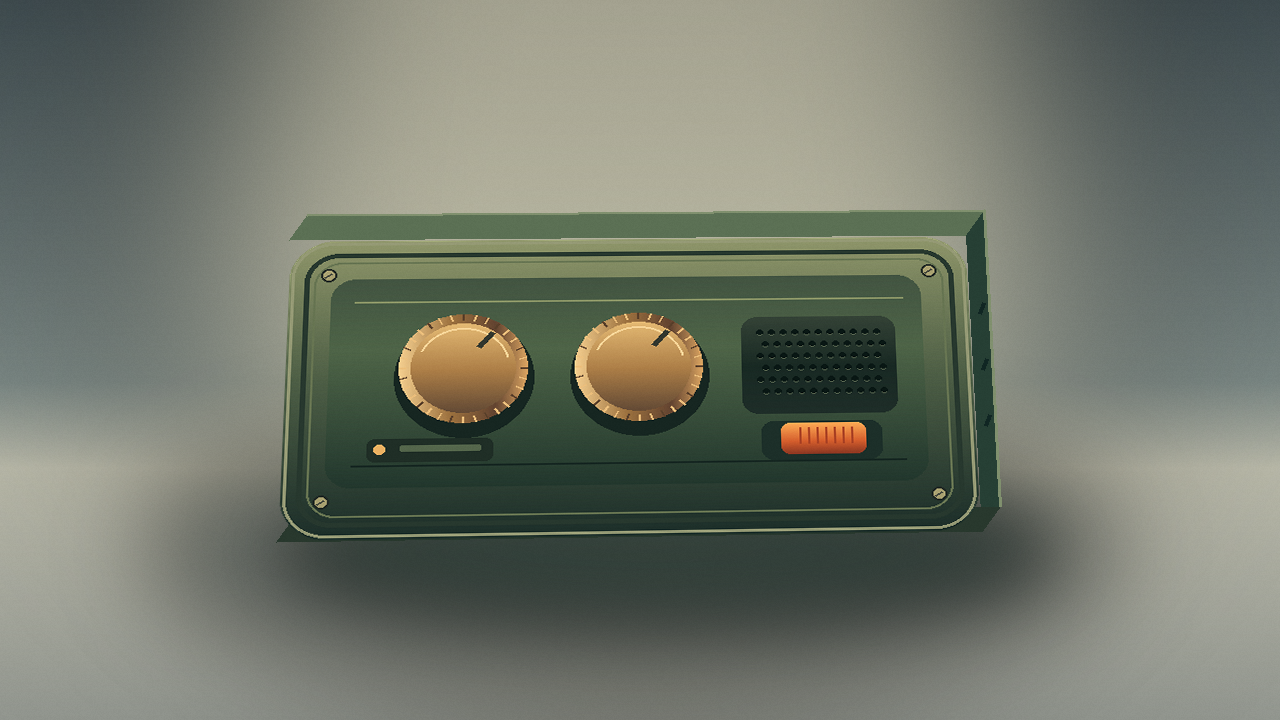
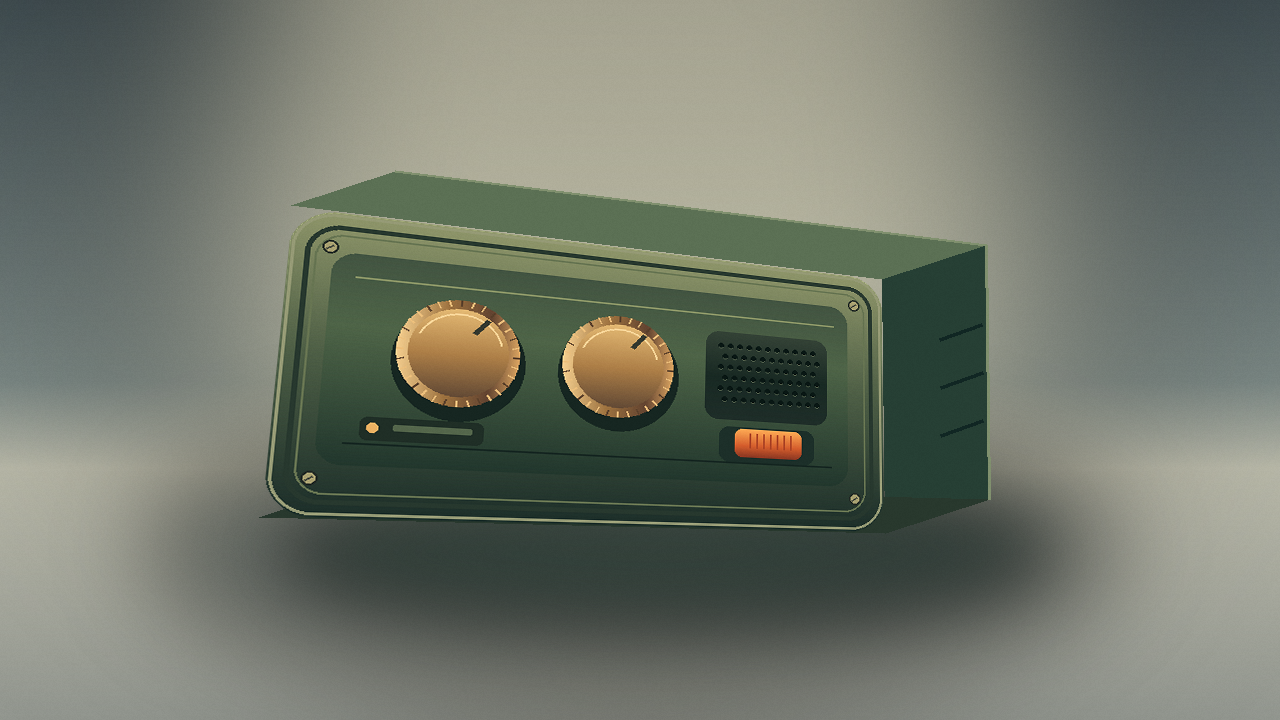
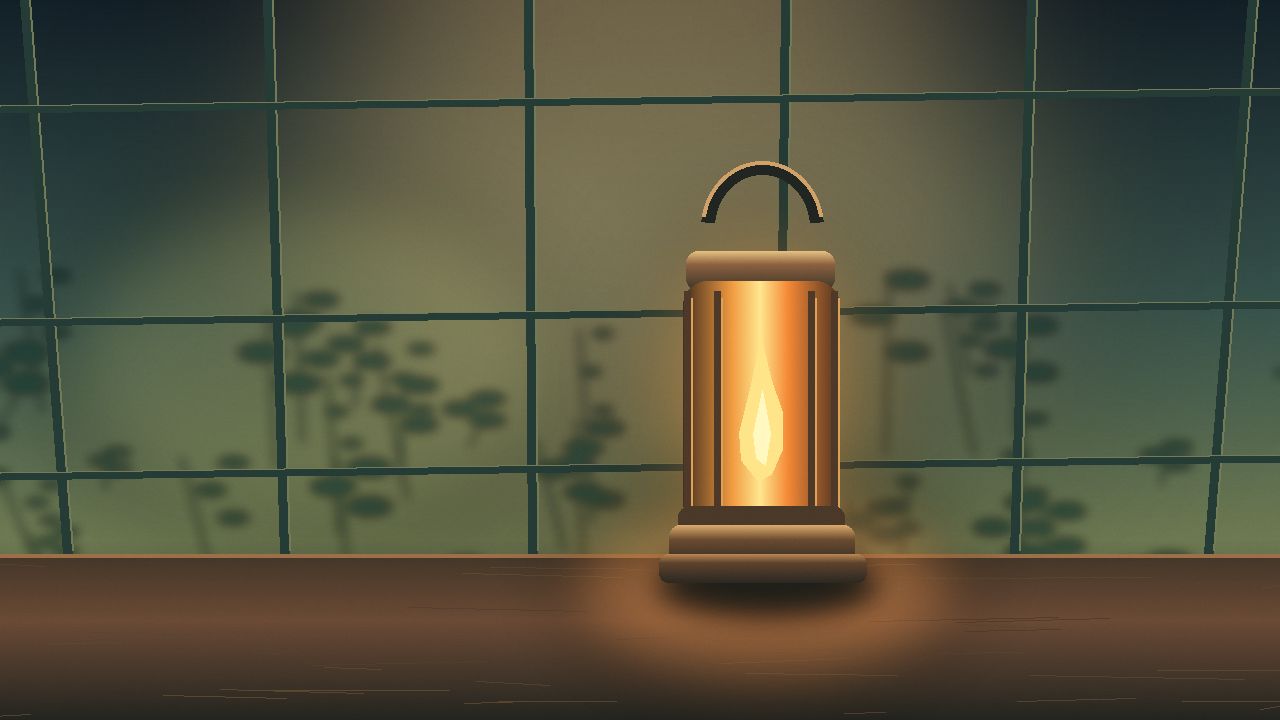
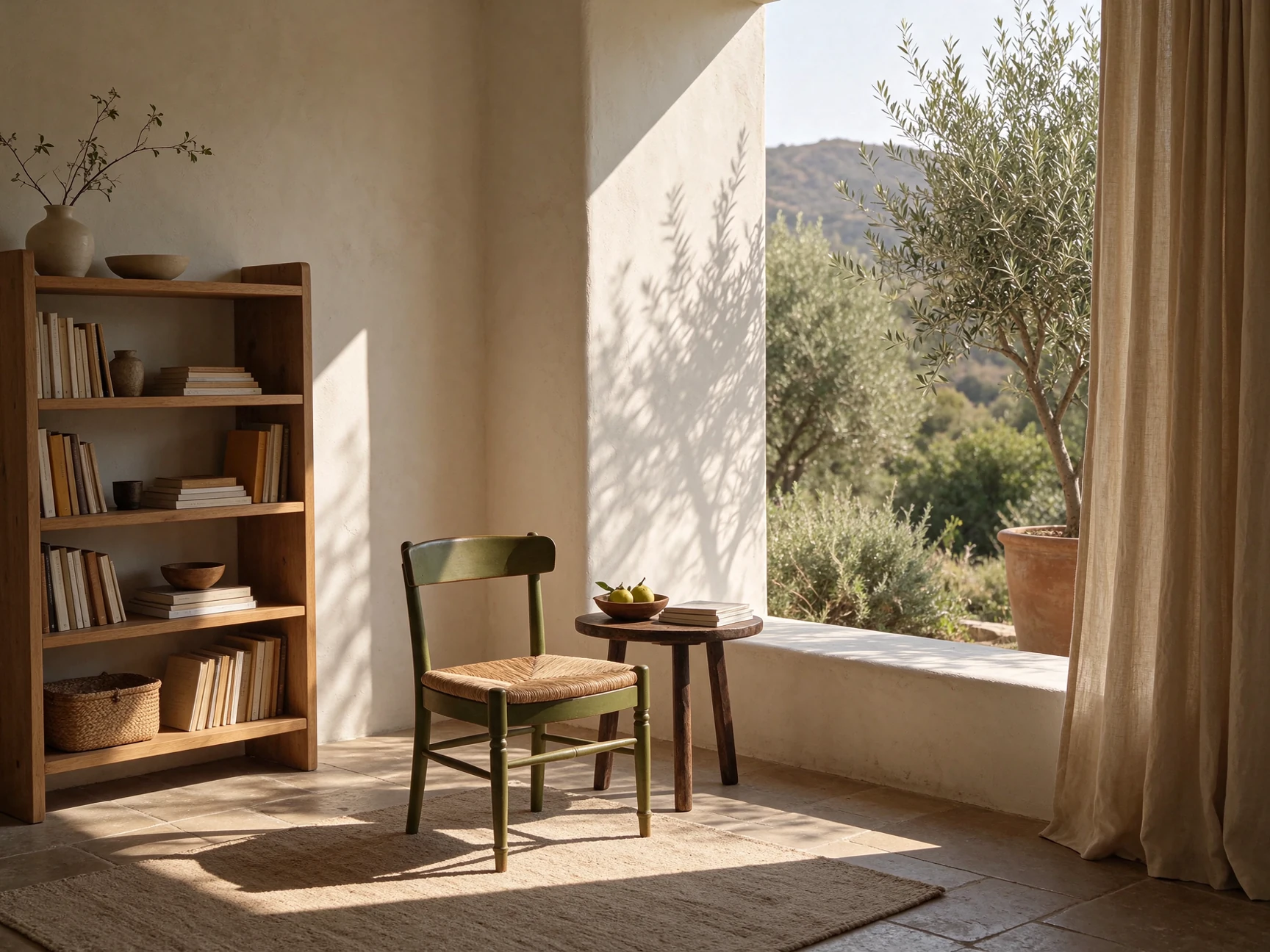
Show a tabletop design display in one slow lateral move. Preserve the olive recorder with two brass dials and orange switch from the first two views. Place the small white lighthouse and red paper boat to its right. Use the greenhouse and reading nook images for cool window light, a warm accent and pale oak. Keep the objects stable and readable.
Watch for: The lateral move reveals the lighthouse and red paper boat while the olive recorder moves toward the edge of the frame.
Greenhouse Lantern SlideGrok Imagine Video 1.5 · Recorded on ZMS · Image to video · 480p · 4 seconds · 752 × 416Prompt, settings & inputs
Prompt used
Start exactly from this warm greenhouse frame. Slide the camera slowly sideways past the brass lantern as a warm reflection moves over its glass. Keep the lantern body, plant silhouettes and window geometry stable.
Watch for: Follow the lantern and the window frames as the camera moves sideways through the warm scene.
Choose Your Starting Point
Each mode uses a prompt and a whole-number duration from 1 to 15 seconds. Text and reference modes support 16:9, 1:1, 9:16, 3:2, and 2:3. A clip that starts from a still follows that image’s framing.
Mode
What to provide
Output resolution
Text to video
Grok Imagine Video 1.5 creates the opening image from your prompt. Describe what the viewer sees first, what moves, and where the action ends.
480p, 720p, 1080p
Image to video
Provide one image as the first frame. Leave room in the composition for the action or camera move you describe.
480p, 720p
Reference to video
Provide one to seven images to guide the subject, setting, or visual style. Assign each reference a clear job in the prompt.
480p, 720p
Write a Motion Prompt
Describe one action and how the shot ends. Give the camera a separate instruction if it needs to move. A useful prompt for Grok Imagine Video 1.5 tells the model what changes over time, so verbs such as slides, tilts, and drifts carry more direction than a list of moods.
For a photo of a ceramic cup on a windowsill, try describing the motion this way.
“Keep the camera fixed on the cup. A thin curl of steam rises and drifts left. Rain taps softly against the window. Hold on the cup as the steam fades.”
The prompt leaves the cup, light, and framing to the image, then specifies the motion and the sound. When you start from text, add those visual details yourself. For a product demo, you can create a starting image that already shows the detail you want to reveal. For a background clip, choose an action that can stay subtle throughout the shot.
Review Your Clip
Watch your Grok Imagine Video 1.5 clip once for the action and again with the sound on. If the most important detail is a label, check that it stays readable through the move. If the clip depends on a bell ringing or a door closing, listen for where the sound lands. The closing frame should also work as the last thing a viewer sees before you cut away.
When a clip needs another pass, change one part of the brief so you can see what made the difference. A small camera move may keep the subject clearer. A simpler action may give the ending time to settle. If your project calls for a different video workflow, browse the AI video tools for more options.
Credits by Resolution
Multiply the rate by your requested duration. A single starting image carries no additional charge. Reference to video adds 4 credits per video, whether you use one reference or several.
Resolution
Credits per second
480p
25
720p
45
1080p · Text to video
80
A 5-second 720p clip costs 225 credits from text or a starting image, and 229 credits with image references. Check the estimate before generating. View ZMS AI credit packs
Frequently Asked Questions
Does this tool make videos or still images?
This tool produces short clips. Use Grok Imagine Image 2.0 for creating and editing still images.
Do I need a starting image?
You can generate from a text prompt alone. Upload a still if you already know how the shot should open, or add reference images to guide a subject or setting.
What is the difference between a first frame and a visual reference?
A first frame establishes the exact opening image. A visual reference guides details such as the subject or setting and gives the model room to choose a different opening composition.
What should I put in an image-to-video prompt?
Describe the motion, its pace, and what should be visible at the end. If the framing already works in the source image, ask for a fixed camera or a small move.
Can I make a vertical clip from a still image?
Use a vertically framed starting image for a vertical shot. The image-to-video mode follows the shape of that image.
Can the model generate sound?
The model can generate sound with the video. Mention a cue such as footsteps or rain in the prompt, then check whether it matches the action when you play the result.
How do I show a product detail in motion?
Start from a frame where the feature is already visible. Describe one slow camera move that ends on the detail, then check its shape, edges, and lettering throughout the clip.
What if the camera moves too much?
Try a fixed camera and describe only the subject's movement. Once that action reads clearly, add a small camera move and check the result again.
Can I reuse a video example?
Choose Use this example to load its prompt, settings, and inputs. Check the new estimate before selecting Generate.
How do I know if the clip will work on a phone?
Play it at the size where viewers will see it. Check that the subject is easy to identify and that any text you need can be read without pausing.