Gemini Omni Flash
Create short videos with Gemini Omni Flash. Start with text, guide a scene with images or short video references, or describe a change to an existing clip.
Loading generator…
What Is Gemini Omni Flash?
Gemini Omni Flash is Google's video model for creating short clips and editing existing footage. This workspace on ZMS AI uses Gemini Omni 1.1 Flash, with separate input paths for new scenes, starting frames, references, and video edits.
Begin with what you already have. A written idea can describe a new scene; a starting image establishes its opening composition. References guide appearance or motion, while an editing request changes an existing clip. Choosing the right path keeps the input's purpose clear before you write the details.
Gemini Omni Flash Inputs
Give each input a distinct job. A first frame fixes where the shot begins; a reference guides what it contains. You can prepare an image before planning a product reveal or a scene transition. Use material you have permission to upload.
| Starting point | Use it for | Input requirements |
|---|---|---|
| Text | Describe a new subject, setting, action, and camera direction without supplying media. | A written prompt is required. Keep one main action readable within the chosen duration. |
| First and last frames | Start from a supplied composition and optionally guide where the shot ends. | One first image is required; a last image is optional. A last image alone is not sufficient. |
| Image and video references | Assign appearance, setting, or motion to named references instead of asking every file to do the same job. | Up to 10 images and 3 videos, each video no longer than 3 seconds. At least one image or video is required; audio uploads are not supported. |
| An existing video | Describe a specific change to a clip while identifying the elements you want to retain. | One video no longer than 10 seconds. This is an editing input, separate from the short reference-video collection. |
Edit Videos with Gemini Omni Flash
Use Gemini Omni Flash editing when the shot already exists and the change is easier to describe than recreate. Upload one short clip, identify what should remain, and request one main adjustment. A lighting change is a useful starting point because you can compare the same subject and camera movement before and after.
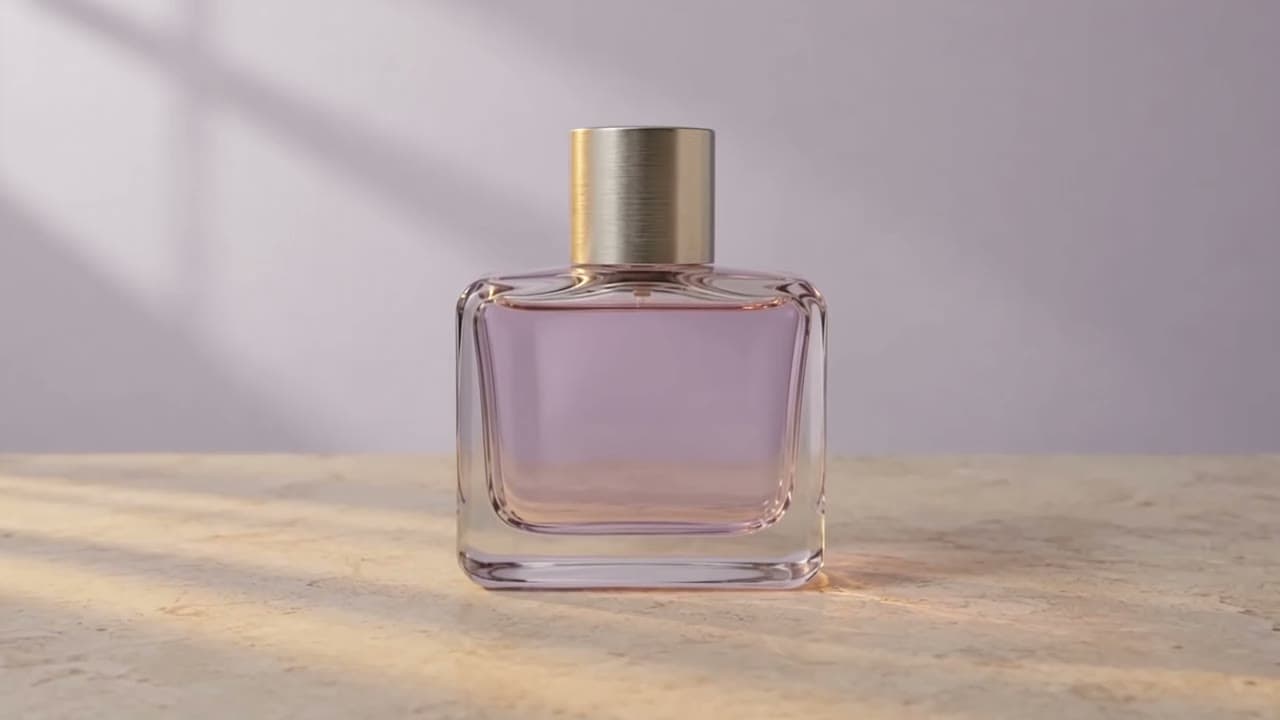
For our Gemini Omni Flash editing example, we supplied a 2.417-second perfume clip and requested warmer lighting while keeping the bottle and camera movement. The result is 2.517 seconds at 1280 × 720. Open its input video to compare the lighting, bottle edges, and framing; an edit can alter details outside the requested change.
The lighting-edit example below includes the source clip, exact instruction, and resulting video. Check the areas outside the requested edit as carefully as the changed area. Complex motion, fine details, and consistency can still vary. The current editing path accepts a resolution choice; it does not offer video extension, a new aspect ratio, or a target output-length control.
Model identity and editing limitations: Google model directory; Google model card
Maintained by ZMS AI. Page updated .
Gemini Omni Flash Video Settings
Choose settings for the task you are preparing. Gemini Omni Flash generation and editing use different duration controls. For another workflow, compare the video tools available on ZMS. Higher output resolution does not resolve conflicting instructions or guarantee more accurate details.
| Setting | New video generation | Video editing |
|---|---|---|
| Duration | Choose 3–10 seconds in whole-second steps. The default is 8 seconds. | Upload a clip no longer than 10 seconds. Its actual duration is read from the input, rather than chosen as an output length. |
| Aspect ratio | 16:9 for landscape or 9:16 for portrait. The default is 16:9, including when using images. | No separate aspect-ratio control is supplied for an edit. Prepare the input framing before uploading. |
| Resolution | 360p, 720p, 1080p, or 4K; 720p is the default. | The same four resolution options are available when preparing an edit. |
| Resolution meaning | Google describes 1080p and 4K as upscaled outputs, distinct from native 360p and 720p. | Upscaling is an output option, not a promise to reconstruct detail missing from the source clip. |
How to Use Gemini Omni Flash
Prepare a Gemini Omni Flash task in four steps. Choose a focused scene, review the required inputs, and check the displayed credit estimate before submitting. Our recorded examples cover four input paths at 720p.
Choose your input path
Select text, first/last frames, references, or video editing. Add the required files for that path and check that each one has a clear purpose. Shorten reference videos before uploading when necessary.
Describe one clear outcome
For a new clip, name the subject, action, setting, and camera move. For an edit, separate what should stay from what should change. Avoid packing several scene changes into a few seconds.
Review the output and price
Choose the available settings for your mode. Review the credit estimate before submitting. All four modes use the same resolution-based rate. Editing uses the uploaded clip's duration, so do not treat it as a way to request a longer video.
Generate and inspect the result
Submit the prepared task and follow its status in the task center. Inspect motion, framing, and sound in the result. Compare it with your input, then change one instruction for the next take.
Gemini Omni Flash Video Examples
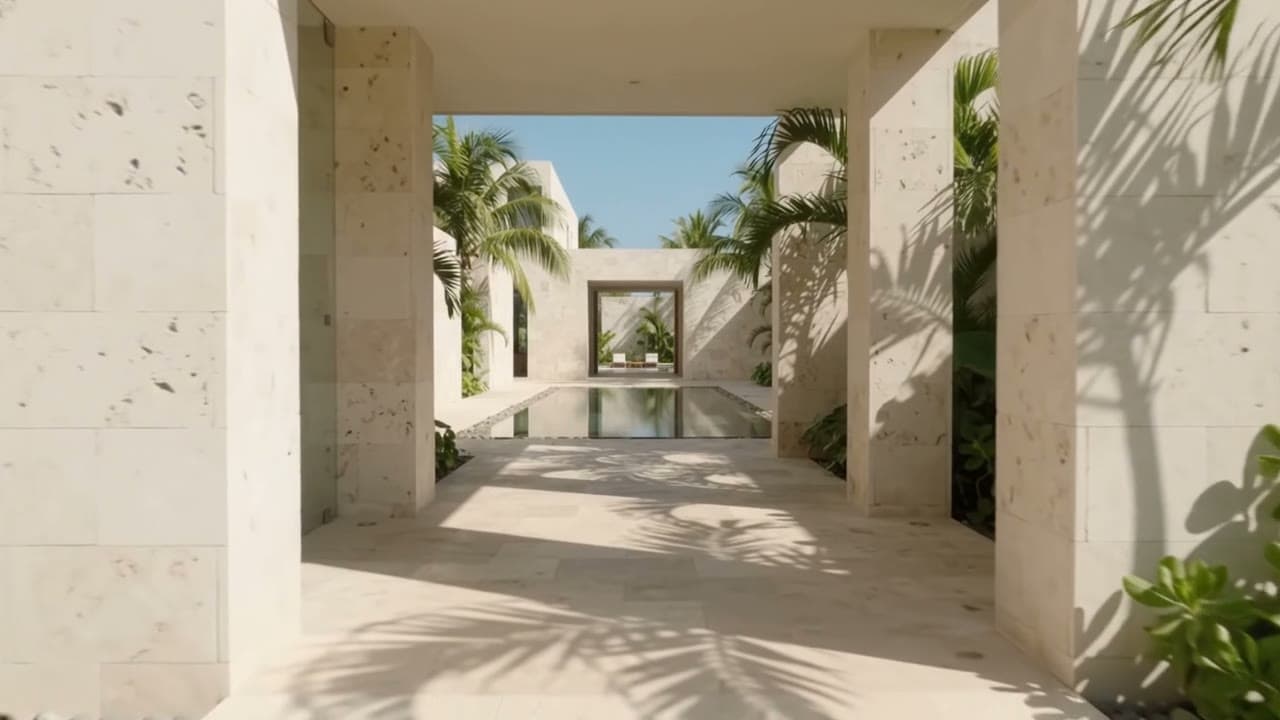
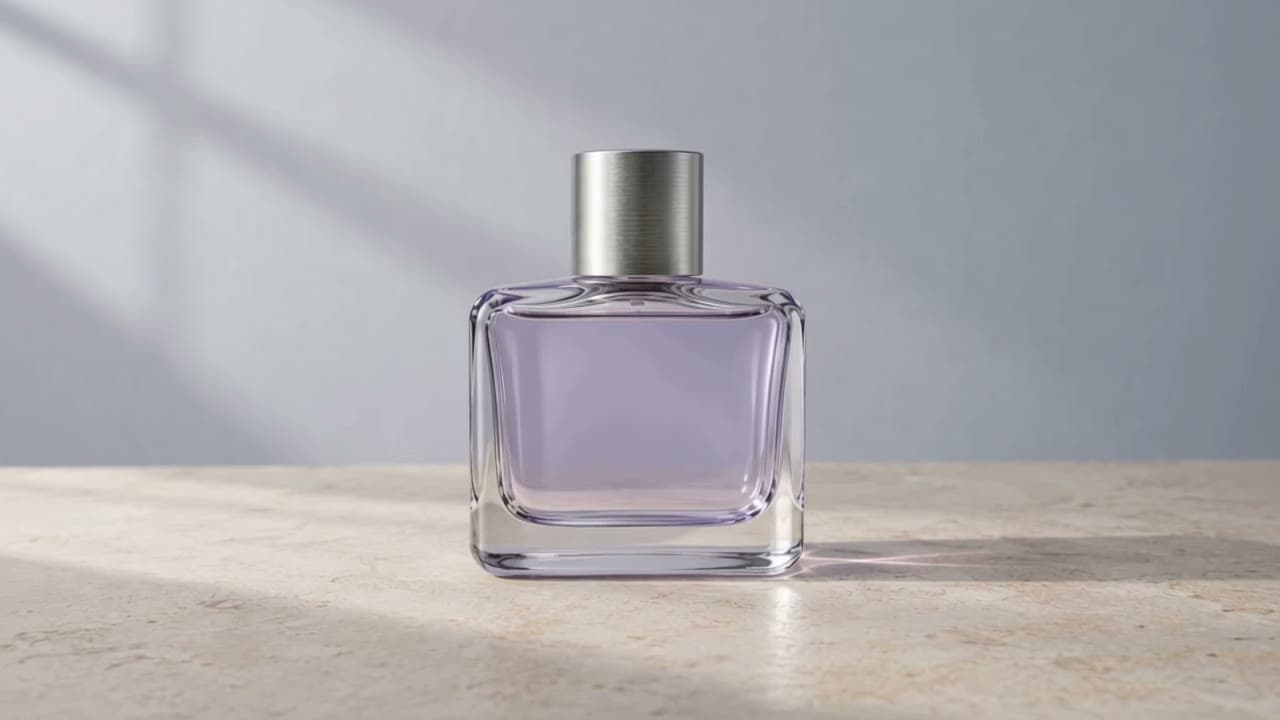
Four real Gemini Omni Flash outputs from our 720p tests: a hotel scene, a starting-image product shot, a mixed-reference shot, and a lighting edit. Open each example for the actual prompt, settings, and inputs. Choose Use this example to prepare your workspace without spending credits. Compare the edit with its source video before reusing the instructions; a new result may differ.
Prompt, settings & inputs
- Version
- 1.1
- Input mode
- Text to video
- Requested duration
- 5 seconds
- Resolution
- 720p
- Aspect ratio
- 16:9
One continuous five-second shot moves slowly through the open entrance of a small tropical hotel into a quiet courtyard. Warm limestone walls, soft palm shadows, and a shallow reflecting pool. Keep the camera at eye level with a steady forward glide. A light breeze moves the leaves; distant water provides gentle ambient sound. No people, scene cuts, logos, or on-screen text.
Replaces your current prompt, settings, and inputs. Review the estimate before generating; a new result may differ.

Prompt, settings & inputs
- Version
- 1.1
- Input mode
- First / last frame
- Requested duration
- 5 seconds
- Resolution
- 720p
- Aspect ratio
- 16:9
Start from the supplied lavender perfume bottle on the pale stone table. Make one continuous five-second product shot with a slow camera push-in. Keep the bottle upright, the silver cap and lavender glass unchanged, and the whole bottle inside the frame. Let a soft window reflection drift gently across the glass. Quiet studio ambience, no music or speech. Do not add lettering, branding, hands, extra objects, or cuts.


Replaces your current prompt, settings, and inputs. Review the estimate before generating; a new result may differ.
Prompt, settings & inputs
- Version
- 1.1
- Input mode
- Mixed references
- Requested duration
- 5 seconds
- Resolution
- 720p
- Aspect ratio
- 16:9
Use the reference image for the lavender glass perfume bottle and silver cap. Use the short reference video only to guide the slow, restrained camera movement. Create one continuous five-second product shot on a pale stone tabletop with a soft blue-gray background. Keep one upright bottle fully visible, retain its silhouette and materials, and use a subtle sideward camera glide. Soft window light and quiet studio ambience. No text, logos, hands, extra products, scene cuts, or exaggerated motion.
Replaces your current prompt, settings, and inputs. Review the estimate before generating; a new result may differ.
Prompt, settings & inputs
- Version
- 1.1
- Input mode
- Edit video
- Resolution
- 720p
Keep the perfume bottle, silver cap, its position, and the original camera movement. Change the cool neutral studio lighting to warm late-afternoon light, with a subtle golden reflection on the glass and softer warm shadows on the tabletop. Preserve the bottle shape and the background composition. Do not add text, branding, objects, cuts, or extra camera movement.
Replaces your current prompt, settings, and inputs. Review the estimate before generating; a new result may differ.
Gemini Omni Flash FAQ
What is Gemini Omni Flash?
Gemini Omni Flash is Google's model for generating and editing short videos. This workspace targets the Gemini Omni 1.1 Flash version, with separate paths for text, starting images, references, and an existing clip.
Can I generate a video on ZMS now?
Yes. Gemini Omni Flash has completed text, image, mixed-reference and video-editing tasks in this workspace. The examples show actual 720p outputs and their inputs. Load a template, review its settings and credit estimate, then submit your own task; loading an example alone does not spend credits.
Do I need a first frame and a last frame?
Image mode requires a first frame and accepts an optional last frame. A last frame alone is not enough. Choose text mode if you want to describe a scene without uploading an image.
How many references can Gemini Omni Flash use?
The reference path accepts up to 10 images and 3 videos, each video no longer than 3 seconds. Supply at least one image or video, and tell the model which appearance, setting, or movement each should guide.
Can Gemini Omni Flash edit an existing video?
The editing path accepts one clip no longer than 10 seconds, an instruction, and a resolution choice. It does not provide a video-extension option or independent audio editing. Review unintended changes outside the requested edit.
Does Gemini Omni Flash support audio references?
Audio uploads are not supported in this workspace. Google describes sound generation alongside video, but the resulting soundtrack still needs to be checked in an actual output. There is no separate audio-reference or audio-editing control here.
Does Gemini Omni Flash produce native 4K video?
Google labels 1080p and 4K as upscaled outputs, rather than native generation resolutions. Choosing either option does not guarantee sharper source detail or more accurate objects, text, or motion.
How long can a Gemini Omni Flash video be?
New text, image, and reference generations can be set to 3–10 seconds. For editing, upload a clip no longer than 10 seconds; the input's detected duration is used rather than a new requested output length.
How much does Gemini Omni Flash cost on ZMS?
Gemini Omni Flash costs 10 credits per second at 360p, 30 at 720p, 45 at 1080p, and 90 at 4K across all four modes. A five-second 720p task is 150 credits. Editing uses source duration with a three-second minimum; rounding above three seconds is being confirmed. Review the displayed estimate before submitting.
Can I use my uploads and videos in client work?
Use inputs you own or have permission to upload, and review the applicable model terms along with the ZMS terms. Check your finished clip before delivery; generated output does not itself establish copyright ownership or permission.