AI Video Generator

Prepare text-to-video and image-to-video tasks, browse traceable shot inspirations, and choose a video model family in one focused workspace.

Default model
Seedance 2.0
Families
Seedance · Veo · Wan
Output
Video

Loading generator…

AI Video Generator inspirations you can run

These eight clips were generated through ZMS AI with Seedance 1.5 Pro from the prompt printed on each card. Filter by Character, Product, Atmosphere, or Scene, then send the complete text prompt into the AI Video Generator above and review its settings before generating.

Seedance 1.5 Protext-to-video5.042 sGenerated through the ZMS AI Seedance 1.5 Pro text-to-video route.

Barista placing cup

A barista in a white apron reaches across a marble counter to place a ceramic cup, steam rising briefly. Slow side-tracking medium shot at counter height. Warm cafe interior, soft window light, shallow depth of field, no camera shake.
Seedance 1.5 Protext-to-video5.042 sGenerated through the ZMS AI Seedance 1.5 Pro text-to-video route.

Riverside jogger slowing

A jogger in a bright yellow windbreaker slows to a walk on a wet riverside path, breath visible in cold air. Handheld follow from behind at shoulder height. Overcast teal sky, bare winter trees, steady motion.

Seedance 1.5 Protext-to-video5.042 sGenerated through the ZMS AI Seedance 1.5 Pro text-to-video route.

Perfume bottle rotation

A dark glass perfume bottle on black acrylic slowly rotates one quarter turn as soft key light sweeps across the label-free surface. Locked macro shot, crisp reflections, minimal composition, no text, no camera shake.

Seedance 1.5 Protext-to-video5.042 sGenerated through the ZMS AI Seedance 1.5 Pro text-to-video route.

Wool sweater breeze

Folded navy wool sweater on a light oak surface, gentle off-camera breeze lifts one corner of the fabric. Slow push-in from above. Soft north-light studio, visible weave texture, calm product motion, no camera shake.

Seedance 1.5 Protext-to-video5.042 sGenerated through the ZMS AI Seedance 1.5 Pro text-to-video route.

Cliff light shifting

Clouds race over a wind-tormented coastal cliff as sunlight breaks through in moving patches across the grass. Locked wide shot, dramatic shifting light, turquoise sea below, no camera shake.

Seedance 1.5 Protext-to-video5.042 sGenerated through the ZMS AI Seedance 1.5 Pro text-to-video route.

Storm over skyline

City skyline at dusk as towers begin to glow while a violet storm front rolls in from the left. Slow pan right across rooftops, light rain streaking the lens. Cool blue-purple palette, no camera shake.

Seedance 1.5 Protext-to-video5.042 sGenerated through the ZMS AI Seedance 1.5 Pro text-to-video route.

Museum gallery glide

Camera glides slowly down a museum gallery with white walls and large abstract paintings, polished concrete floor reflecting soft track lights. One visitor walks away in the distance. Quiet atmosphere, no camera shake.

Seedance 1.5 Protext-to-video5.042 sGenerated through the ZMS AI Seedance 1.5 Pro text-to-video route.

Sunflower field move

Forward move over a sunflower field at golden hour, rows converging toward a distant red barn. Warm amber light, long shadows, gentle wind rippling petals, steady motion, no camera shake.

What is the ZMS AI Video Generator?

The AI Video Generator is the shared video workspace on this site: one place to browse a runnable shot, decide whether Seedance, Veo, or Wan fits the assignment, and begin a task without turning a modality page into a version catalog. It opens with Seedance 2.0 selected by default. Use the Seedance model family page when the next decision is which Seedance version to run.

Start here while the family is still undecided. A written brief can define the subject, one readable action, camera behavior, environment, pace, and ending. An approved start frame can carry identity, product geometry, wardrobe, palette, or composition. Some family workspaces expose additional frame or reference structures, but those controls belong to their family and version pages rather than this cross-family overview.

The registered workspace and adapters do not prove a complete production path. A signed-in task acceptance, live credit debit, polling cycle, returned clip, and download still require end-to-end verification. Treat the first account run as an operational path test, retain the prompt and settings, and judge a returned video from the complete clip rather than its poster frame.

Plan videos around a real shot

Give each test one production job. A focused AI Video Generator clip is easier to approve when the intended placement fixes the frame, one visible action, and the evidence a reviewer should inspect.

01

Prompt-led concept shots

Test one visual idea before expanding a campaign or sequence. Name a single subject, a readable action, one environment, and the camera intention so the first clip answers a concrete creative question.

02

Image-to-video motion

Begin from an approved still when appearance or composition already exists. Let the frame carry stable visual facts while the prompt assigns motion, timing, camera behavior, and the details that must not drift.

03

Format-specific beats

Plan a landscape hero, portrait social beat, or square campaign study around its real destination. Decide the frame before prompting so movement and negative space survive the final placement.

04

Controlled iteration

Keep source media, family, frame, and output settings stable while changing one important direction at a time. Comparable revisions reveal whether action, camera, timing, or continuity caused the difference.

Match the AI Video Generator to a model family

Choose a family from the input already approved for the shot. The table routes the AI Video Generator to Seedance, Veo, or Wan; version comparisons and exact control lists remain on each family page.

FamilyBest whenCurrent ZMS inputsCheck before Generate
SeedanceThe brief begins with text or a start frame and needs a direct short-form route with several connected version choices.Written direction and, on the matching family workspaces, start frames or additional frame and reference structures.Open the family page to choose the version, then confirm its visible input mode, frame, duration, resolution, and service status.
VeoThe assignment calls for a Veo-specific planning path, frame guidance, or sound-aware direction before a version is selected.Written shot direction and supported frame-led paths on the connected Veo workspaces.Compare versions inside the family and verify every required field is exposed on the selected route rather than inferred upstream.
WanThe shot may start from text or a frame, or the assignment requires a more structured reference plan available on a Wan route.Written direction, frames, or supported reference media according to the selected Wan workspace.Choose the family first, then verify the version-specific reference structure, frame, duration, resolution, and audio behavior.

Use the AI Video Generator in four reviewable steps

Move from a real placement to one controlled submission. Keep the shot job, source rights, and review criteria stable while the family and visible settings turn that direction into a testable task.

  1. 01

    Define the shot’s job

    Record where the clip will appear, its target frame and approximate duration, the one action viewers must read, and the approval standard before choosing a model family.

  2. 02

    Choose text or reference input

    Use text when interpretation is welcome. Add an authorized start frame when identity, product shape, wardrobe, palette, or composition needs stronger authority, and remove inputs without a distinct role.

  3. 03

    Match the input to a family

    Use the comparison table above to enter Seedance, Veo, or Wan, then make the version decision on that family page instead of importing a control from another route.

  4. 04

    Lock controls and review delivery

    Confirm visible settings, review current ZMS AI pricing, submit a signed-in test, and inspect continuity, geometry, camera motion, timing, returned media, credit behavior, and download before production use.

Give the AI Video Generator a compact shot brief

The gallery already provides complete prompts. Use this four-part anatomy to review one before sending it: begin with the visible state, describe one motion arc in order, give the camera a job, and protect the facts that must remain stable.

Subject and opening state

Name the main subject, its position, appearance, and starting condition. When a reference establishes those facts, state which traits must survive rather than describing every visible pixel again.

Action and timing

Describe what begins, what changes, and how the shot resolves within the intended duration. One temporal arc is more reviewable than several unrelated actions competing in the same clip.

Camera and composition

Assign a locked frame, pan, orbit, dolly, track, or handheld treatment only when it supports the shot. Keep framing, subject scale, and movement direction mutually compatible.

Environment and constraints

Add light, weather, ambient motion, material response, and the few exclusions that protect continuity. Keep the hierarchy clear so atmosphere supports the action instead of overwhelming it.

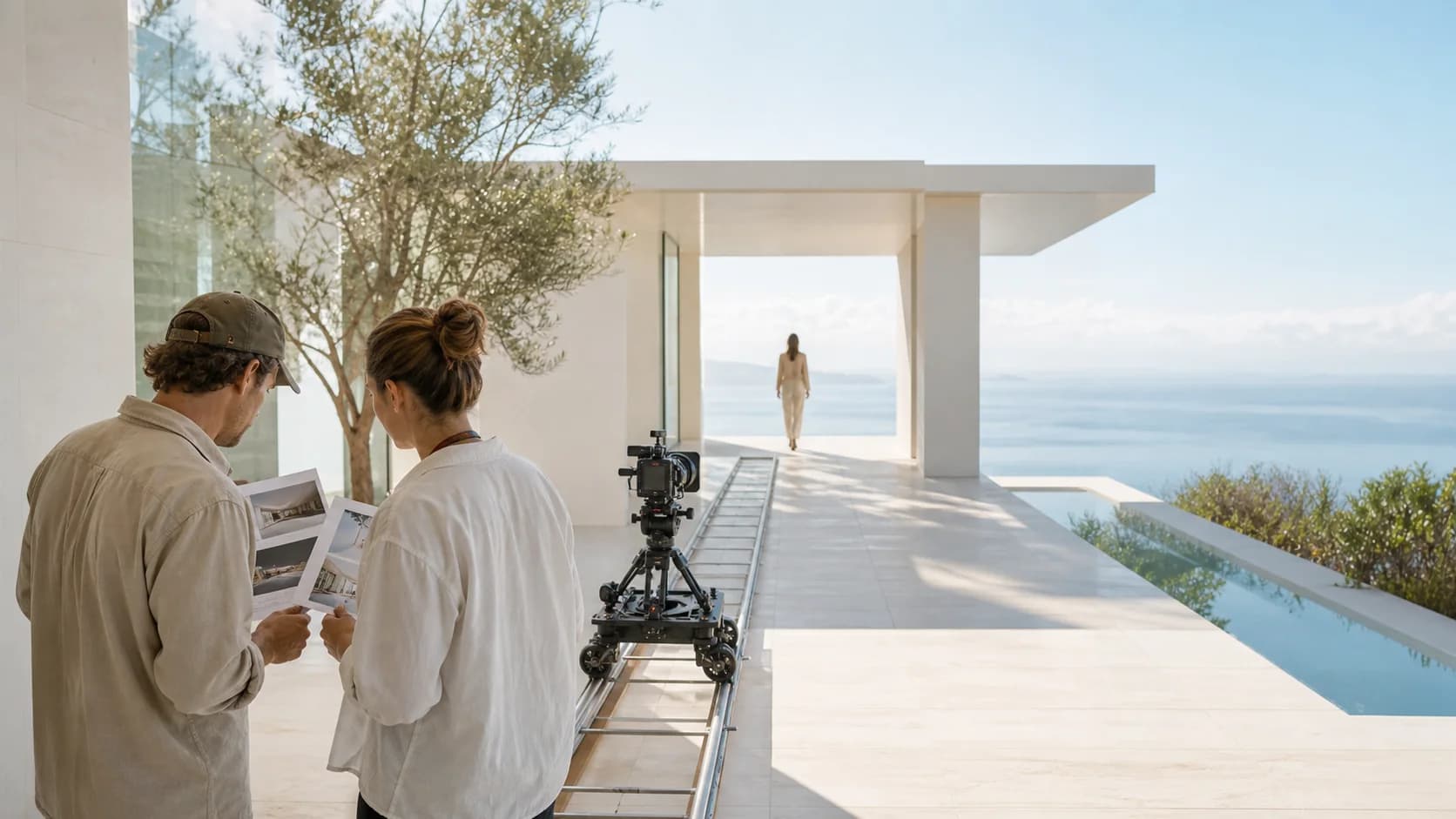
Bright editorial illustration of a coastal film set with a planned camera path

Plan motion before asking for polish

Map the opening state, camera direction, movement corridor, and ending before adding decorative treatment. A simple motion plan helps a reviewer separate a weak shot decision from a rendering flaw and keeps negative space usable through the move.

Original editorial artwork created for ZMS AI. It illustrates subject placement and camera-path planning; it is not an output from Seedance, Veo, Wan, or another listed model.

Choose a video family from the assignment

Begin with the source already approved. A text-only idea can enter any listed family. A fixed opening composition points toward a start-frame route. A brief that depends on an ending frame, several visual references, or reference motion should enter only a family whose connected version visibly accepts that structure. Prompt length cannot replace a missing input mode.

Then compare the delivery controls the assignment actually needs. Open Veo when its family-specific planning route fits the shot; use the family table for the other branches. Do not promise a frame, duration, resolution, audio behavior, or reference limit from a provider’s broader catalog unless the selected ZMS workspace exposes it.

Finally, separate interface readiness from operational proof. Record the chosen family, version, prompt, sources, settings, task ID, returned clip, and balance change. Require a signed-in path test plus human review of continuity, geometry, motion, factual claims, source rights, and brand fit before a clip is published or delivered.

AI Video Generator questions

Modality-level answers about starting inputs, family selection, current verification status, and the checks that belong between an AI Video Generator task and publication.

What is the ZMS AI Video Generator?

It is the shared video workspace on ZMS AI: a place to browse traceable prompts and clips, choose between the Seedance, Veo, and Wan families, and prepare a prompt-led or reference-led task. It opens with Seedance 2.0 selected. Exact version controls remain on the family and version pages.

Can I create a video from an image?

Yes, when the selected workspace exposes an image-to-video or frame-led mode. Use an authorized, clean source frame for the facts that should remain stable, then use the prompt for action, camera behavior, environmental motion, timing, and constraints. Confirm the visible upload and output controls before submitting.

Which video model family should I choose?

Start from the input and delivery requirement rather than the family name. Use the comparison table to enter Seedance, Veo, or Wan, then compare versions inside that family. A version page is the authority for the controls exposed by the current ZMS route; a capability on one route should not be assumed on another.

Is live AI video generation verified on ZMS AI?

Not end to end. The current project has registered drivers and task interfaces, and the inspiration clips have a generation ledger, but a complete signed-in production test still needs to verify task acceptance, live debit, polling, returned media, and download for the chosen route.

How should I review a generated clip before publishing?

Watch the opening, middle, and ending at full size. Inspect subject identity, hands, object shape, text, geometry, reflections, camera motion, action timing, continuity, sound where requested, factual claims, and unintended edits. Confirm source rights and require human, brand, and safety approval before publishing or delivery.