Text-to-image
Write a self-contained visual brief for a new image. Name the subject, setting, action, composition, light, materials, palette, and intended use. Put essential facts before atmosphere so the model has a clear hierarchy.
Prepare new images or reference-led edits with GPT Image 2 using ten aspect ratios, 1K or 2K resolution, and up to ten reference images.
Loading generator…
Model overview
The GPT Image 2 AI Image Generator in ZMS AI is a focused workspace for preparing a new image from text or an edit from text plus reference images. OpenAI describes GPT Image 2 as its state-of-the-art image generation model. This page separates that upstream model description from the narrower controls that the current ZMS interface actually exposes.
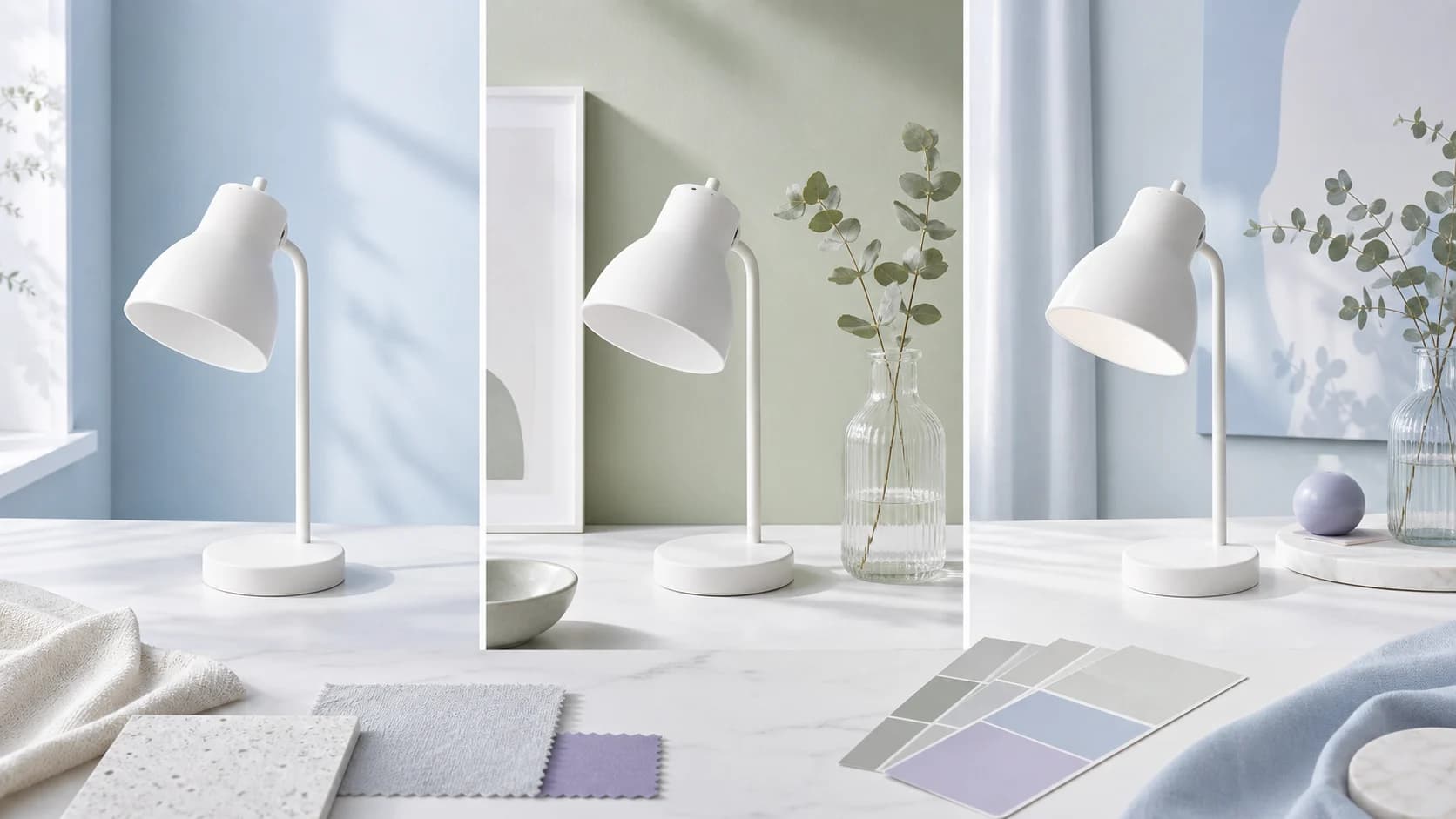
In ZMS, you can write a prompt, choose one of ten aspect ratios, select 1K or 2K resolution, and add up to ten reference images for an edit. The registered driver sends tasks through ZMS service routes. That implementation state does not prove a direct OpenAI API connection, successful account billing, a completed signed-in task, or a returned production-ready image.
Use this version page when those specific controls fit the brief. Visit the GPT Image model family to compare the available versions before committing a production workflow. Results still require visual, factual, rights, and brand review even when the first output looks polished.
Creation modes
The GPT Image 2 AI Image Generator uses the presence of a reference image to select its task path. Begin with the deliverable, then choose the minimum input set needed to make the result reviewable.
Write a self-contained visual brief for a new image. Name the subject, setting, action, composition, light, materials, palette, and intended use. Put essential facts before atmosphere so the model has a clear hierarchy.
Add one to ten images and describe what should change and what must remain stable. The edit route receives the prompt and uploaded image URLs, but reference fidelity is not an exposed setting in the current workspace.
Keep approved product geometry, subject traits, or layout constraints explicit while changing one main variable. Review unchanged regions because an edit may introduce differences outside the requested area.
Decide whether the image is for a square product tile, portrait story, landscape hero, or wide banner before generation. A planned aspect ratio reduces late cropping and protects the composition’s useful negative space.
Workspace boundaries
The GPT Image 2 AI Image Generator presents a deliberately limited control set. Confirm these boundaries before writing a brief that depends on transparency, a mask, a specific format, or a quality tier.
| Control | Current ZMS request | Planning note | Upstream gap |
|---|---|---|---|
| Ten aspect ratios | 1:1, 3:2, 2:3, 3:4, 4:3, 4:5, 5:4, 9:16, 16:9, or 21:9 | Choose for the final placement before generating | Each selection is sent as an aspect-ratio value for both generation and edit tasks |
| 1K or 2K resolution | 1K for exploration; 2K when the selected result needs more working detail | Resolution is a task setting, not a guarantee of correct typography or edges | OpenAI documents broader size options in its API surface |
| Medium quality is fixed | The adapter sends medium quality internally | Users cannot compare low, medium, and high from this page | No quality selector is exposed in the current ZMS interface |
| No advanced edit controls | No input-fidelity, output-format, transparency, compression, or mask controls | Do not build a delivery promise around an absent submitted parameter | OpenAI documents a broader upstream API surface than this workspace exposes |
Editorial workflow illustration
Separate subject identity, material, composition, and environmental direction. A smaller, well-labeled reference set is often easier to evaluate than ten images with overlapping or conflicting roles.
Original editorial artwork produced for ZMS AI. It explains a reference-editing method and is not GPT Image 2 output or evidence of a current live task.Practical workflow
Keep the brief and review criteria stable while changing one important input at a time. For broader production notes, browse the GPT Image guides.
Record the placement, audience, subject, message, required crop, protected details, and approval criteria. Decide whether you need a new composition or a targeted edit before uploading references.
Describe elements that can be checked in the result: subject position, camera angle, action, lighting direction, color relationship, material finish, background, and negative space. Avoid vague praise words without visual meaning.
Assign each upload a role in the prompt, such as identity, product form, palette, layout, or material. Remove duplicates and contradictions, then choose the ratio and resolution required by the final placement.
After a signed-in submission, confirm task creation, status polling, returned media, credit behavior, and download. Then inspect the image at full size before using it in a campaign, catalog, or client deliverable.
Prompt framework
Treat the GPT Image 2 AI Image Generator prompt as an art-direction brief that a second reviewer can audit. Decide what the image must communicate, how the subject occupies the frame, how light reveals material, and which reference traits cannot drift. The four decisions below stay visible beside one planning image, then resolve into a complete prompt and three concrete checks.
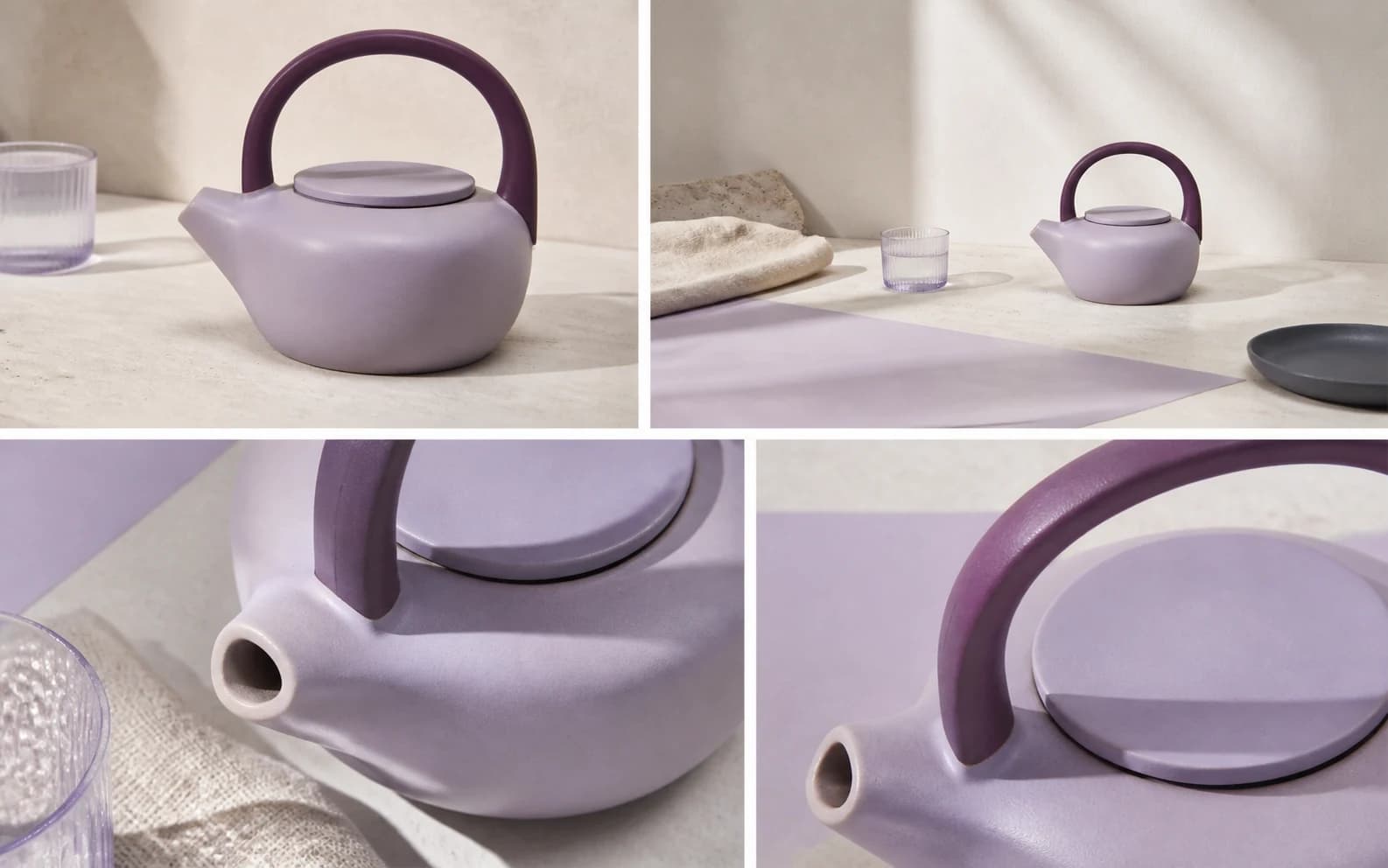
Name the intended placement, message, central object, and stable traits so every later choice supports one reviewable communication goal.
Specify crop, camera angle, subject scale, foreground, background, and any negative space reserved for copy before choosing decorative treatment.
Describe source direction, softness, contrast, palette, texture, reflections, and surface behavior in observable terms rather than relying on style adjectives.
List geometry, identity, text zones, brand colors, and scene facts that cannot drift, then add exclusions only for likely failure modes.
Complete example prompt
Create a premium editorial product photograph of an unbranded ceramic teapot. Keep the teapot’s pale lavender body, deeper plum arched handle, short asymmetric spout, low round lid, and compact grounded proportions consistent. Place it slightly left of center on a warm stone surface at a three-quarter eye-level angle with a natural 50 mm lens feel. Reserve broad, quiet negative space to the right for two lines of headline copy. Use soft side light from the upper left, a wide gentle shadow, restrained contrast, and a palette of stone, linen, clear glass, pale lilac, and deep plum. Add only a loosely folded neutral linen cloth, a simple clear glass, and one low dark dish as supporting objects; keep them secondary and softly focused. Preserve believable ceramic thickness, clean surface contact, matte glaze, coherent reflections, and the exact handle-to-lid relationship. Exclude labels, logos, lettering, hands, steam, duplicate parts, distorted geometry, glossy plastic texture, extra plants, or decorative clutter. Keep the final frame quiet, tactile, reviewable, and safely croppable to 16:9 without cutting the handle or spout.
Archived examples
These two images can support a visual review exercise, but they cannot verify current ZMS delivery. They are prior internal archived GPT Image 2 examples with no retained task ID, provider response, or separate license ledger.
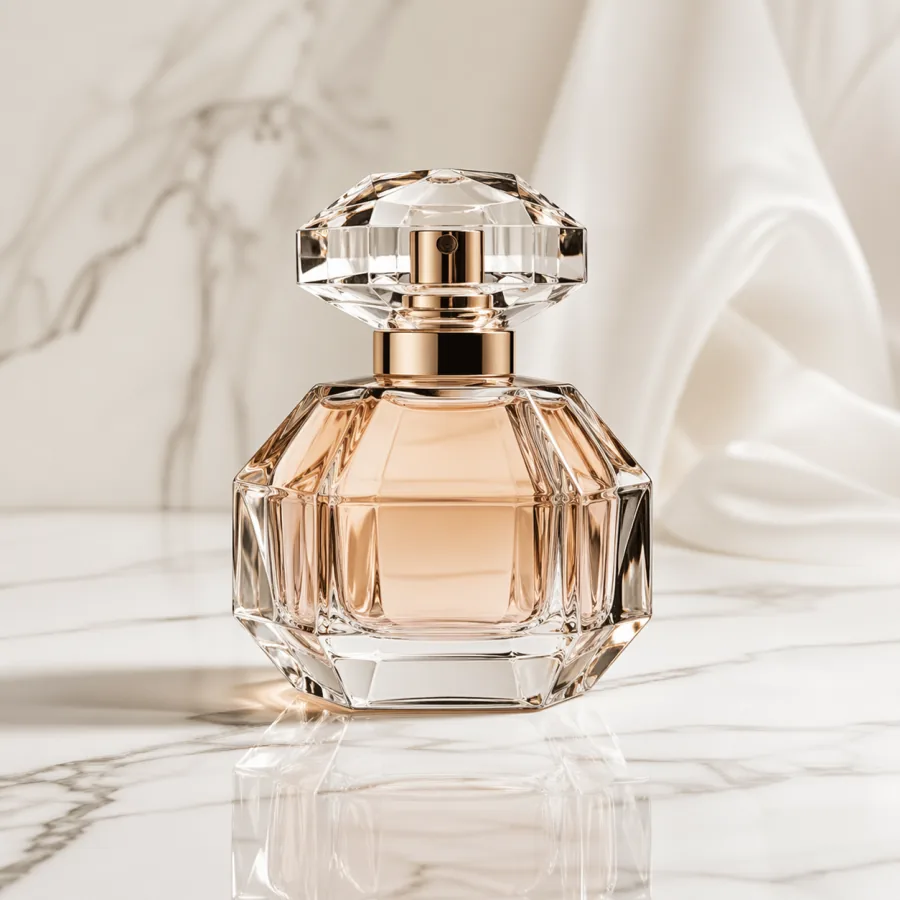
Original generation prompt not retained in archive. Review silhouette, cap alignment, glass edges, reflections, surface contact, background separation, and useful negative space.
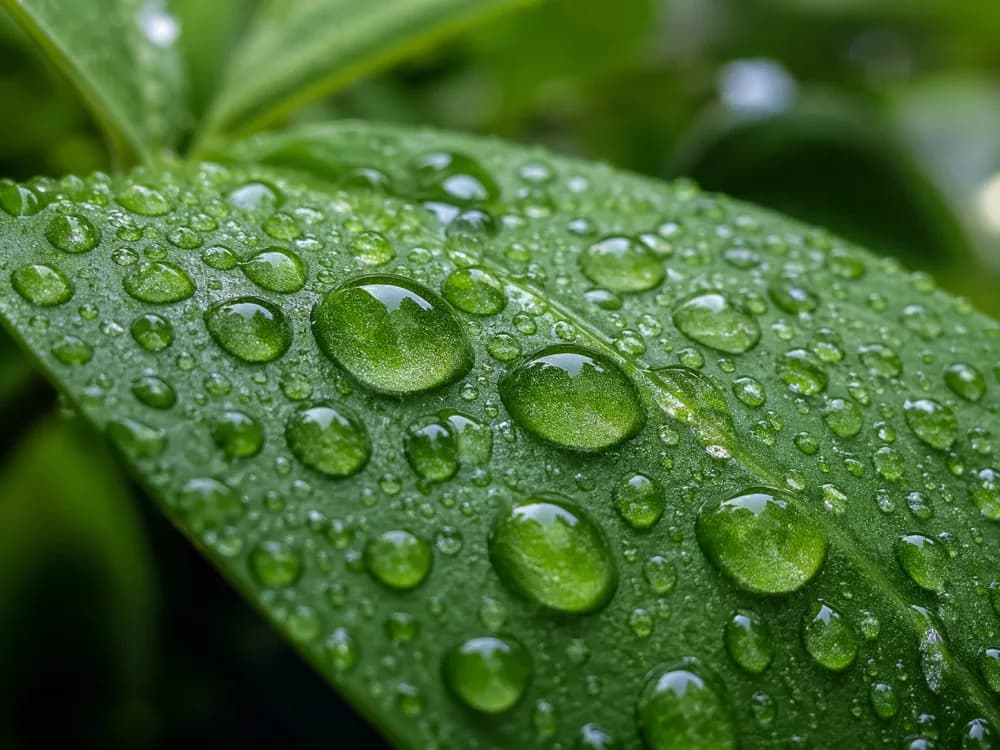
Original generation prompt not retained in archive. Inspect vein structure, edge continuity, depth falloff, highlights, color transitions, and repeated texture.
Production review
OpenAI’s upstream documentation is useful context, but it neither adds controls to this independent ZMS route nor proves live fulfilment. Use this ledger to separate documented model background, the settings configured here, and the human checks required before publication.
| Layer | Known now | Action |
|---|---|---|
| Upstream model | Official image documentation describes broader input, size, and output-format options; the GPT Image 2 model page says transparent backgrounds are unsupported. | Use the product still life above to inspect silhouette, cap alignment, glass edges, and reflections; documentation does not certify that archived result or expose those controls here. |
| ZMS route | ZMS configures 1K or 2K, up to ten references, fixed medium quality, and client credit estimates; live debit and returned media remain unverified. | Use the archived leaf study above to rehearse edge-continuity and texture review. Complete a signed-in end-to-end task, then check current pricing before batching. |
| Publication gate | Publication still requires inspection of faces, hands, text, symbols, object geometry, material transitions, factual claims, unintended edits, permissions, consent, and brand fit. | Apply both archived exercises above as review drills, then require human, rights, and brand approval before publication; use the AI image workspace if another control set fits. |
FAQ
Clear answers about the current ZMS inputs, output controls, configured credits, upstream API differences, service status, and archived examples.
It is a ZMS AI workspace for preparing GPT Image 2 text-to-image and reference-led editing tasks. The driver is registered through ZMS service routes, but a signed-in task and returned image have not yet been verified, so the page does not claim current live delivery.
The current ZMS workspace accepts one to ten reference images for an edit task. Give each reference a defined role and upload only material you are authorized to use. Reference count support does not guarantee that identity, text, layout, or product details will remain exact.
ZMS currently lists ten ratios: 1:1, 3:2, 2:3, 3:4, 4:3, 4:5, 5:4, 9:16, 16:9, and 21:9. Resolution choices are 1K and 2K. Select the intended placement before generating so the composition is planned for its real crop.
No. The present ZMS controls do not expose quality, input fidelity, output format, transparency, compression, or a mask. The adapter submits medium quality internally. OpenAI documents a broader upstream API surface, but those controls should not be treated as available in this ZMS workspace.
The current medium-quality UI estimates 12 credits for 1K text or edit tasks, 18 credits for 2K text tasks, and 20 credits for 2K edit tasks. A real signed-in debit has not been verified, so the service remains authoritative for the final charge.
No. The product and leaf images are prior internal archived GPT Image 2 examples, not results from a current ZMS live test. Their source materials include no task ID, provider response, or separate license ledger. The bright workflow illustration is editorial artwork, not model output.