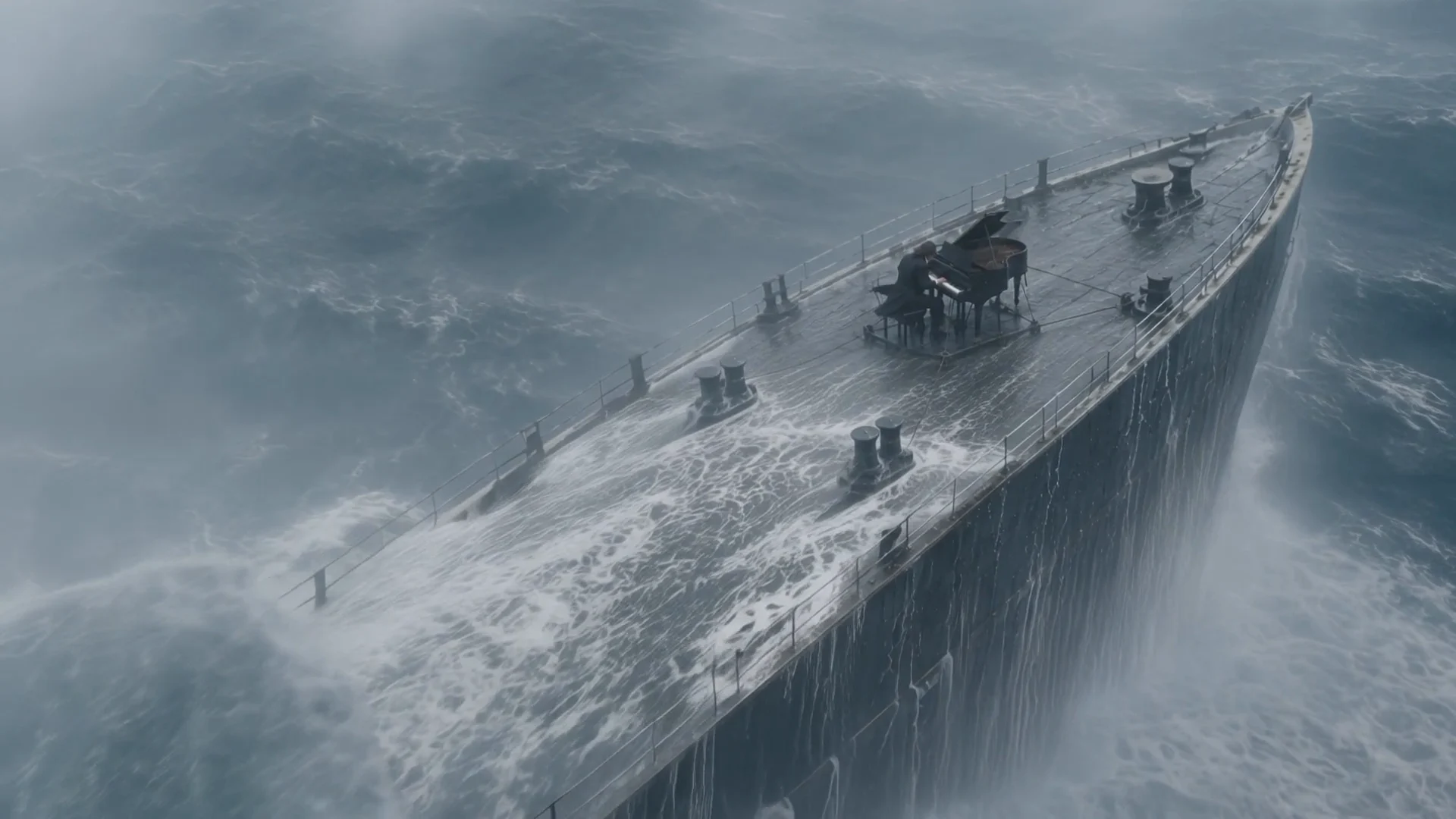
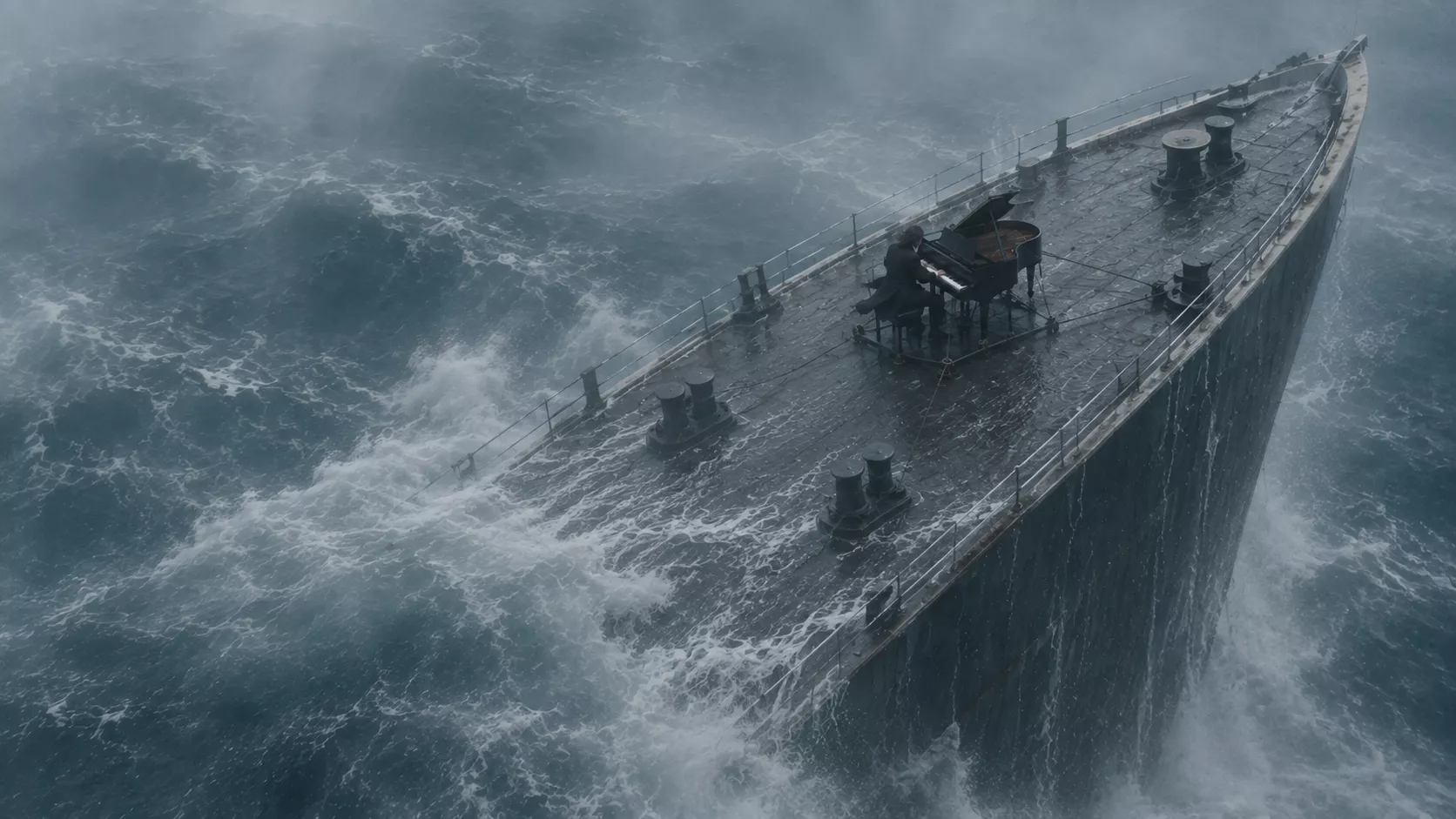
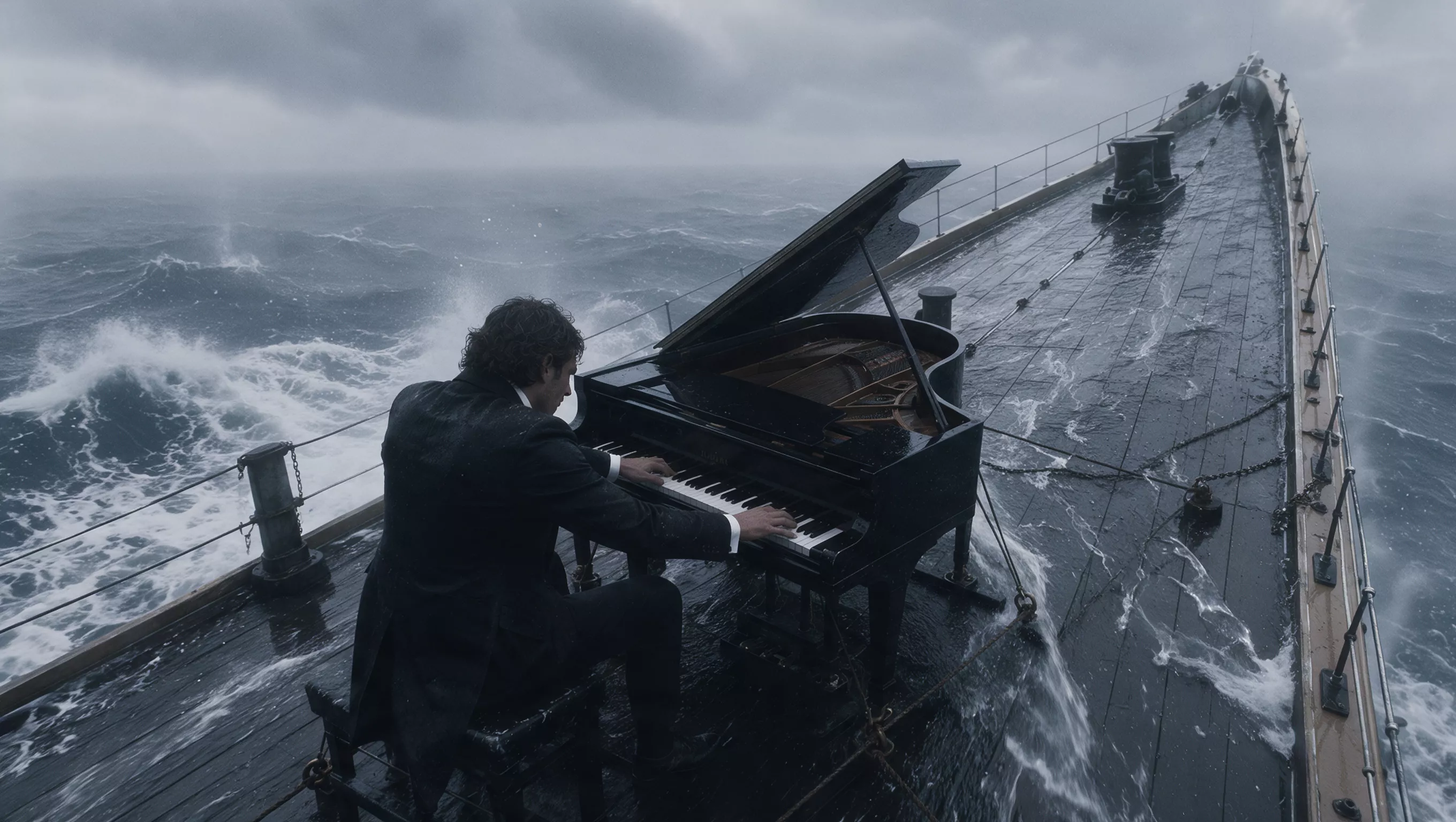
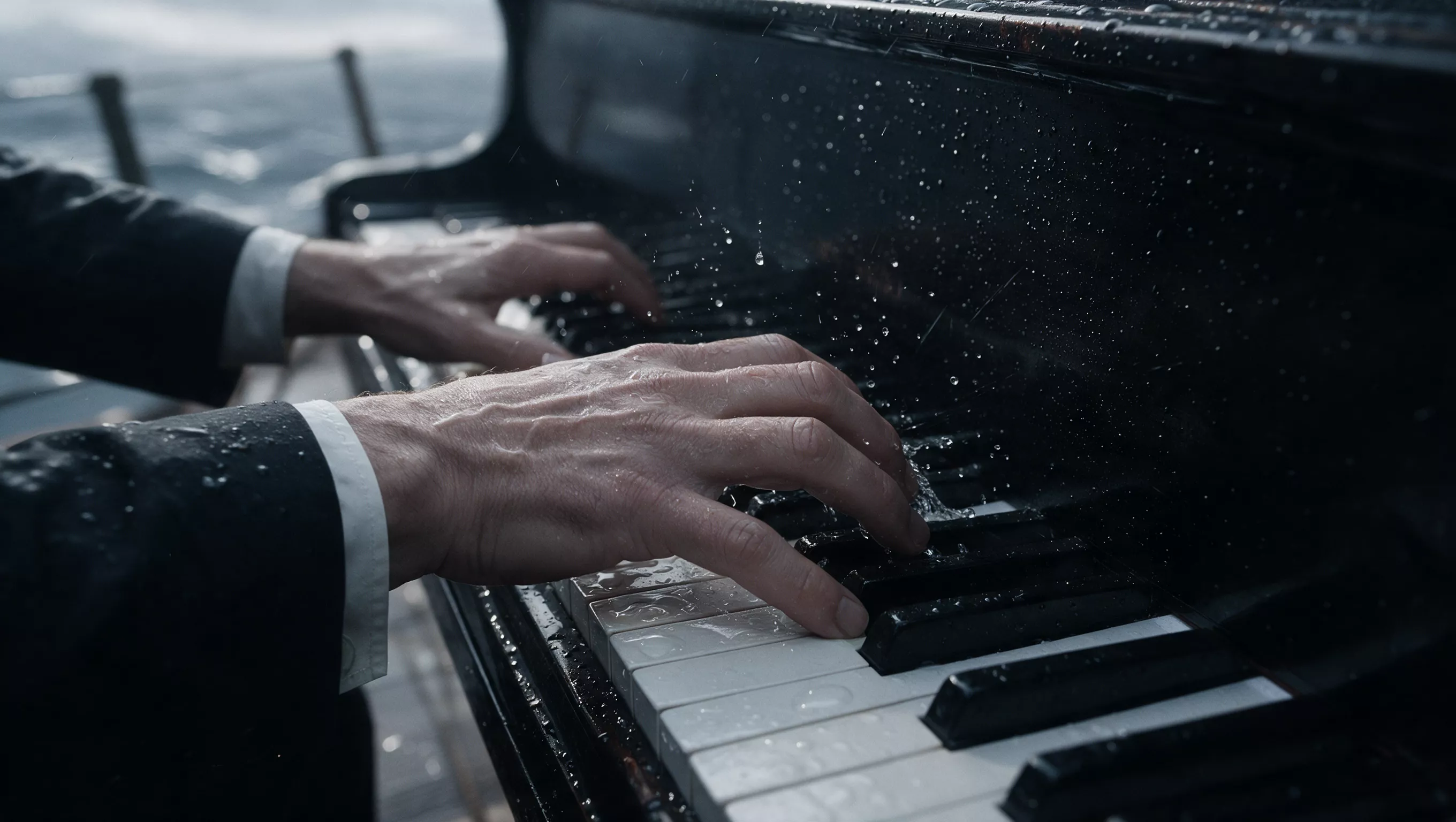
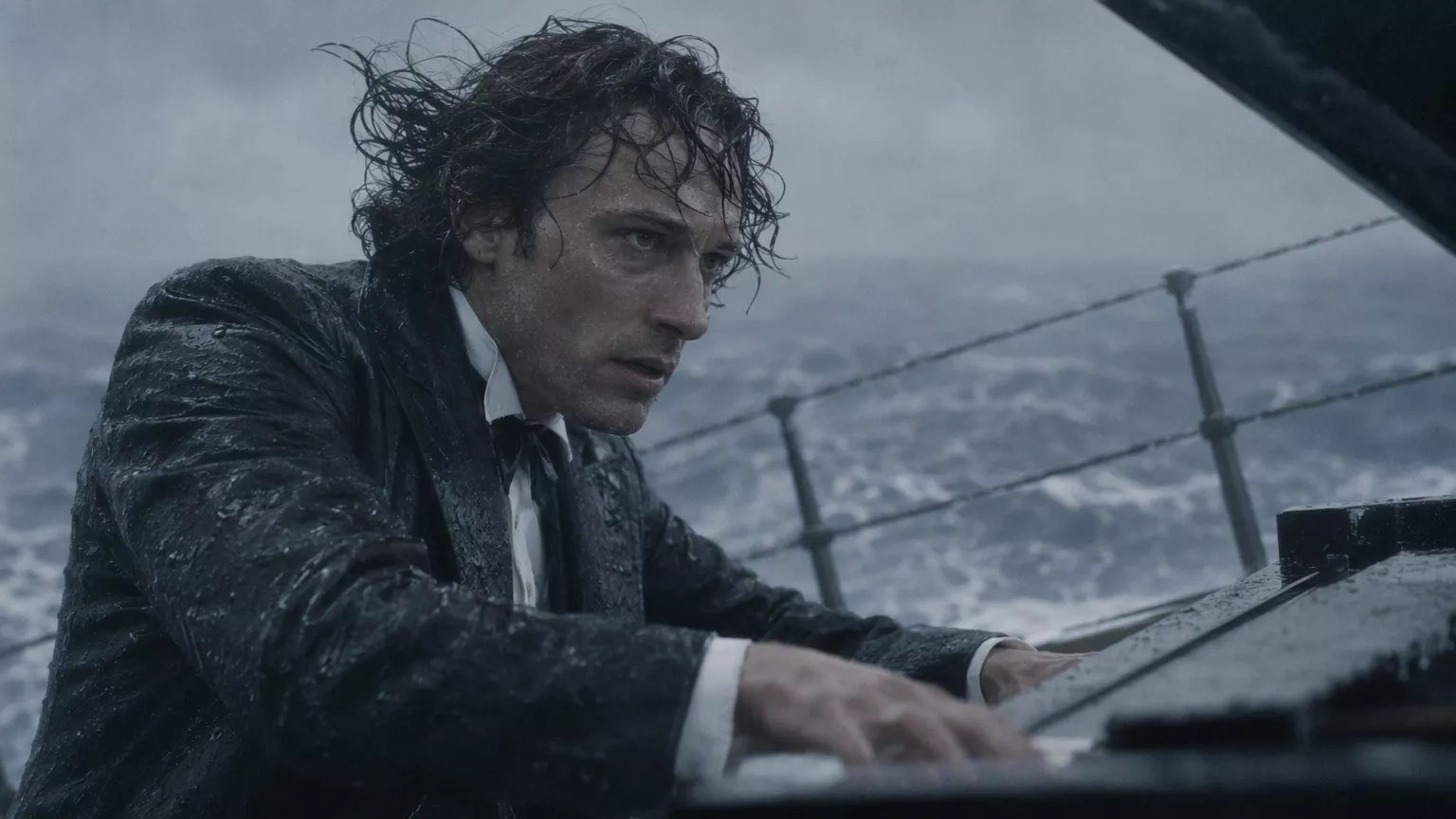
Watch for: The sequence moves from the ship in heavy seas to the pianist and his hands, then returns to a wide view.
Source: Kling AICreate a video from text, image and video references, or ordered keyframes with Kling 4.0. Choose your duration and resolution, then review the credit estimate.
Loading generator…
On ZMS AI, Kling 4.0 brings text, visual references, and keyframes into one video workspace. Prepare the material that communicates your shot. The official examples below show the relationship between inputs and finished sequences, not results from your selected settings.
Use Text to Video for a scene from words, Reference to guide appearance or movement with images and videos, or Keyframes to place important moments. Describe one visible action and distinguish the subject's movement from the camera plan. The required prompt connects your inputs to the intended shot.
Give each image or video a clear role. References can establish a subject, composition, or motion idea; conflicting material makes the intended scene harder to describe.
Start with the required first image, then add useful middle or ending frames. Choose meaningful changes rather than filling every slot, and keep the character and setting compatible.
Kling 4.0 offers a longer timing range and two resolutions. Use enough time for the action, then review the complete movement and returned audio, not only a strong first frame.
Watch for: The sequence moves from the ship in heavy seas to the pianist and his hands, then returns to a wide view.
Source: Kling AI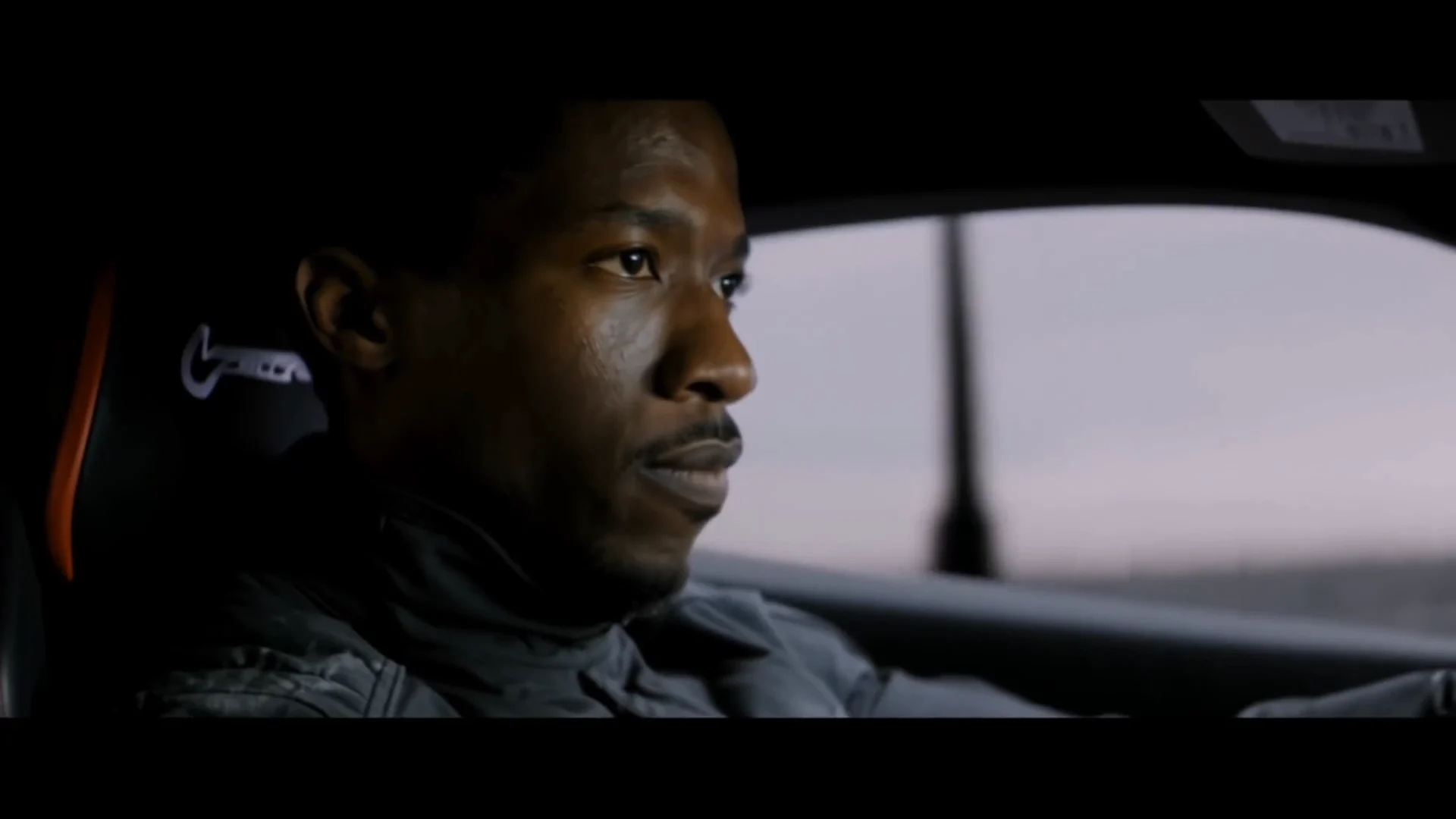
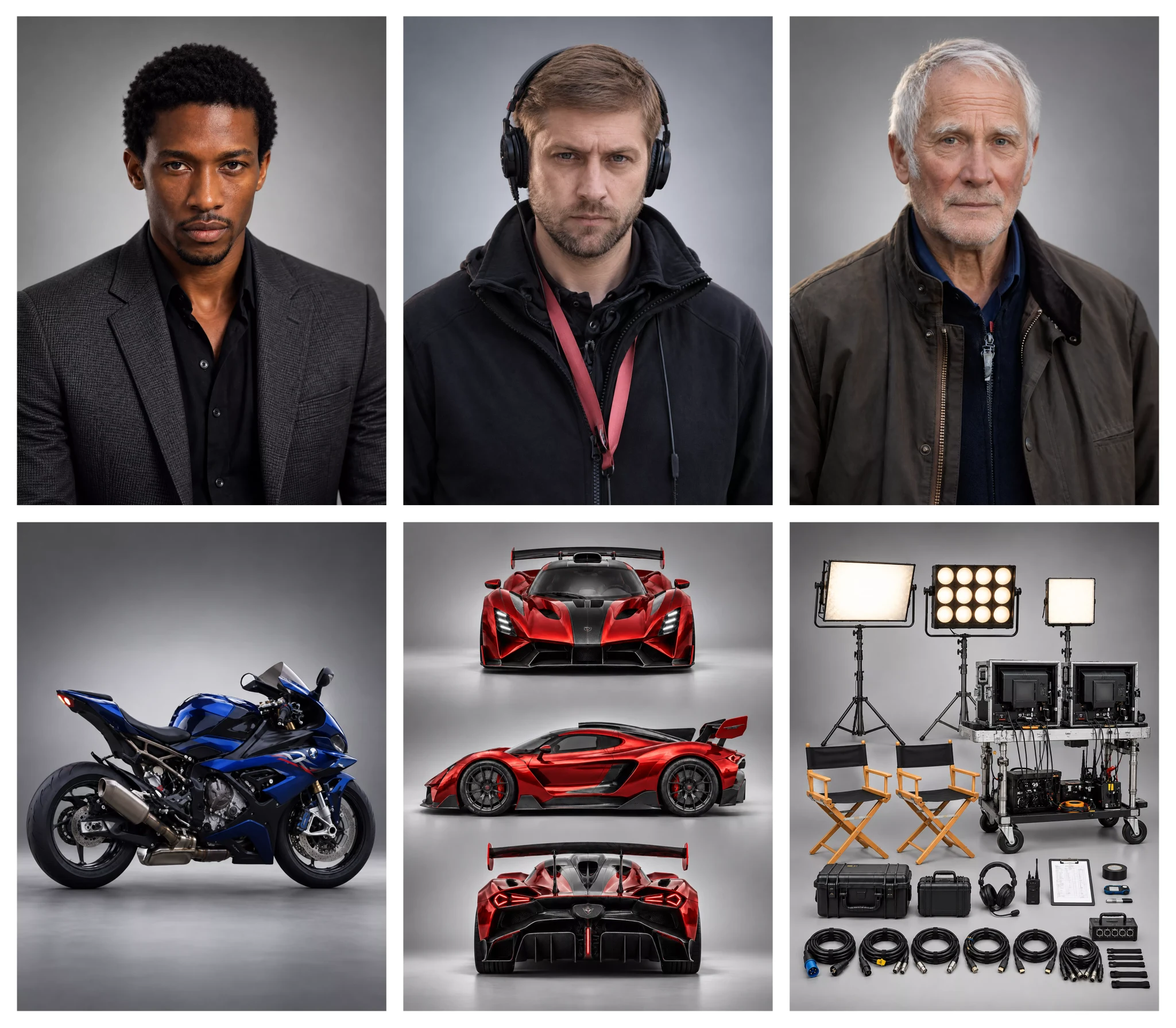
Watch for: The reference collage brings three characters, vehicles, and film-set elements into a sequence with a moving car, an explosion, and a landing.
Source: Kling AIPlan an opening, one action, and an ending. A vertical frame can suit a phone screen; leave caption space and check that the opening reads without sound.
Use product references for shape and material, and explain any movement reference. Review proportions, lettering, and reflections before treating a clip as campaign material.
Anchor important changes with compatible images. State the camera position and transition, then check continuity through the entire sequence.
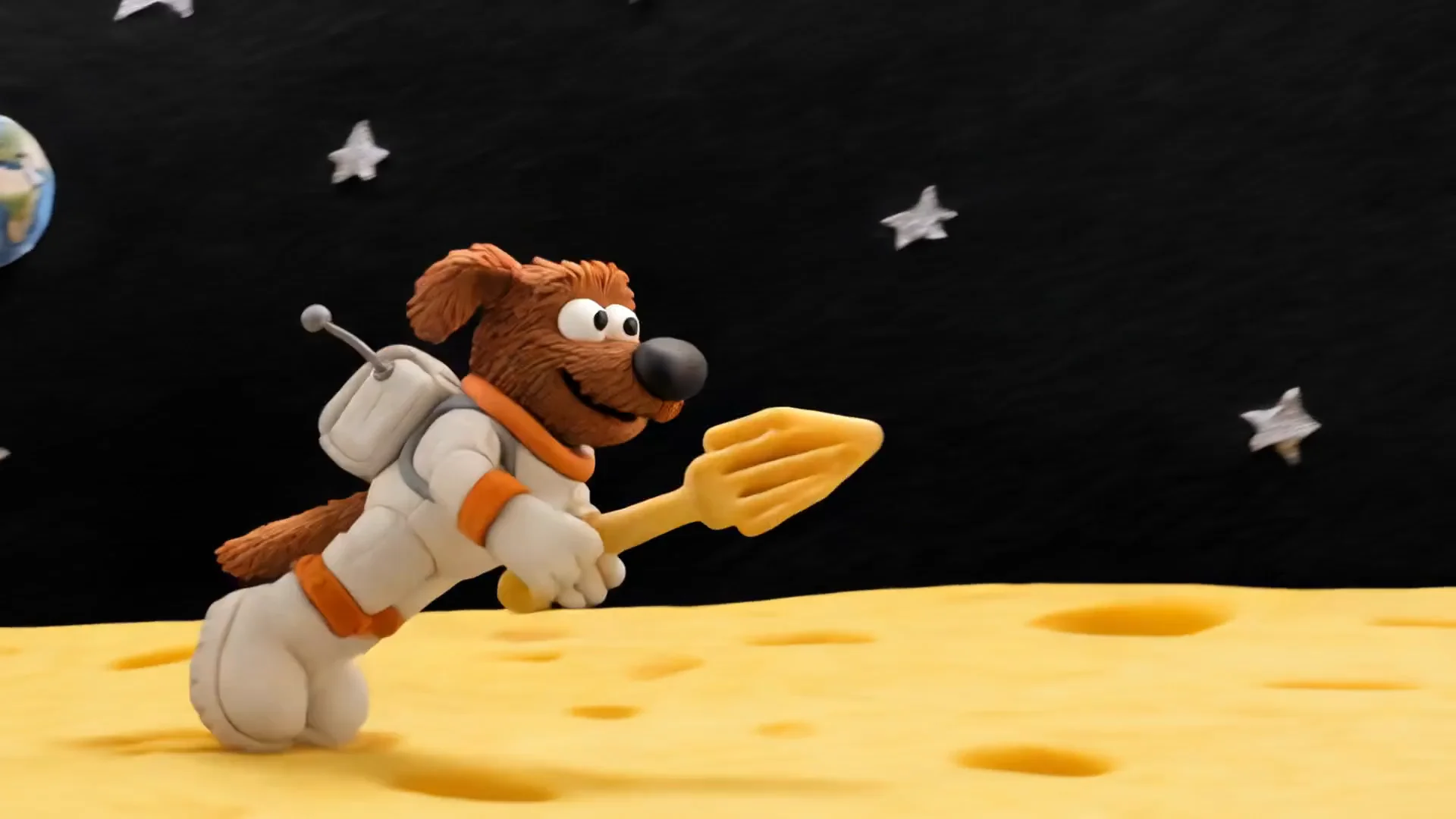
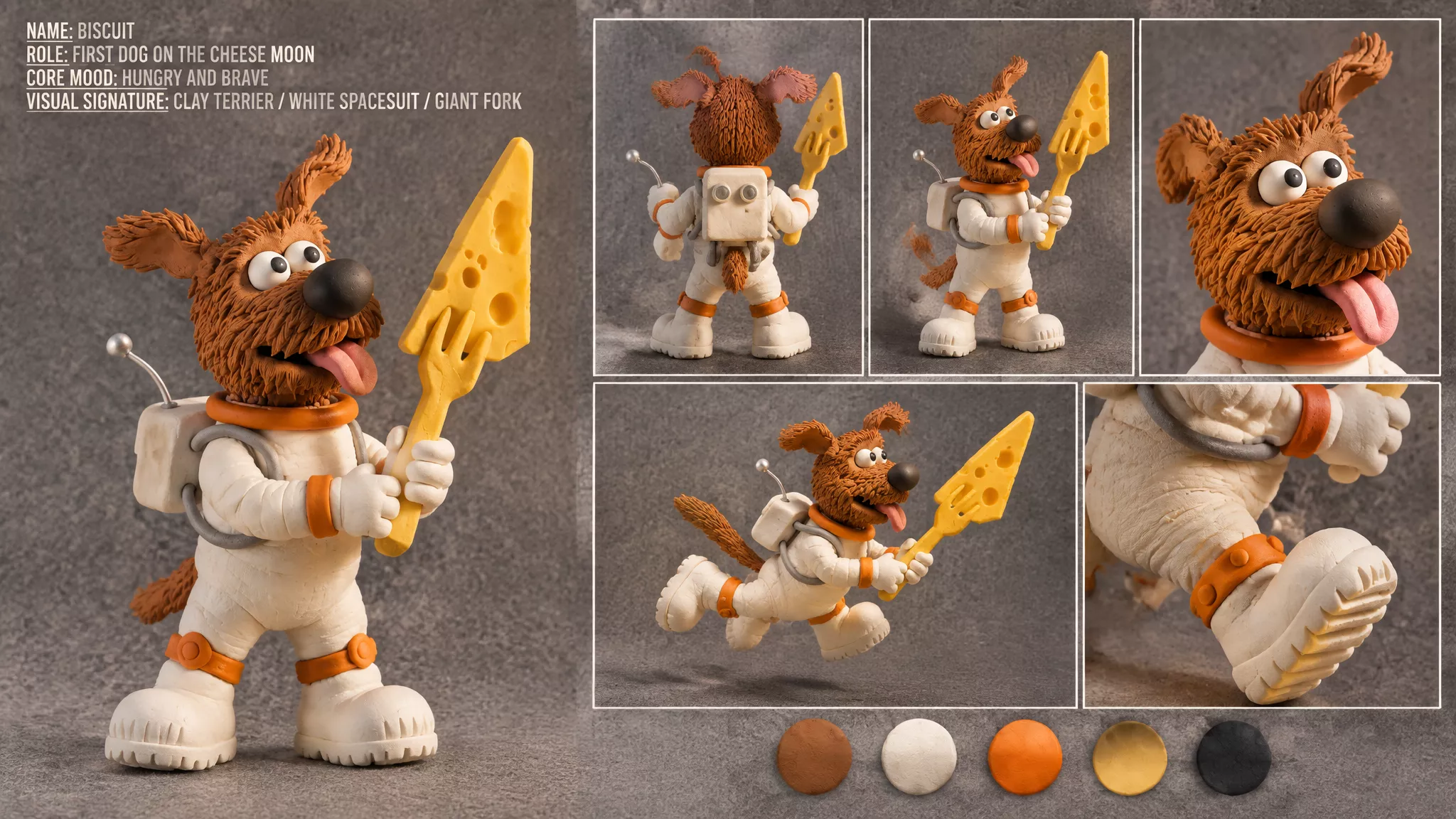
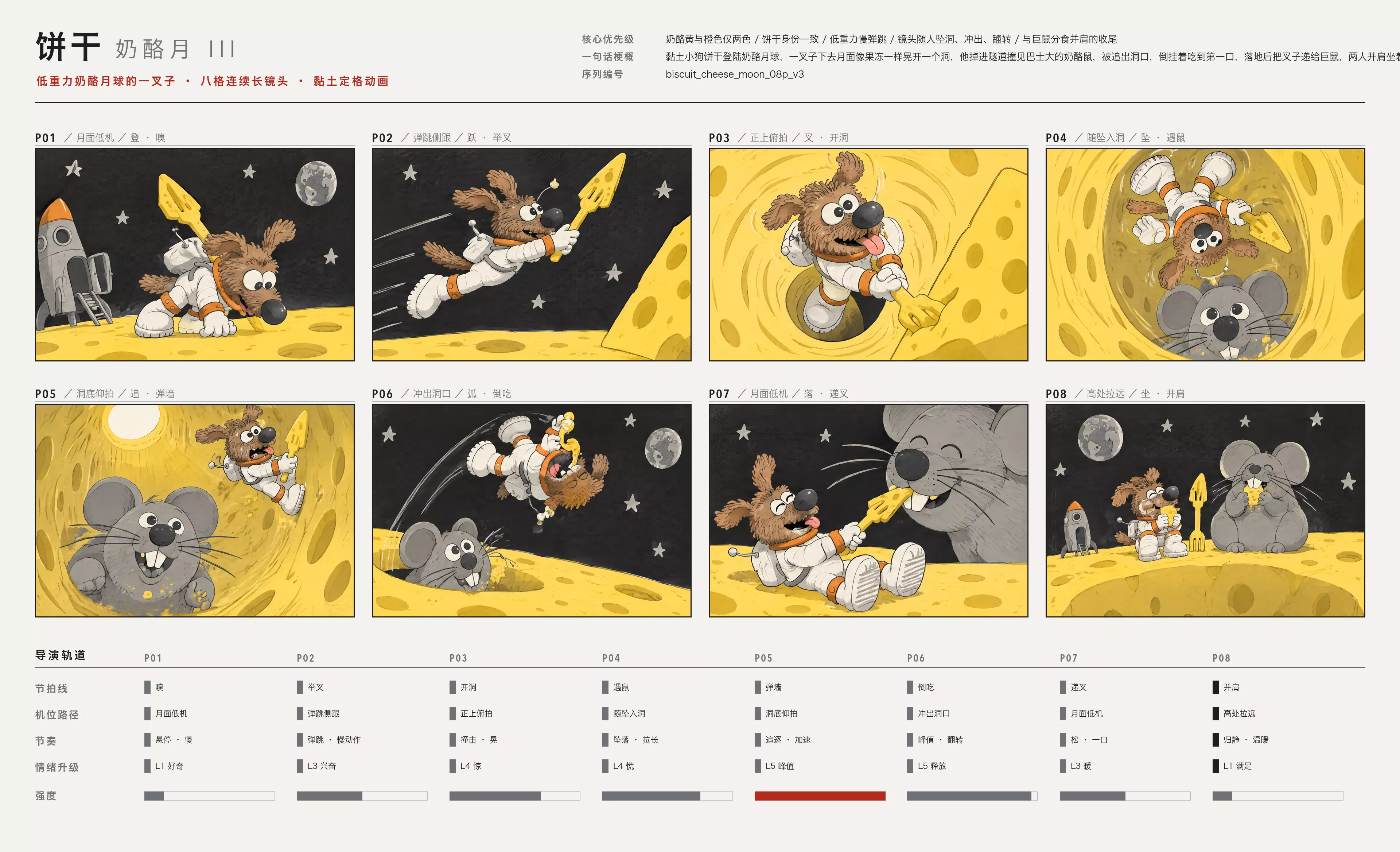
Watch for: A clay-style dog astronaut jumps into a cheese-moon tunnel, meets a mouse, and returns to share a bite. Compare the action with the storyboard shown.
Source: Kling AI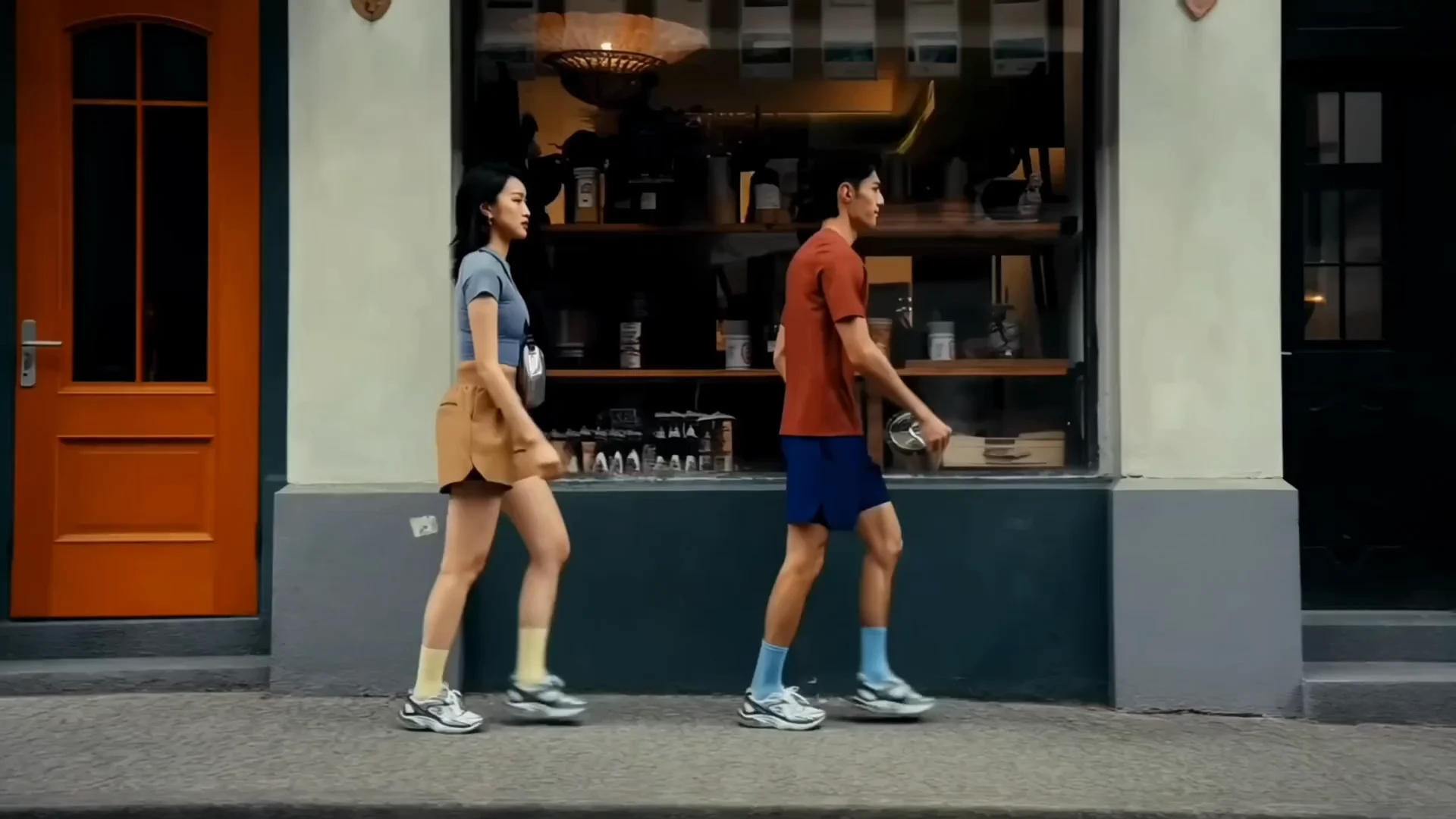
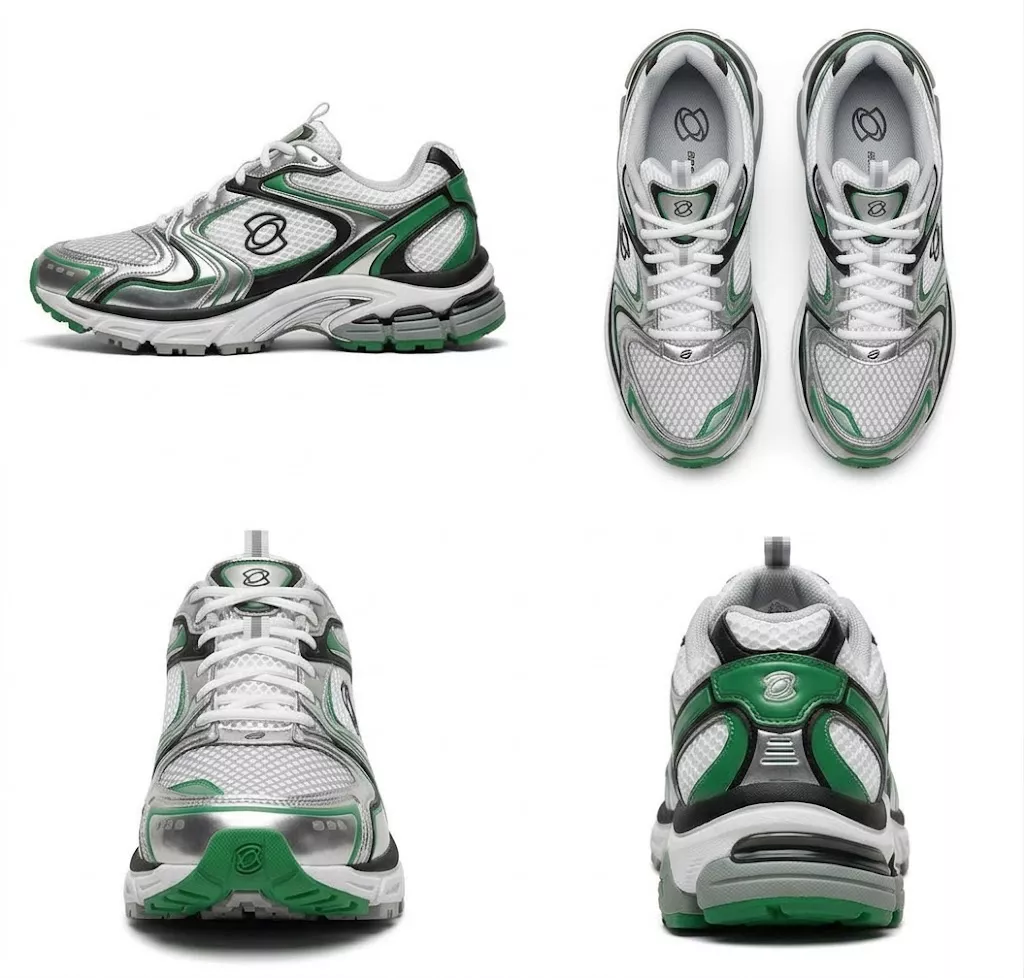
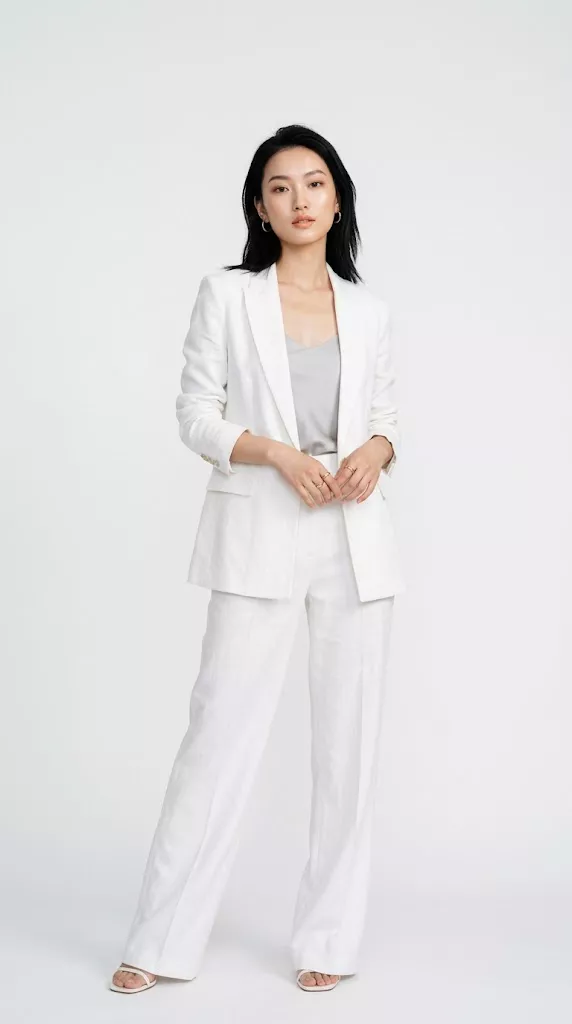
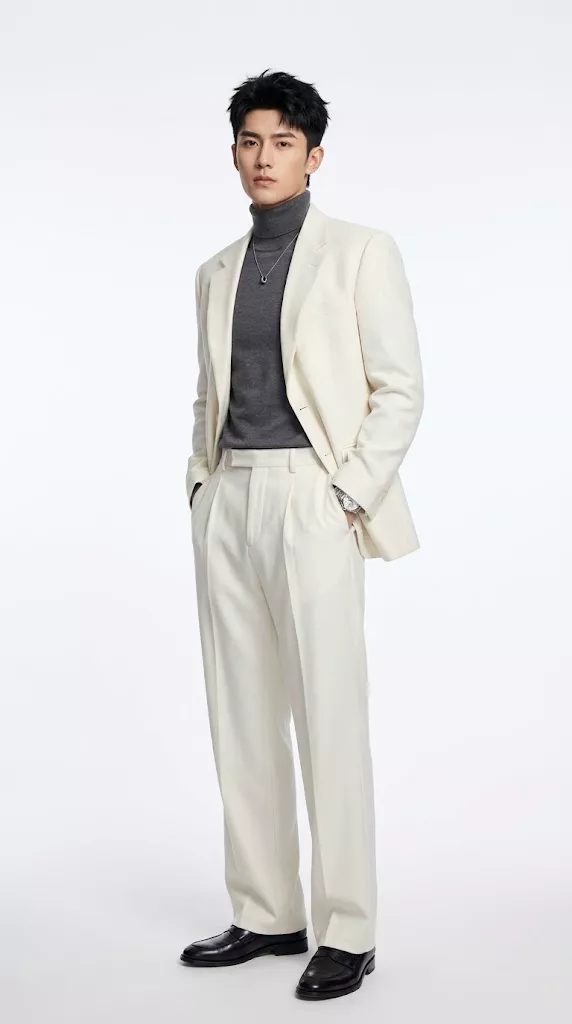
Watch for: Follow the shoe details as the location changes. This published demo runs for 30.486 seconds; the generator's output setting remains limited to 30 seconds.
Source: Kling AI| Setting | Current limit | Prepare for |
|---|---|---|
| Output | 3–30 whole seconds; 720p or 1080p | No Flash, 4K, HDR, or repeated extension control. |
| Reference images | Up to 10 PNG/JPEG images | 100 MiB per image; explain each reference's role. |
| Reference videos | Up to 5 MP4/MOV clips; combined duration ≤30s | 100 MiB each; shortest side at least 700px. |
| Keyframes | First required, up to 8 middle, optional last | Total ≤10 and ≤output seconds + 1; 3s allows 4 frames. |
| Framing | Text: 16:9, 9:16, 1:1, 21:9 | Reference also offers Auto; Keyframes uses Auto. |
| Prompt and audio | 1–8,000 characters; no generate-audio switch | Reference videos can enable Keep original video audio. |
Select Text, Reference, or Keyframes. Upload only material you may use; Keyframes needs a first image.
Name the subject, movement, setting, and camera. Explain what each reference should guide without contradicting its appearance.
Choose resolution, framing, and duration. Wait for reference-video durations to load, then review the estimate and your account balance.
Submit the task, follow its progress, and watch the whole clip. Revisit results in My Creations, which requires sign-in.
| Resolution | Without video reference | With video references |
|---|---|---|
| 720p | 20 credits/s · 5s = 100 credits | 25 credits/s · 5s + 3.2s input = 225 credits |
| 1080p | 25 credits/s · 5s = 125 credits | 35 credits/s · 5s + 3.2s input = 315 credits |
The reference example uses nine billable seconds. Check settings before planning a batch; larger inputs do not guarantee a better result. ZMS AI pricing
Yes. Sign in, choose Text, Reference, or Keyframes, and add the required inputs. Review the estimate before pressing Generate, then follow the task and inspect the full video.
Use PNG/JPEG images and MP4/MOV videos within the limits above. Keep the set focused and use material you have permission to upload.
A first image and a motion prompt are required. Middle and last images are optional. The maximum follows output seconds plus one, capped at ten, with Auto framing.
Reference mode exposes Keep original video audio when a video is present. Listen to the returned track; it does not guarantee identical dialogue, music, or source recording.
Those controls are absent here. Use the AI video workspace to compare other workflows against your delivery needs.
They are official Kling 4.0 demonstrations preserved from our team source site, with their published inputs and observations. They are separate from ZMS tasks and are not benchmarks of your settings.