Guides
How to Make a Family Christmas Photo with AI on ZMS (Step by Step)
Turn one family photo into a Christmas portrait or shareable card in about a minute. This guide covers choosing the right photo, writing the scene description, setting size and credits, using the Card Maker, and fixing common problems on ZMS.

How to Make a Family Christmas Photo on ZMS
Getting everyone dressed in matching sweaters, standing by a tree, and smiling at the same moment is hard. With ZMS, you can skip the logistics: upload a regular family photo and the AI Christmas Photo Generator builds the holiday scene around the people in it. This guide walks through the full process, from choosing a starting photo to sharing a finished card.
What you’ll get
A finished family Christmas image, or a card with your greeting on it, saved to your account. A 1K image costs 12 credits, and the Generate button shows the total before you start, so nothing is charged by surprise. At the Basic pack rate of $0.01 per credit, a 1K image comes to roughly twelve cents.
Step 1: Pick the right starting photo
Most of the result is decided before you open the tool. The best source photo has:
every face visible and facing the camera,
even, soft light, such as daylight from a window,
everyone inside the frame, close enough that faces aren’t tiny.

The generator handles a family of up to four or five people best. Larger groups, hats or sunglasses over faces, and very dark or heavily filtered photos all make it harder to keep likenesses accurate.
Step 2: Open the Christmas AI studio
Go to the Christmas section on ZMS. You’ll see two tools:
Tool | Photo | Output | Starting cost |
|---|---|---|---|
Optional | Christmas portrait or scene, 1K or 2K | 12 credits | |
Required | Designed card you can share as a link | 12 credits |
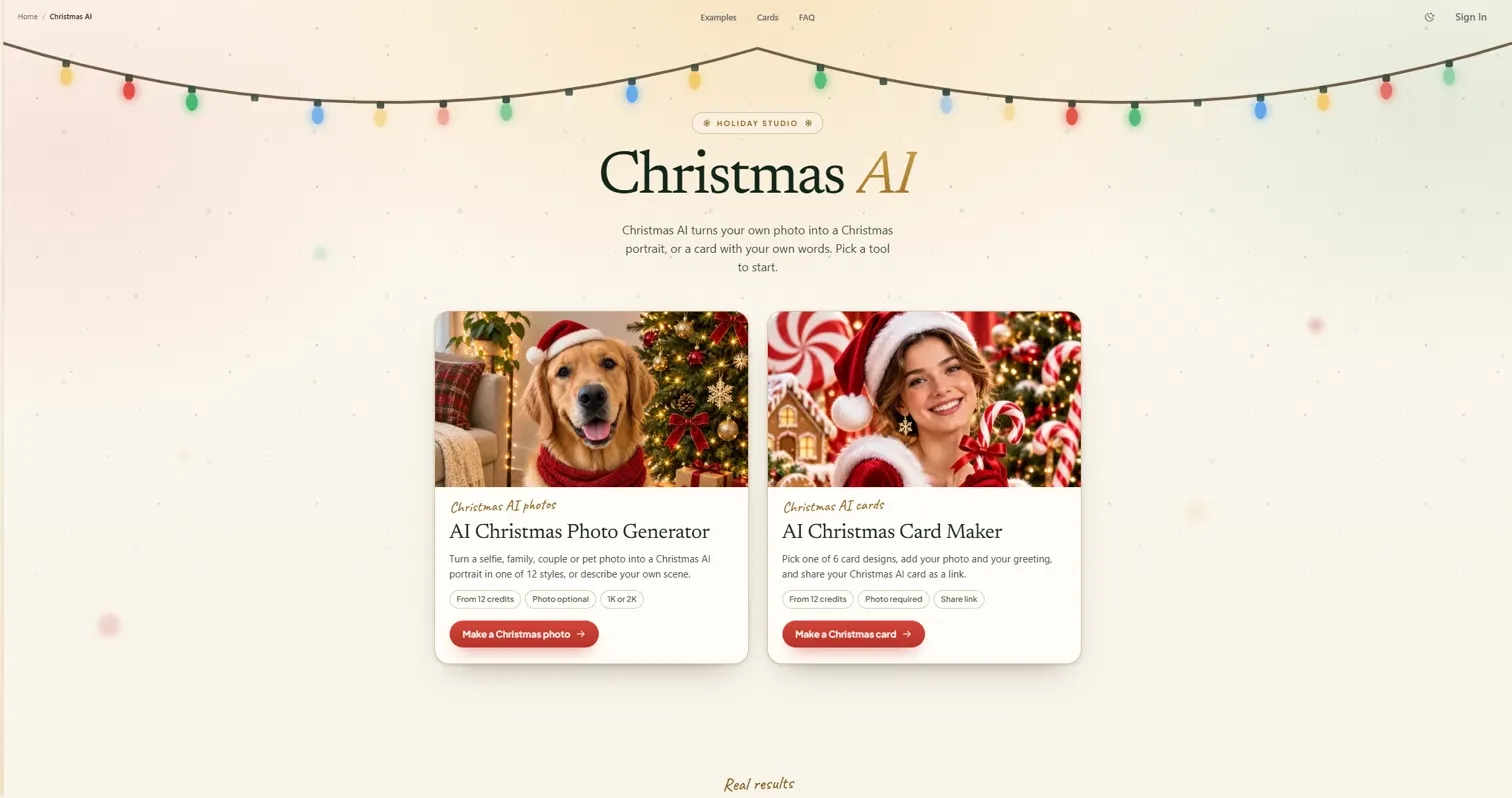
For a family portrait, start with the Photo Generator. If you want a finished card with names and a greeting, see Step 6.
Step 3: Choose a style, or describe your own
The Photo Generator has a photo box marked optional, a description field, and a row of starting styles underneath. Upload your family photo, then either pick a style (for a family, Matching pajamas is the natural choice) or write your own scene.
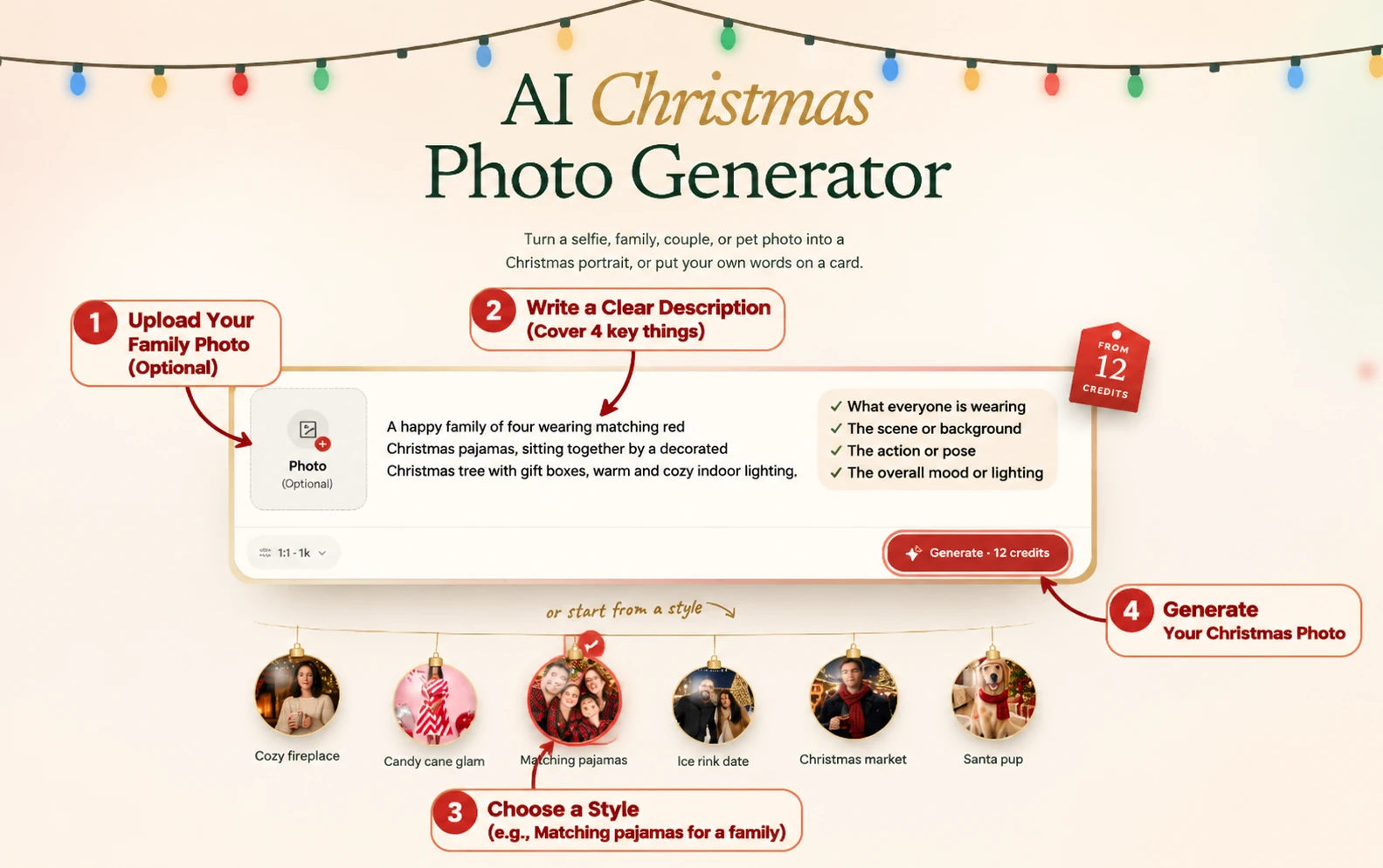
A good description covers four things: what everyone is wearing, where they are, the light, and the mood. Here are three prompts you can adapt:
Living room classic: “The whole family sits close together on the rug in front of a tall tree with wrapped gifts, all in coordinated red and green knitwear, warm lamplight, everyone smiling at the camera.”

Winter outdoors: “The family stands in the snow outside a wooden lodge in heavy coats, scarves, and beanies, a wreath on the door, light snowfall, golden light in the windows.”

Christmas morning: “Everyone in soft flannel pajamas on the sofa with mugs of cocoa, tree lights glowing behind them, relaxed and laughing, early morning window light.”

Two habits help. Describe the setting and clothes in detail, but don’t re-describe faces, because the generator is designed to keep faces, hairstyles, and skin tones from your uploaded photo. And keep the scene simple: one clear location beats a crowded list of props.
Step 4: Set size and generate
Next to the Generate button is a size menu. It defaults to 1:1 at 1K, so change it before you generate if you plan to print. Pick the aspect ratio that matches how you’ll use the image:
Use | Suggested setup |
|---|---|
Printed portrait card | 2:3, 2K |
Printed landscape card | 3:2, 2K |
Social post or profile picture | 1:1, 1K is usually enough |
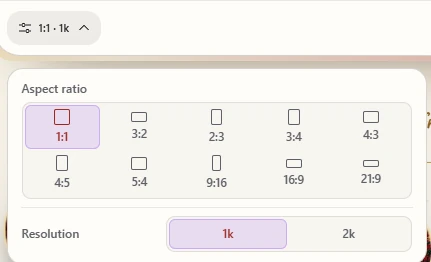
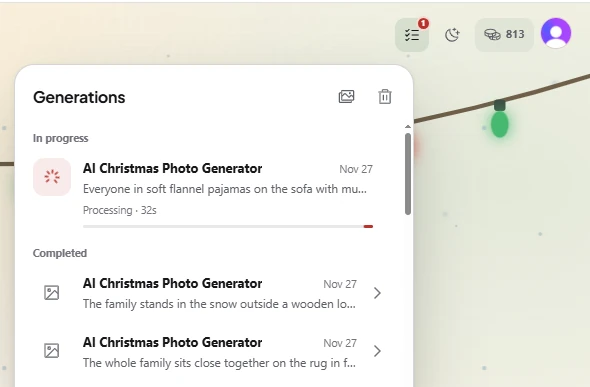
Costs depend on resolution: 1K is 12 credits, and at 2K an image made from a photo is 20 credits. Click Generate, and the image appears in the Tasks panel in about a minute.
Step 5: Check the result before you share it
Compare the output with your original photo. Look at each face, hands, and anything that was meant to match, such as sweaters. Small details can shift, so it’s worth a careful look before the image goes on a card or into a group chat. If something is off, change one element and regenerate rather than rewriting the whole prompt.
Step 6: Turn it into a card
You have two routes.
Quick route
In the Photo Generator, put your greeting in quotation marks in the description, for example “Merry Christmas from the Johnsons.” Short phrases work most reliably, and you should always proofread the spelling afterward.
Card Maker route
The AI Christmas Card Maker is a guided, three-step flow (Pick, Personalize, Create) that works well if you want a finished card you can share as a link.
1. Pick a design.
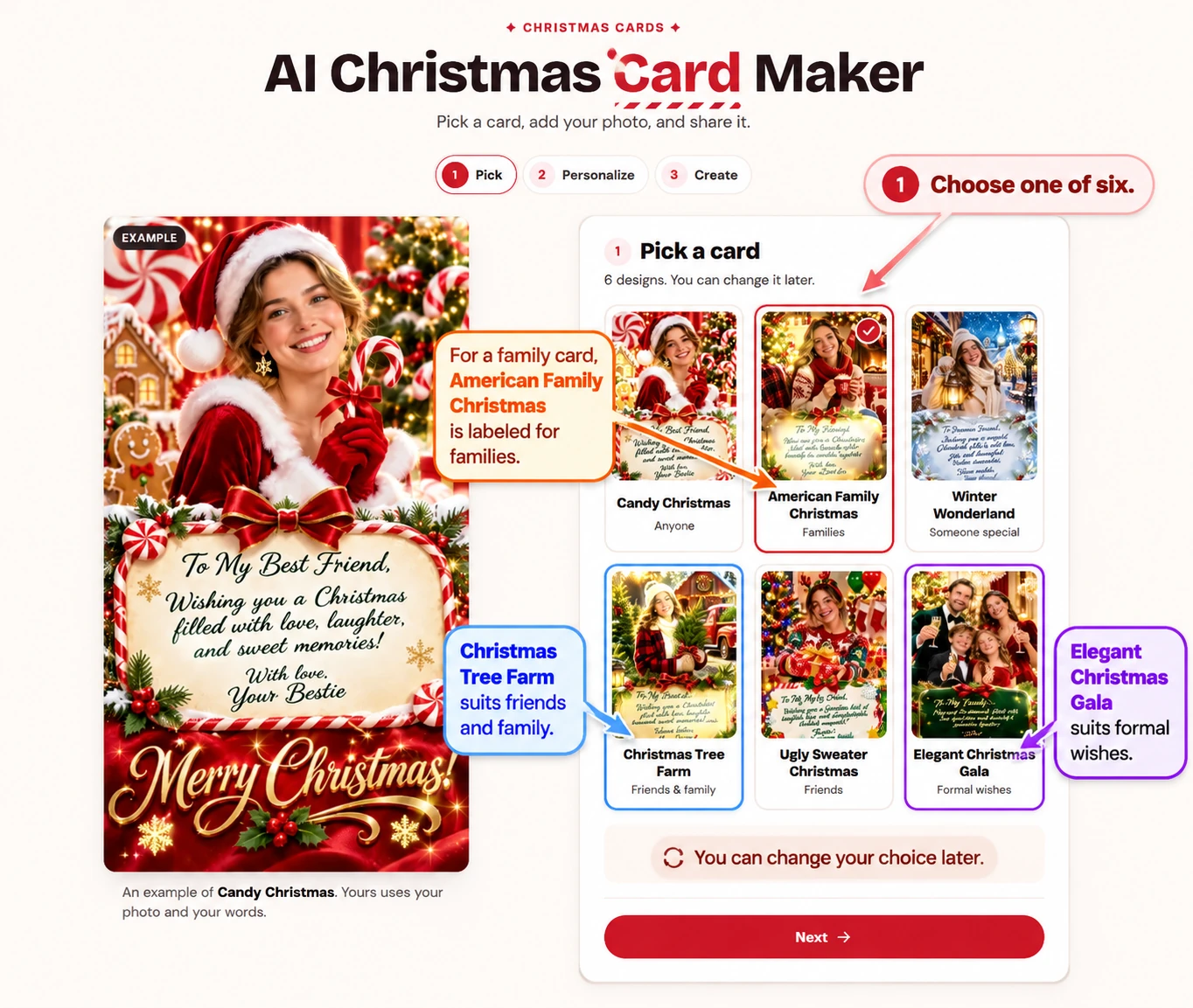
Choose one of six. For a family card, American Family Christmas is labeled for families, Christmas Tree Farm suits friends and family, and Elegant Christmas Gala suits formal wishes. You can change your choice later.
2. Personalize it. The “Make it yours” screen asks for:
Field | Required? | Notes |
|---|---|---|
Photo | Yes | A clear photo of the people for the card. JPG, PNG, or WebP up to 20 MB; faces that are easy to see work best |
Greeting | Preset | Merry Christmas!, Season’s Greetings!, Merry & Bright!, Warm Christmas Wishes, Happy Holidays!, or Happy New Year! |
To | Optional | The recipient, for example “Grandma and Grandpa” |
Your message | Optional | Up to 120 characters, with one-tap suggestions; short messages come out best |
Sign-off | Preset | With love, Love, Warm wishes, Cheers, or Best wishes |
From | Yes | Your name, for example “The Johnson Family” |
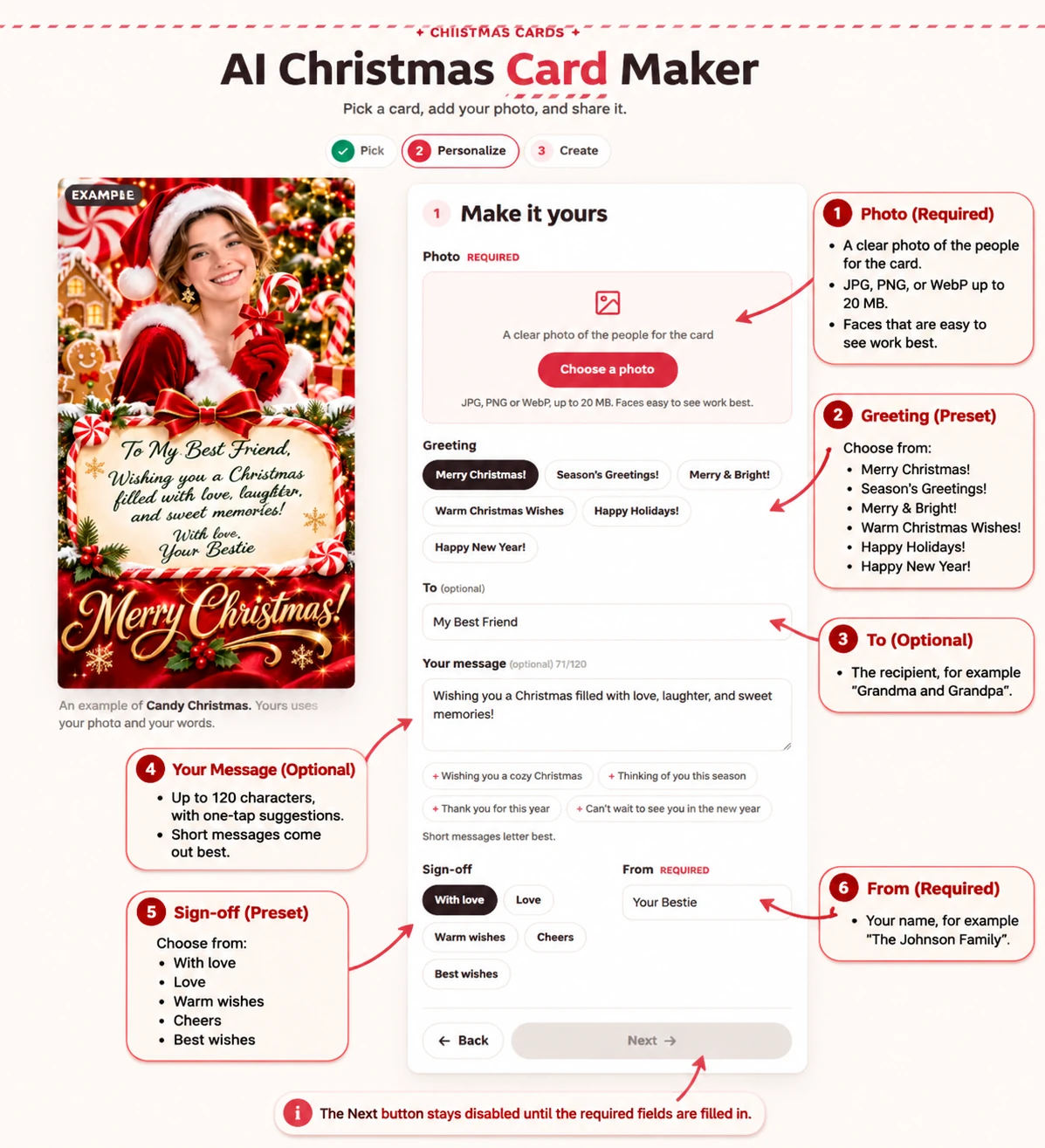
The Next button stays disabled until the required fields are filled in.
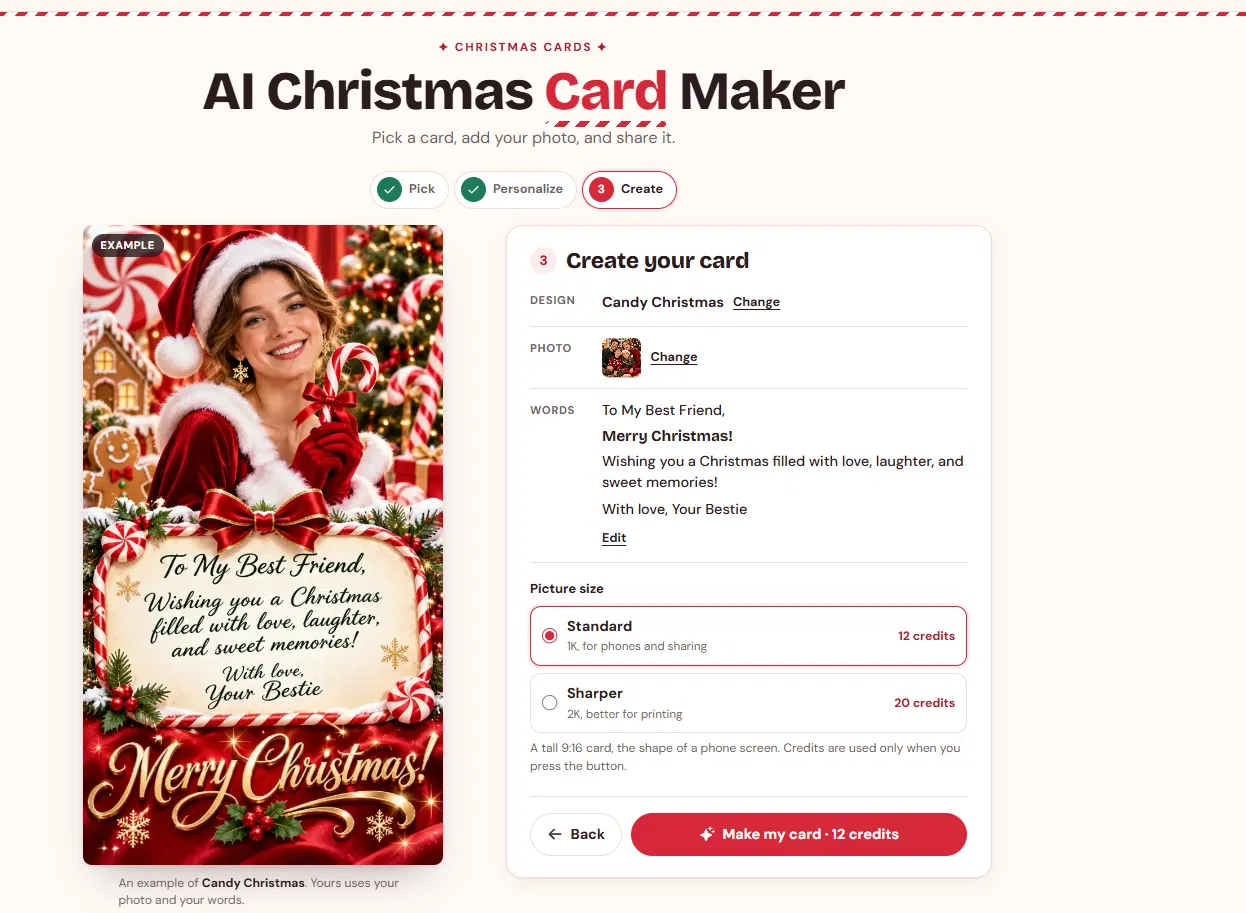
3. Create. The last screen summarizes your design, photo, and words, each with a Change or Edit link, so you can fix anything before you spend credits. Then pick a picture size:
Option | Resolution | Credits | Best for |
|---|---|---|---|
Standard | 1K | 12 | Phones and sharing |
Sharper | 2K | 20 | Printing |
Cards are a tall 9:16 shape, like a phone screen. Credits are used only when you press the Make my card button. If you want a landscape or 2:3 printed card instead, use the Photo Generator route above, which lets you choose the aspect ratio.
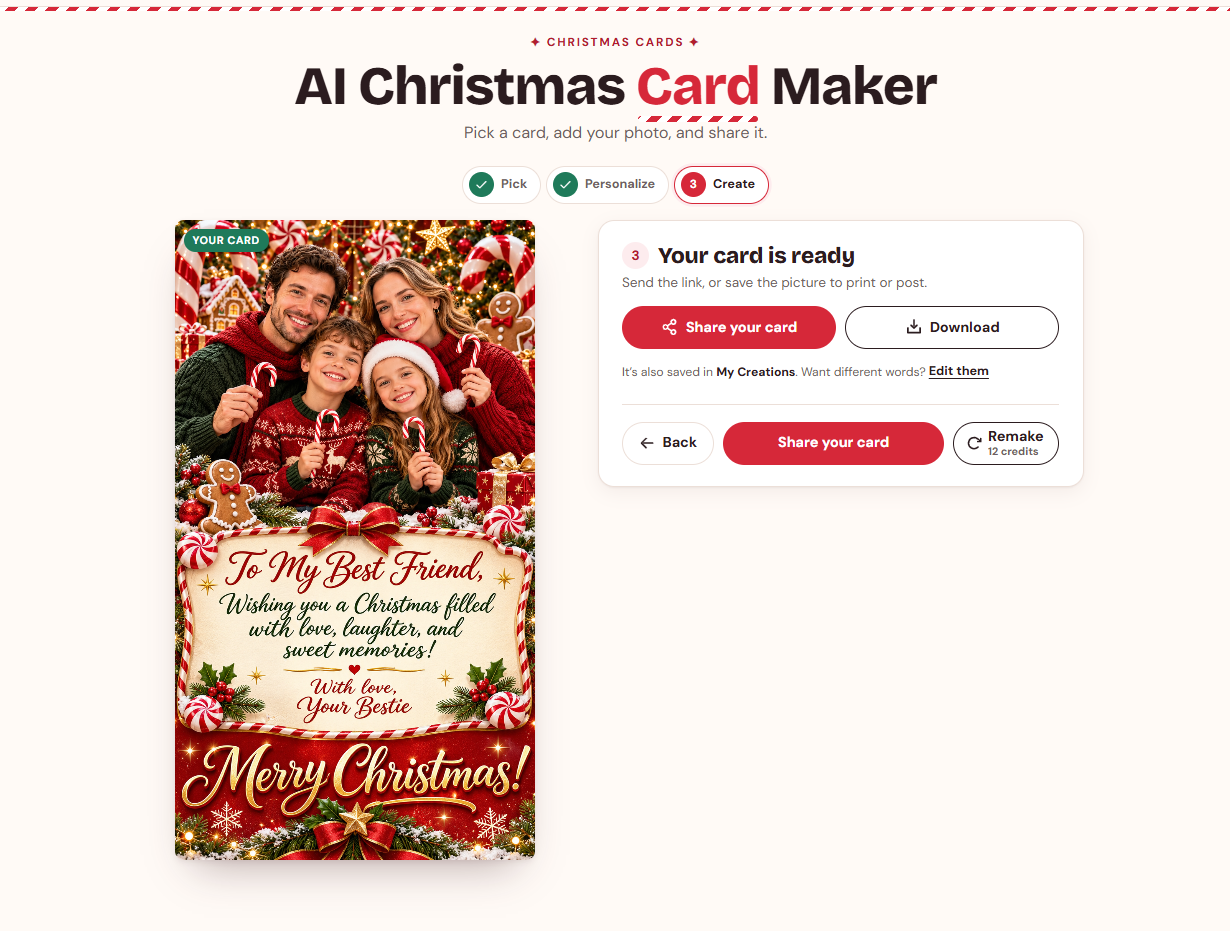
When the card finishes, the screen says "Your card is ready" and offers two buttons: Share your card, which gives you a link to send, and Download, which saves the picture so you can print or post it. The card is also saved in My Creations, and an Edit them link lets you change the words if you want different text. If you'd like a fresh version of the same card, Remake generates another one (the button showed 12 credits at the Standard size). Check the spelling in the finished card before you share it.
Troubleshooting
Problem | What to try |
|---|---|
Faces don’t look quite right | Use a sharper, front-facing source photo with even light |
One person looks blended or distorted | Use a photo with fewer people or larger faces |
Card text has a typo | Shorten the greeting and regenerate |
Matching outfits aren’t matching | Name the exact colors and pattern in the prompt |
You only want to change the clothes | Use AI Clothes Changer, which edits the outfit and keeps the rest of the photo |
FAQ
Do I have to upload a photo? In the Photo Generator, no. Without a photo, you can create a scene or card from a description alone. The Card Maker does require a photo.
Can I include a pet? Yes. Pets work as their own subject, and the generator also handles a family photo that includes one, though a clear photo of each gives the best results.
Whose photos can I use? Only photos of yourself or people who have agreed. Don’t upload photos of public figures or of anyone who hasn’t given permission.
What model does the Photo Generator use? It runs on GPT Image 2, which ZMS also offers directly if you want to create any other kind of image.
How much does it cost? A 1K Photo Generator image uses 12 credits, and a 2K image made from a photo uses 20. The total is shown on the Generate button before you start. See Pricing for credit packs; purchased credits don’t expire.
Start creating
Upload a family photo, pick a style, and see your Christmas portrait in about a minute. Open the AI Christmas Photo Generator.