Guides
AI Video Extender Guide: Extend Videos with AI (2026)
Learn how to extend a video with AI using ZMS AI, with real tests, continuation prompts, Extend Before and After workflows, and tips for smoother results.
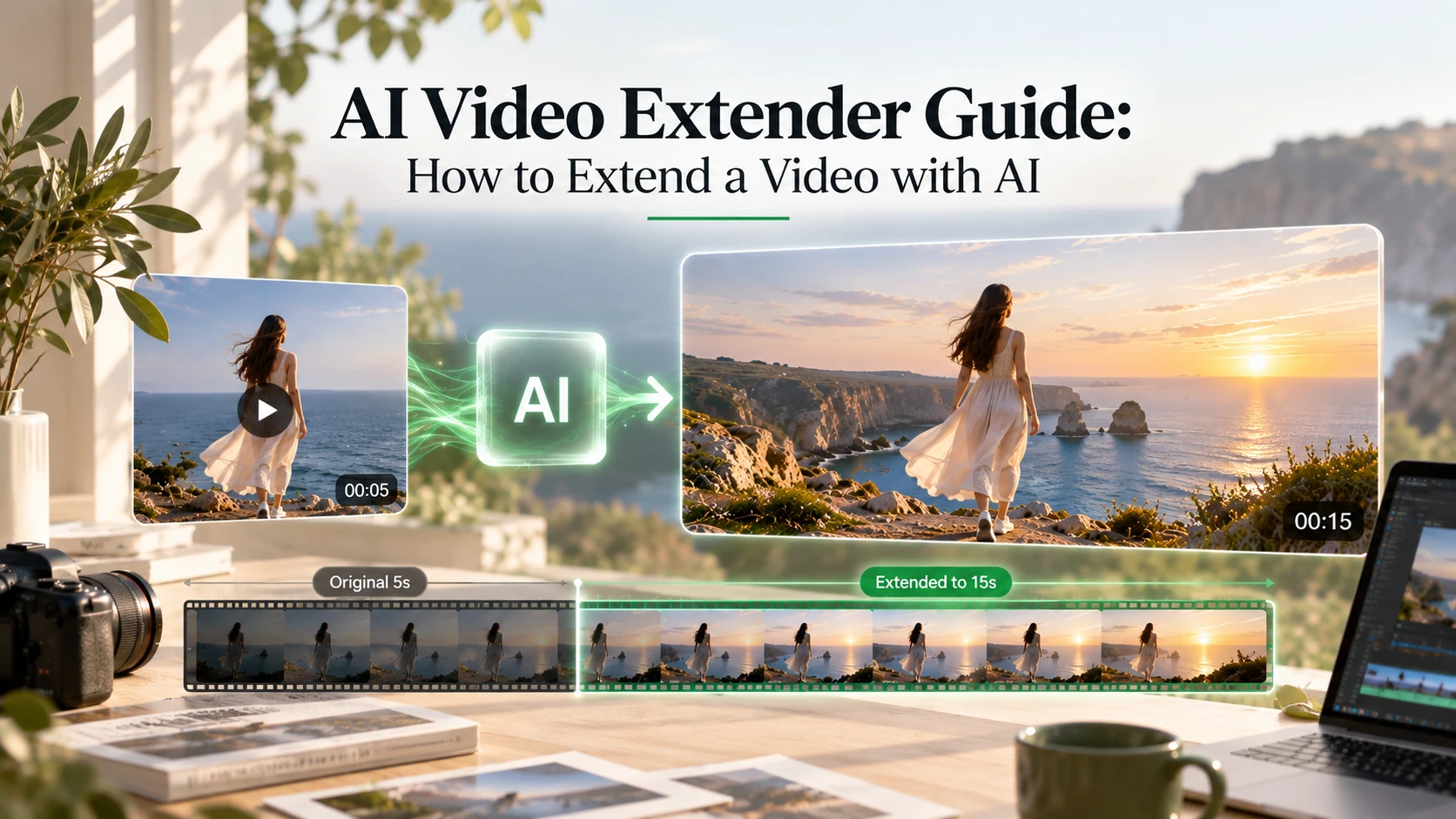
Sometimes a video ends before the action feels finished.
A person is still walking. A car hasn’t disappeared into the distance. A product is halfway through its rotation. Or a camera movement stops before the shot has time to land.
Traditional editing techniques such as slow motion, freeze frames, and looping can make a video longer, but they reuse footage you already have.
AI video extension works differently.
With AI Video Extender on ZMS AI, you can use an existing video as the starting point for generating new footage before or after the original scene.
In this guide, we’ll show you how to extend a video with AI, including the complete workflow, three real extension tests, prompt-writing techniques, continuity checks, and common mistakes to avoid.
Quick Answer: Upload your source video, choose whether to extend before or after it, describe the new action or camera movement, select 5 or 10 seconds at 768p or 2K, and generate. ZMS AI returns the extension as a separate clip, so you’ll need to join it to your original footage in a video editor.
How Does AI Video Extension Work?
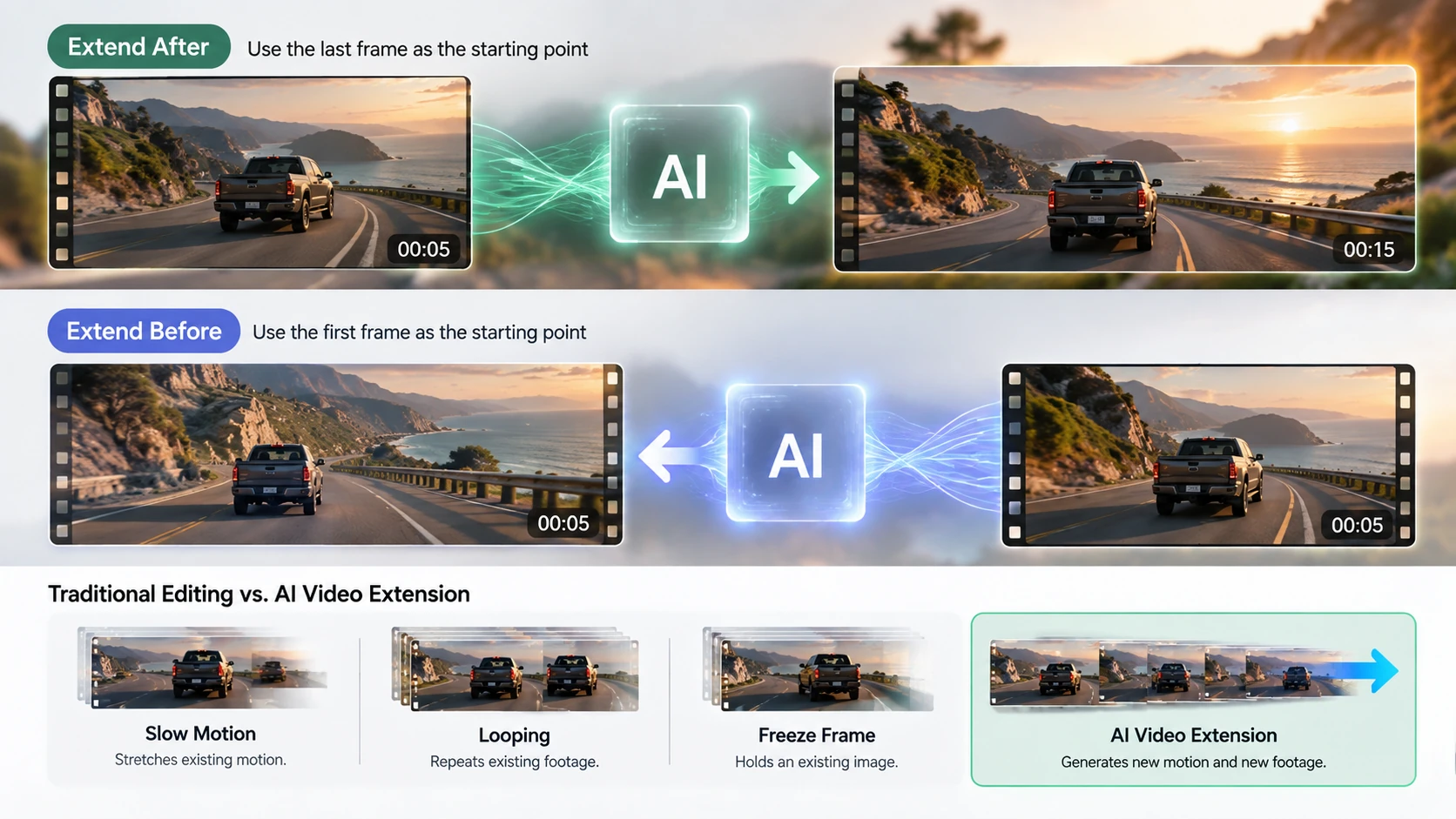
AI video extension generates new footage from a visual frame taken from an existing video.
When you choose Extend After, the ending of your source video becomes the visual anchor for generating what happens next.
When you choose Extend Before, the beginning of your source becomes the target connection point for a newly generated lead-in.
This is different from simply increasing playback duration.
Slow motion stretches existing motion.
Looping repeats existing footage.
Freeze frames hold an existing image.
AI video extension generates new motion and new footage.
For example, if a source video ends while a pickup truck is driving down a highway, AI can generate additional footage where the truck continues moving away while maintaining a similar camera direction and environment.
Because the extension is newly generated, however, motion, lighting, subjects, and other visual details can drift after the connection point.
That’s why the prompt and final continuity check matter.
How to Extend a Video with AI
The basic workflow is:
Source Video → Choose Direction → Describe New Action → Generate → Review → Join Clips
Here’s how to do it with ZMS AI.
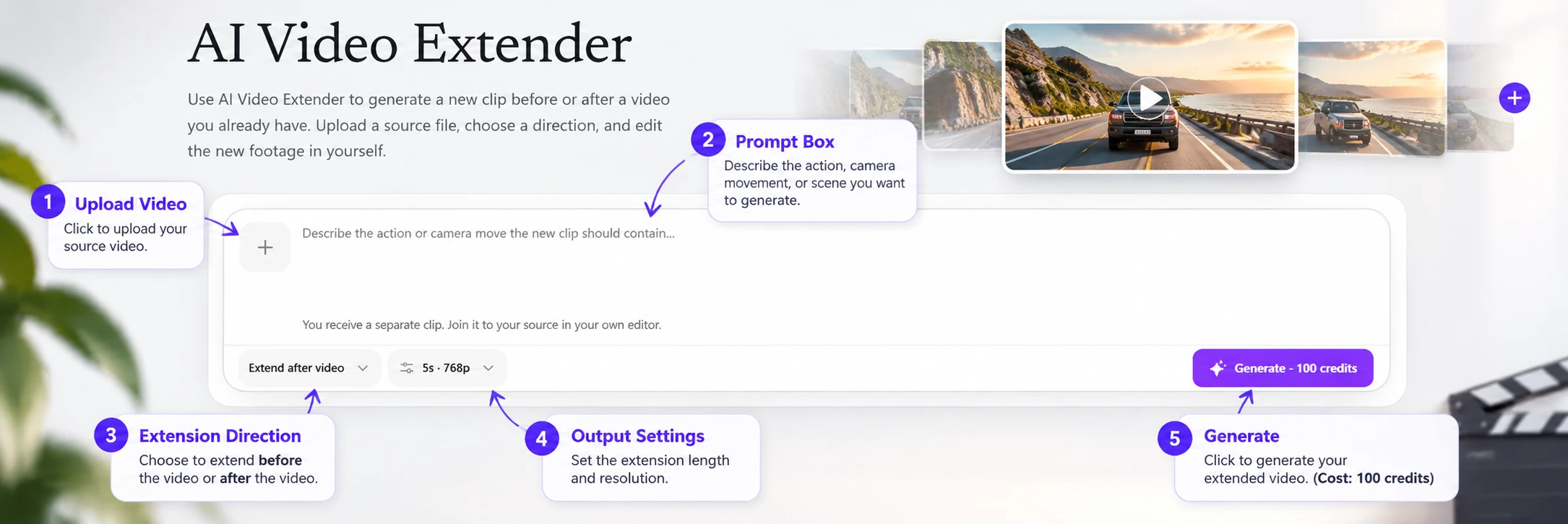
Step 1: Upload Your Source Video
Open AI Video Extender and upload the video you want to extend.
ZMS AI currently supports browser-playable MP4, WebM, and compatible MOV files up to 100 MB.
MP4 with H.264 encoding and WebM are generally the most reliable choices. If your browser can’t decode a MOV file or another less common codec, re-exporting it to a standard MP4 can solve the compatibility issue.
Choose a source where the beginning or ending you want to extend provides a reasonably clear visual anchor.
Useful details include:
A clearly visible subject
Understandable motion
Consistent lighting
A recognizable camera direction
A relatively clean scene
Tip: Avoid starting from an abrupt cut or heavily blurred transition when possible.
[Insert ZMS AI Screenshot Here]
Suggested annotations:
1 Upload Video · 2 Extend Direction · 3 Prompt · 4 Duration & Resolution · 5 Generate
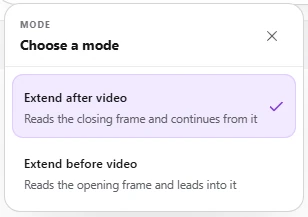
Step 2: Choose Extend After or Extend Before
Next, decide where the additional footage should appear.
Extend After
Use Extend After when your original video ends before an action or camera movement feels complete.
For example:
Source: A car is driving away along an empty highway.
Extension: The car continues straight ahead and gradually becomes smaller in the frame.
The source ending provides the visual starting point for the generated continuation.
Extend Before
Use Extend Before when you need additional footage leading into the beginning of your existing clip.
For example, if your original video begins halfway through a slow camera glide inside an art gallery, AI can generate an earlier approach that leads toward that opening.
Tip: Think about the missing moment rather than trying to recreate the entire original scene.

Step 3: Describe the New Footage
This is the most important part of the workflow.
Don’t simply write:
Continue the video.
Instead, describe what should happen during the new section.
For example:
The pickup continues driving straight down the empty desert highway and gradually becomes smaller in the frame. Maintain the same low rear camera position and late-day lighting. No other vehicles, turns, or text.
A useful AI video extension prompt formula is:
New Action + Motion Direction + Camera Behavior + Continuity + Negative Constraints
For example:
The man continues walking slowly along the wet path
maintains the same direction and pace
keep the shoulder-height follow shot
preserve the overcast fog and bare trees
no new people or weather change
The source already gives the AI visual context.
Your prompt should concentrate on what happens next — or what should happen immediately before the source begins.
Tip: One clear continuation is usually easier to control than several major actions in the same generation.
Step 4: Choose Duration and Resolution
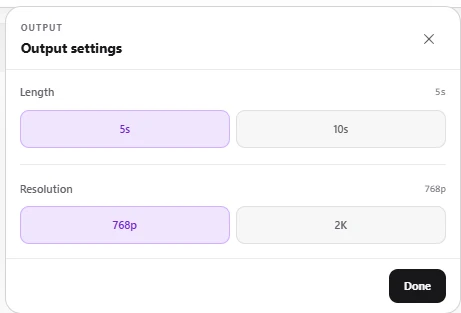
ZMS AI Video Extender currently provides:
Setting | Options |
|---|---|
Direction | Extend After / Extend Before |
Duration | 5 seconds / 10 seconds |
Resolution | 768p / 2K |
Aspect Ratio | Follows source orientation |
There is no separate aspect-ratio control for this workflow.
The generated clip follows the orientation established by your source, although its exact pixel dimensions may differ.
A shorter 5-second extension can be useful when you only need to complete a small action or test whether your prompt produces the right direction.
A 10-second extension gives the generated scene more time to develop, but longer generations also provide more opportunity for motion or visual details to drift.
Tip: For difficult scenes, test a shorter continuation first.

Step 5: Generate and Review the New Clip
Submit the generation after checking your prompt and settings.
ZMS AI returns the extension as a separate video clip.
For Extend After:
Original Video → AI-Generated Extension
For Extend Before:
AI-Generated Lead-In → Original Video
The tool doesn’t automatically stitch the extension into your original file.
You’ll need to place the clips together in your preferred video editor and handle any final timing, frame-size alignment, transitions, and audio adjustments there.
[Insert Workflow Graphic Here]
Original Clip → Source Frame → AI Generation → New Footage → Video Editor
3 Real AI Video Extender Tests — and What We Learned
We tested three different types of video extension to see how prompts, movement, and direction affect the result.
Test 1: Continue a Walking Scene
Direction: Extend After
The source clip ends with a man in a yellow jacket beside a foggy lake while the scene still feels like it needs another beat.
Prompt:
The man in the yellow jacket and black beanie walks slowly along the wet path beside the lake, still looking across the water. Keep the same overcast fog, bare trees, and shoulder-height follow. No new people, no weather change, and no text.
Result:
The generated footage continued the lakeside movement while maintaining the yellow jacket, beanie, foggy environment, and general follow-shot direction.
What we learned:
When the source already establishes the environment, you don’t need to describe the entire scene again.
The most useful prompt details are the continued action and the visual elements that must remain stable, such as camera height, weather, and background atmosphere.
Test 2: Continue a Moving Vehicle
Direction: Extend After
The source ends while both a pickup truck and the camera are still moving along a desert highway.
Prompt:
The pickup keeps driving straight down the empty desert highway and grows smaller in the frame. Hold the low rear camera, the pale road, and the late-day light. No other vehicles, no turns, and no text.
Result:
The pickup continued down the highway while the generated footage maintained the low rear perspective and forward movement.
What we learned:
Motion continuity applies to both the subject and the camera.
A vehicle can continue moving correctly while the extension still feels wrong if the camera suddenly changes height, angle, direction, or speed.
When camera behavior matters, name it explicitly.
Test 3: Generate Footage Before the Original Video
Direction: Extend Before
The source clip begins during a slow glide past artwork in a gallery. Instead of continuing beyond the ending, this test generates an earlier approach that leads into the original opening.
Prompt:
Continue the same slow left-to-right glide along the white gallery wall. Start just before the first large blue-and-green abstract painting fills the left of the frame, then travel toward the far end until that canvas sits large on the left with two more paintings receding. Do not pan left or reverse. Keep the polished floor, quiet ceiling lights, and a steady lateral move. A distant visitor may appear far down the hall. No text.
Result:
The generated lead-in created an earlier section of the gallery movement and approached the visual composition established by the source opening.
What we learned:
Extend Before usually requires more directional planning than a simple continuation.
You’re generating toward an existing opening, so the prompt should describe:
Where the new footage starts → how the camera travels → how it approaches the source frame.
How to Write Better AI Video Extension Prompts
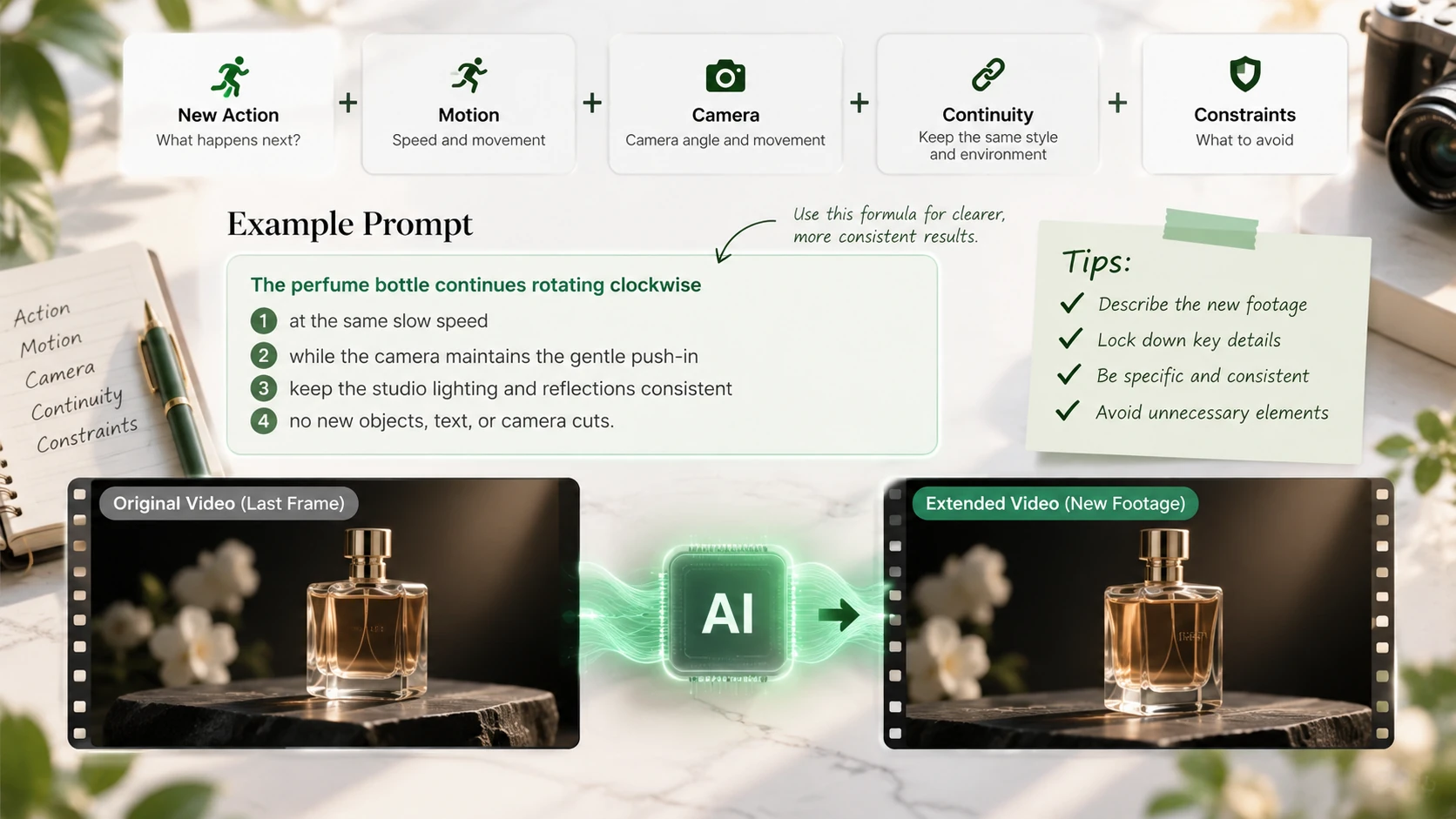
Across all three tests, the strongest prompts followed the same basic principle:
Describe the new footage, then lock down the details most likely to drift.
Use this formula:
New Action + Motion + Camera + Continuity + Constraints
For example:
The perfume bottle continues rotating clockwise
at the same slow speed
while the camera maintains the gentle push-in
keep the studio lighting and reflections consistent
no new objects, text, or camera cuts.
You don’t need to repeat every object already visible in the source.
Instead, focus on five questions.
1. What Happens Next?
Describe one clear action.
The woman continues walking forward.
is better than:
The woman walks forward, turns around, waves, starts running, and the weather changes.
2. How Should the Motion Continue?
If the source already contains movement, continue its direction and pace.
Examples:
Continue driving straight.
Maintain the same slow walking pace.
Continue the gentle clockwise rotation.
Keep moving slowly upward.
3. What Should the Camera Do?
Camera continuity is often just as important as subject continuity.
Useful instructions include:
Maintain the same low rear camera.
Continue the slow dolly forward.
Keep the camera stationary.
Maintain the shoulder-height follow shot.
Continue the left-to-right lateral glide.
4. What Must Stay Consistent?
Identify the visual characteristics that define the scene.
For example:
Keep the same late-day lighting, empty road, and warm desert atmosphere.
or:
Maintain the fog density, bare trees, wet pavement, and muted color palette.
5. What Should Not Appear?
Short negative constraints can reduce unwanted changes.
For example:
No new people, vehicles, text, weather changes, or camera cuts.
Keep this list focused on elements that would genuinely damage continuity.
When Should You Extend a Video with AI?
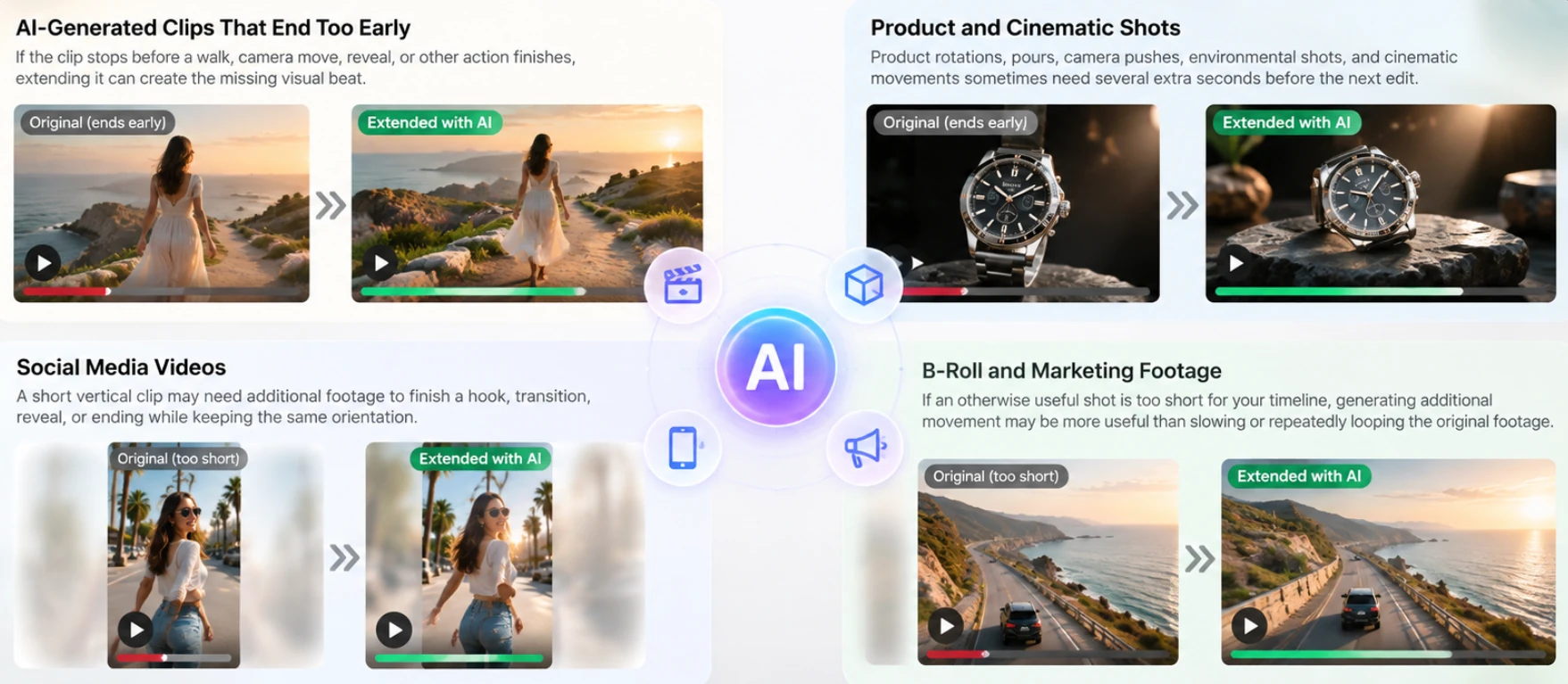
AI video extension is most useful when you need new visual content, not simply more playback time.
AI-Generated Clips That End Too Early
AI-generated video often uses fixed durations.
If the clip stops before a walk, camera move, reveal, or other action finishes, extending it can create the missing visual beat.
Product and Cinematic Shots
Product rotations, pours, camera pushes, environmental shots, and cinematic movements sometimes need several extra seconds before the next edit.
Social Media Videos
A short vertical clip may need additional footage to finish a hook, transition, reveal, or ending while keeping the same orientation.
B-Roll and Marketing Footage
If an otherwise useful shot is too short for your timeline, generating additional movement may be more useful than slowing or repeatedly looping the original footage.
How to Check an AI Video Extension Before Using It
Don’t judge the result from one still frame.
Play the source and extension together and check these three areas.
1. The Connection Point
The generated clip is anchored to a frame taken from your source video, providing a visual connection point between the original and new footage.
Pay particular attention to the frames immediately after the connection.
Check for sudden changes in:
Subject appearance
Object position
Camera angle
Background
Lighting
Color
2. Motion and Lighting
Continue watching beyond the first generated frames.
A connection can initially look convincing but drift several seconds later.
Check whether:
The subject maintains its direction
Walking or driving speed remains believable
Camera motion changes unexpectedly
Lighting shifts
Objects appear or disappear
The environment gradually changes
If something drifts, revise the prompt by describing that specific behavior more explicitly.
3. Audio and Frame Size
The generated extension has its own audio rather than automatically continuing your source video’s dialogue, music, or room tone.
Handle sound continuity separately during editing.
The generated clip’s exact pixel dimensions may also differ from the source, so align both clips to a common project frame size before final export.
5 Common AI Video Extender Mistakes
1. Re-Describing the Entire Source Scene
The source frame already provides visual information.
Use your prompt space to describe the new action and continuity requirements instead of rewriting everything already visible.
2. Forgetting Camera Movement
A subject can move correctly while the shot still feels disconnected because the camera changes direction or angle.
If camera behavior matters, describe it explicitly.
3. Asking for Too Much in One Extension
Avoid prompts that combine several unrelated actions.
For example:
The man continues walking, starts running, turns around, waves, it begins raining, and the camera flies upward.
A simpler continuation gives the AI fewer opportunities to drift.
4. Expecting a Finished, Seamlessly Joined Video
ZMS AI generates a separate extension clip.
You still need to join it to the original footage and handle frame sizing, timing, and audio continuity in an editor.
5. Skipping the Continuity Check
Don’t assume a visually convincing first frame means the entire extension is consistent.
Watch the full generated section and inspect subject motion, camera behavior, lighting, background, and sound before using it.
AI Video Extender FAQ
How do I extend a video with AI?
Upload your source video to an AI video extender, choose whether you want footage before or after the original clip, describe the new action and camera behavior, choose your output settings, and generate the extension.
Can AI continue a video after it ends?
Yes. On ZMS AI, choose Extend After to generate new footage based on the ending of your source video.
Can AI generate footage before a video starts?
Yes. Choose Extend Before to generate a new lead-in that approaches the beginning of your existing video.
How long can I extend a video on ZMS AI?
ZMS AI currently offers 5-second and 10-second extension options at 768p or 2K.
Will an AI video extension perfectly match my original video?
Not necessarily. The source provides a visual anchor, but the newly generated footage can introduce changes in subject appearance, motion, lighting, camera behavior, or other details. Always review the full extension.
Does AI Video Extender preserve the original audio?
The generated section has its own audio and doesn’t automatically continue your original dialogue, music, or room tone. Plan to handle audio continuity during editing.
Extend Your Video with ZMS AI
Making a video longer doesn’t always mean slowing it down, freezing the final frame, or repeating existing footage.
AI video extension can generate new footage that continues an unfinished action, completes a camera movement, or creates additional footage before the original scene begins.
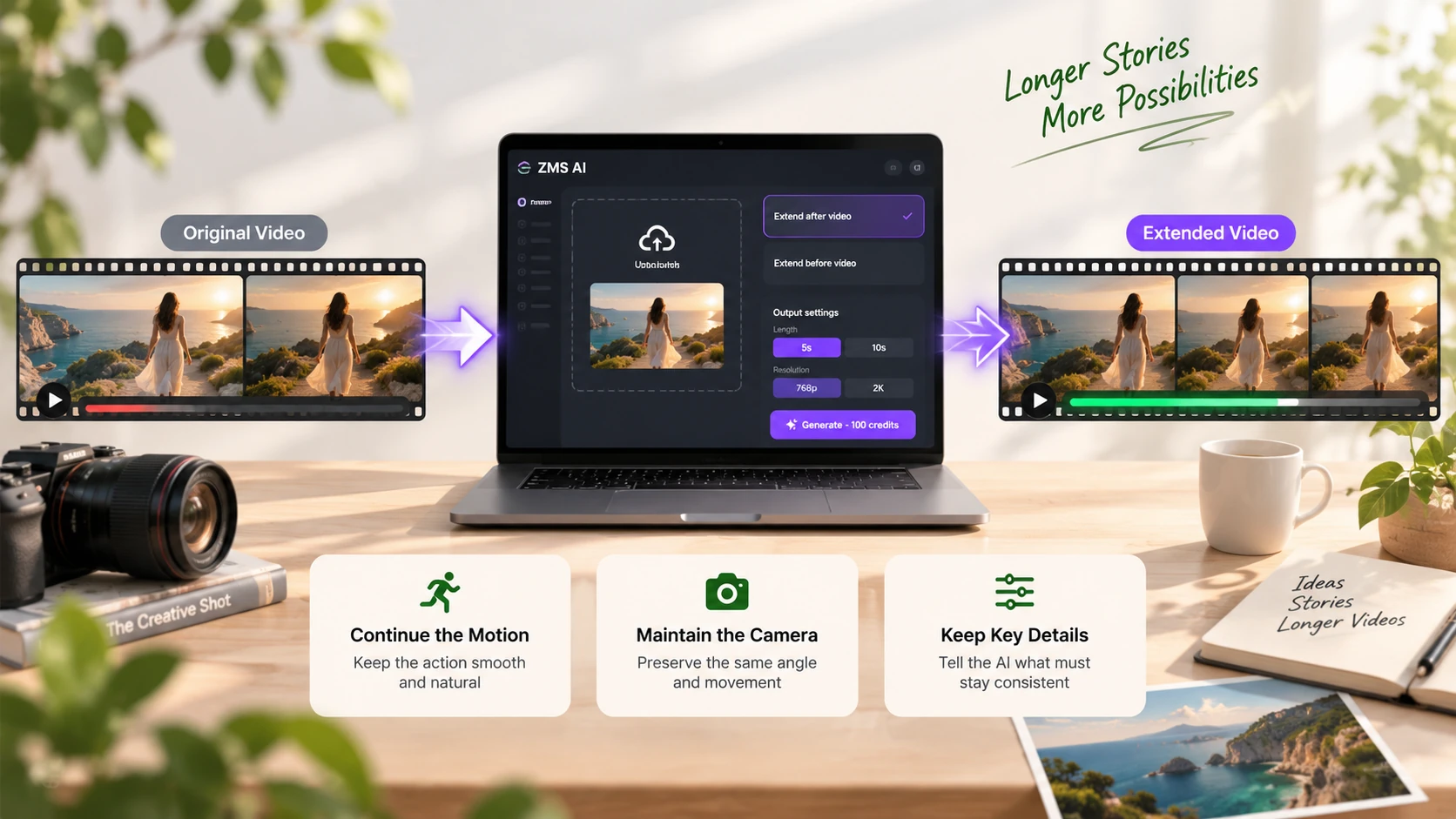
For better results, remember three things:
Continue the existing motion.
Maintain the camera behavior.
Tell the AI what must stay consistent.
Then review the generated footage carefully before adding it to your final timeline.
Ready to extend your own clip?
Try AI Video Extender on ZMS AI →
If you want to create a new AI video from scratch instead, explore the AI Video workspace on ZMS AI.