Use AI Clothes Changer to edit an outfit with GPT Image 2. Add a person photo, describe the clothing, and optionally include a garment reference.
Loading generator…
Your photo, a different outfit
What Is AI Clothes Changer?
AI Clothes Changer on ZMS uses GPT Image 2 to change a shirt color, replace one garment, or create an outfit in your person photo. Add a garment reference for design guidance. Preserving your face, pose, and background is an instruction, not a guarantee. These photos show useful inputs; the prompts section includes three tested edits.
Person photo
Keep the clothing area visible
For AI Clothes Changer, use a well-lit photo of one person. Show the collar and cuffs for a top, or the waist and hem for an outfit. Avoid clothing hidden by bags or hands.
Reference input — person photo
Start an edit
How to Use AI Clothes Changer
Start an AI Clothes Changer edit with your person photo and a description of the clothing change.
1
Add your person photo
Add your image to Person photo in AI Clothes Changer. Include the full outfit when changing trousers, a skirt, or a dress.
2
Describe the clothing
Tell AI Clothes Changer what changes and what stays. Specify color, cut, and fabric, or add a garment reference.
3
Choose the output
Choose the aspect ratio and resolution for AI Clothes Changer. Check the crop and displayed credit estimate.
4
Generate and review
Sign in and submit, then follow progress in Tasks. Inspect the completed outfit before downloading or revising.
AI Clothes Changer Prompts
Compare three tested AI Clothes Changer edits and four suggested prompts. Use example loads the input and description without generating. Each edit also uses the tool's person-preservation and input-role instructions. For other image edits, explore GPT Image 2.
A structured outer layer
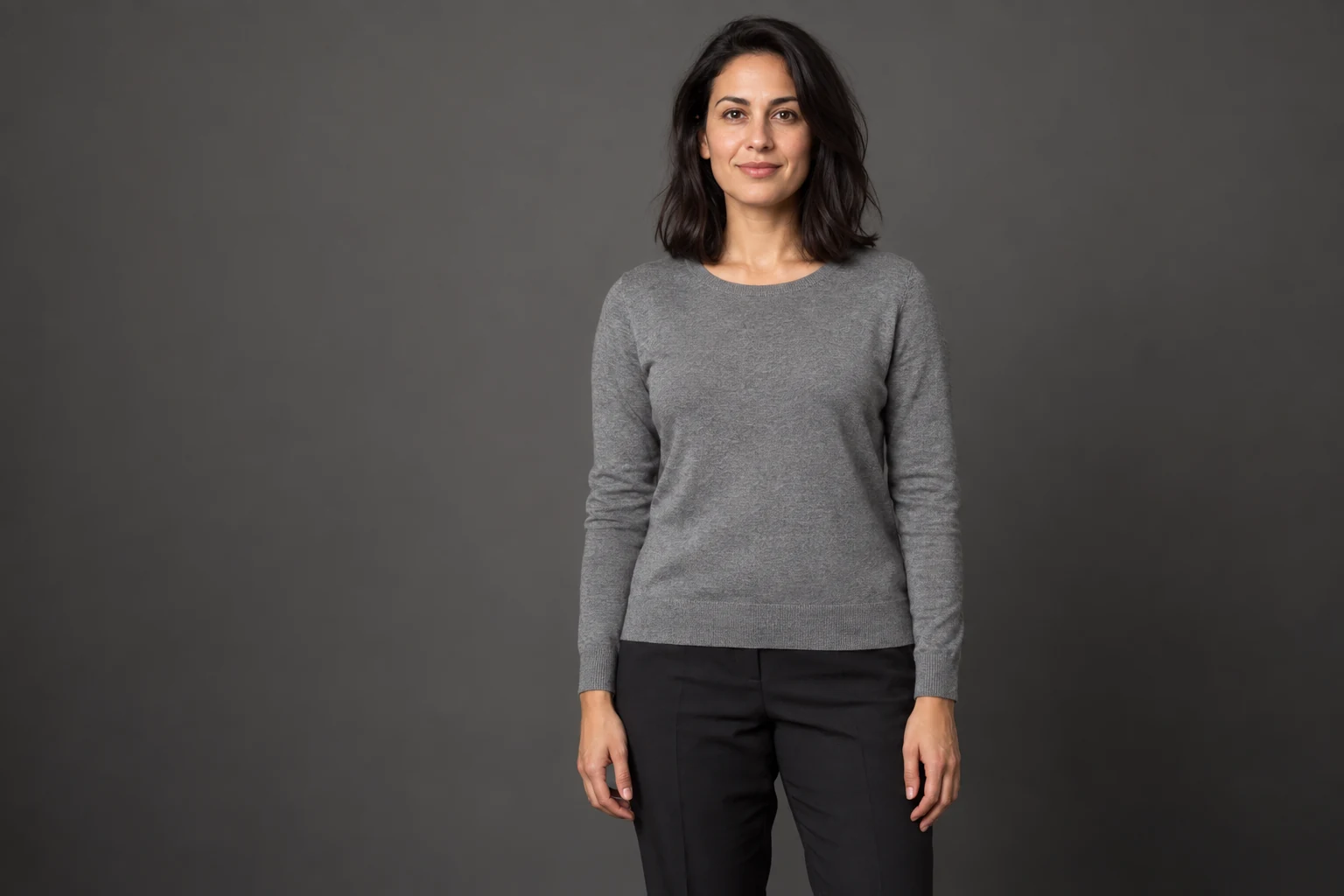
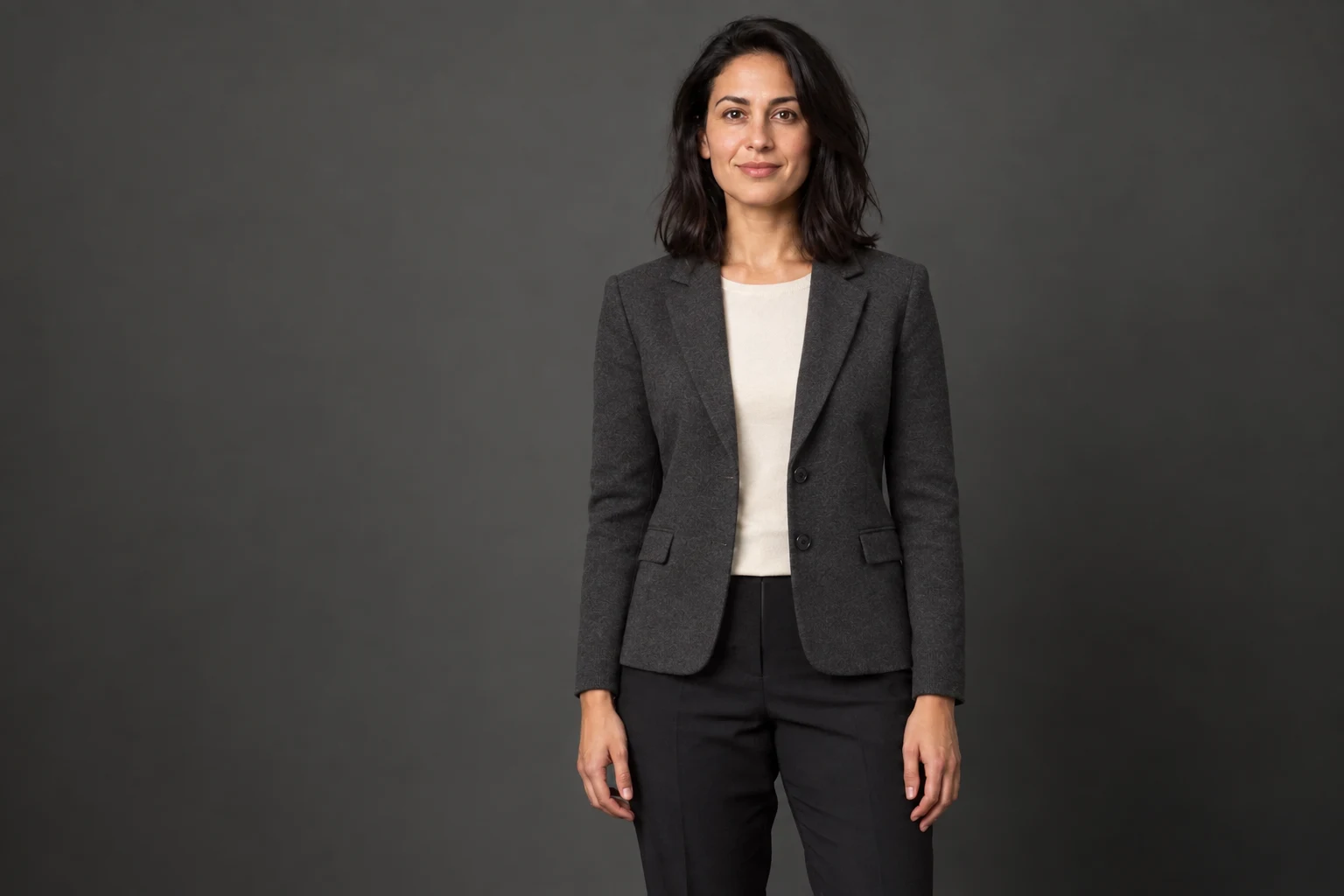
Replace a top
This AI Clothes Changer test replaces a casual knit with a tailored work outfit.
Replace the current gray knitted top with a charcoal wool blazer over a simple cream top. Use softly structured shoulders, narrow notch lapels, and two dark buttons. Keep the lower outfit and accessories unchanged, with subtle woven fabric rather than a glossy finish.
What changed The knit becomes a charcoal two-button blazer with a cream layer. The hem exposes more of the waist, and nearby trouser folds change too.
Person inputGPT Image 2 result
Change only the shirt color
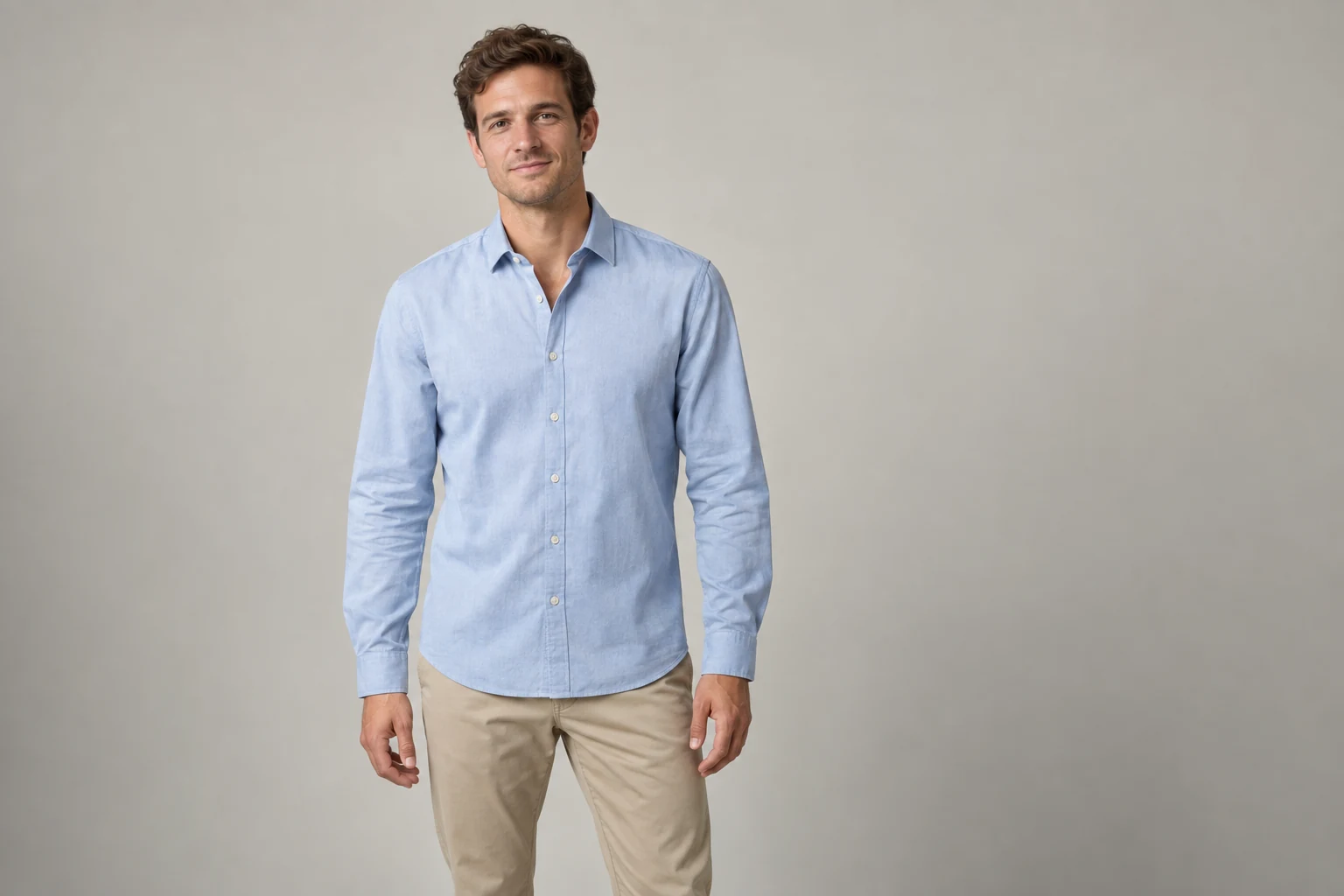
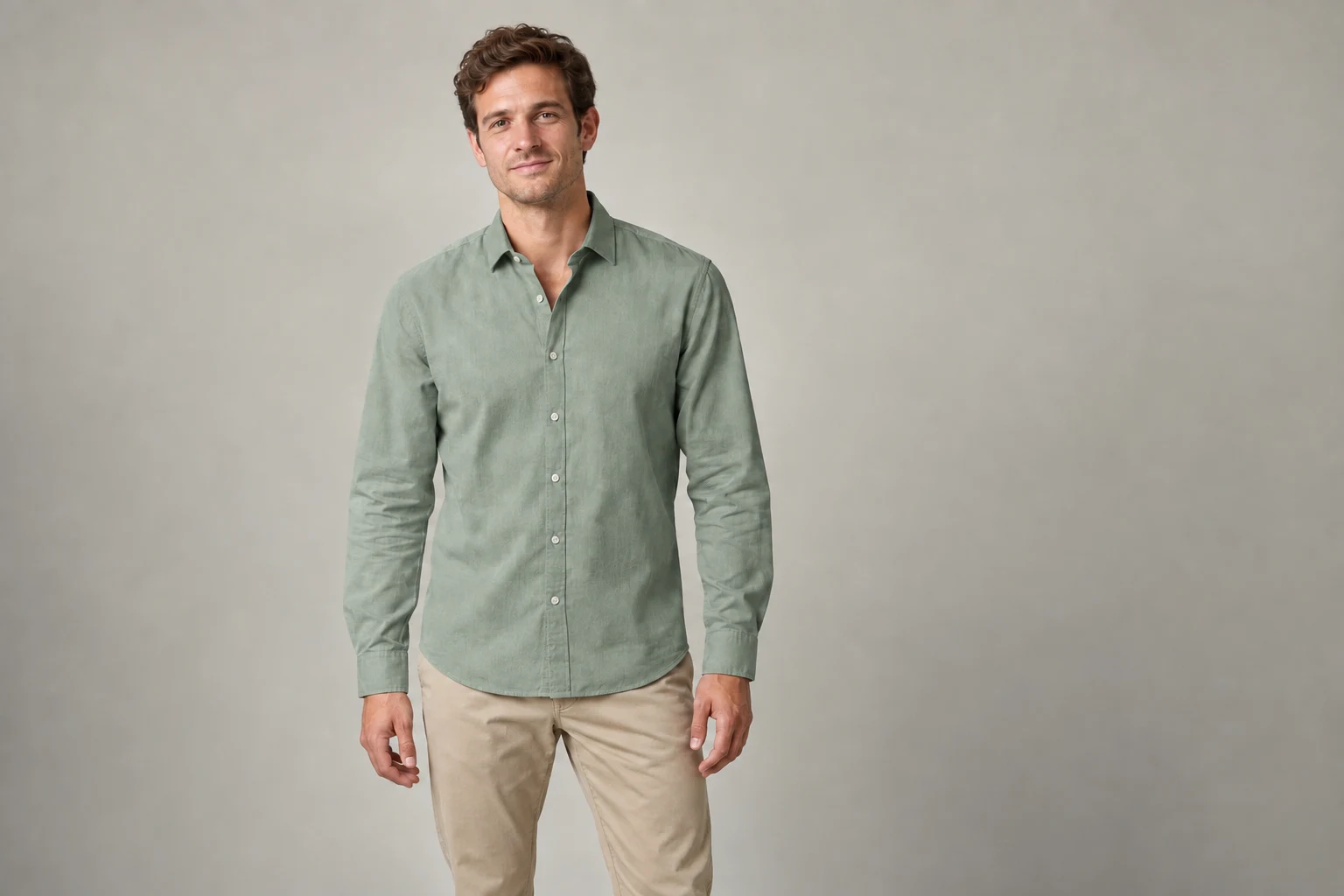
Change color
The AI Clothes Changer color test turns a pale blue shirt sage green.
Change only the pale blue shirt color to muted sage green. Keep the same shirt style, fabric texture, collar, buttons, sleeves, and folds. Leave the sand colored trousers, shoes, accessories, skin tone, and background unchanged. Do not replace the shirt or add layers, patterns, or logos.
What changed The shirt becomes sage green; the collar and button layout stay similar. Fabric texture and folds are redrawn, so this is not a pixel-preserving recolor.
Person inputGPT Image 2 result
One reference, one replacement
Use a garment photo
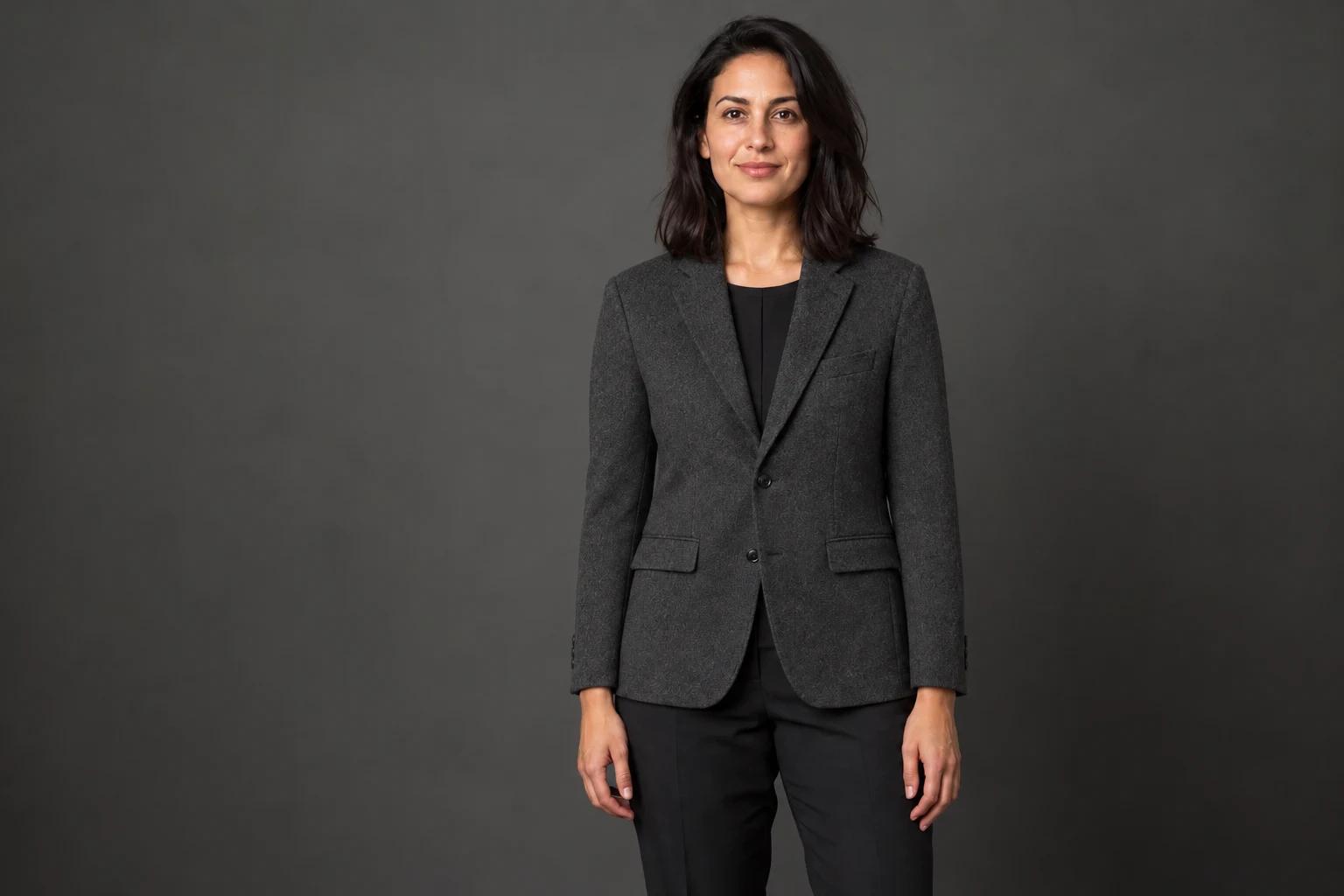
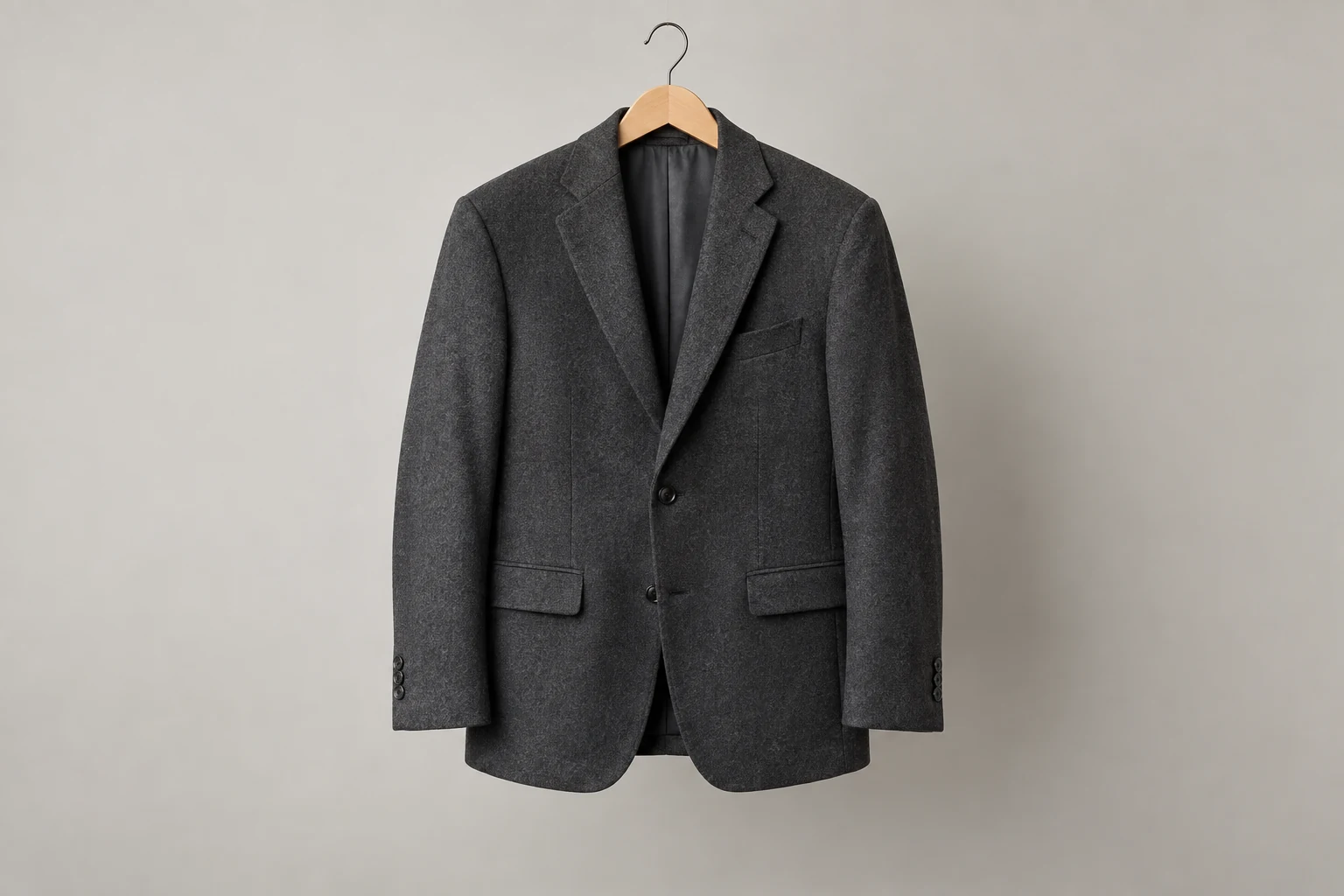
This AI Clothes Changer example uses a person photo and a separate blazer reference.
Replace only the current top with the garment shown in the clothing reference. Follow its neckline, sleeve length, main color, and pattern placement. Keep the lower outfit and accessories unchanged. Adapt the drape to the visible pose without adding new decorations.
What changed The result follows the reference blazer's charcoal texture, lapels, two buttons, and flap pockets. The cut adapts to the person and a black inner layer is added.
Use example applies this garment to your current person photo.
Person inputGPT Image 2 result
Garment reference
An evening outfit
Change an outfit
Try an evening dress in AI Clothes Changer, starting from a blouse and skirt.
Image + prompt · Person photo · Start at 1K
Suggested prompt
Replace the white blouse and navy skirt with a midnight blue satin midi dress. Use a modest round neckline, long sleeves, gentle shaping at the waist, and natural fabric folds. Keep the shoes and accessories unchanged, without adding jewelry, lettering, or decorative cutouts.
Review checkpoint Inspect the neckline and hem. Reduce sheen if satin looks metallic or hides the dress shape.
Reference input — evening outfit
Add a denim layer
Denim layers
Use this AI Clothes Changer prompt to add denim over the existing white T-shirt.
Image + prompt · Person photo · Start at 1K
Suggested prompt
Add a medium wash blue denim jacket over the existing white T-shirt, with the front open. Include a pointed collar, two chest pockets, small metal buttons, and visible denim seams. Keep the black trousers and accessories unchanged, with no patches, lettering, or extra layers.
Review checkpoint Inspect the jacket opening and cuffs. If layers merge, specify that the white T-shirt must stay visible.
Reference input — denim layering
A coordinated sports outfit
Activewear
Plan a zip jacket and joggers with this AI Clothes Changer prompt.
Image + prompt · Person photo · Start at 1K
Suggested prompt
Replace the gray T-shirt with a muted teal lightweight zip jacket and change the navy track pants to charcoal joggers. Use a plain standing collar, neat cuffs, and softly tapered legs. Keep the shoes and accessories unchanged, with realistic fabric folds and no logos or lettering.
Review checkpoint Check the zipper, waistband, and trouser edges. An image cannot verify sizing or athletic fabric performance.
Reference input — activewear
A softer knitted surface
Knit texture
Try cable knit in AI Clothes Changer while keeping the existing jeans.
Image + prompt · Person photo · Start at 1K
Suggested prompt
Change only the burgundy sweatshirt to an oatmeal cable knit sweater with a plain crew neck, ribbed cuffs, and a ribbed hem. Keep the dark blue jeans and accessories unchanged. Use moderate knit texture with believable folds, without oversized braids, logos, or added layers.
Review checkpoint Check the cable pattern and cuffs. Request finer texture if it exaggerates or blends into skin.
Reference input — knit texture
Choose the output
AI Clothes Changer Settings and Credits
AI Clothes Changer uses medium quality at both resolutions. Choose an aspect ratio; the tool does not automatically preserve your input dimensions. The estimates below apply to one image edit. Check your balance and estimate before submitting, or explore ZMS credit plans.
1K output
Start here to assess clothing shape and color.
12 credits
Per edit · estimate
Output details
One image per task
Choose the output aspect ratio
Person required; garment reference optional
2K output
Choose a larger image to inspect smaller details.
20 credits
Per edit · estimate
Output details
Same inputs and editing controls
Larger fabric and edge details
Each retry is a new task
Look beyond the clothing
Check Your Outfit Edit
Compare your AI Clothes Changer result and original at the same zoom: check the requested change, then the areas meant to stay unchanged. These reference pictures illustrate what to inspect. For other edits, use the AI image workspace.
Person and backgroundCompare the face, pose, and surroundings in your AI Clothes Changer result. If they shift, try a smaller clothing change.Reference input — person photo
Garment designCheck whether AI Clothes Changer followed the neckline, buttons, and pattern. If the design drifts, name the detail that matters most.Reference input — garment
Edges and textureIf AI Clothes Changer merges sleeves, hands, or waistlines, clarify the clothing boundary or choose a less obstructed photo.Reference input — detail to inspect
Questions
AI Clothes Changer FAQ
Does AI Clothes Changer need a garment reference?
No. Your person photo and clothing description are enough. Add a reference when a cut or pattern is easier to show.
Can AI Clothes Changer replace just one item?
Yes. Name the item to change and the clothes to keep, then inspect nearby details for unwanted changes.
Will AI Clothes Changer keep my face unchanged?
No guarantee. The model is instructed to preserve your face and unrequested areas; inspect them in the result.
Can AI Clothes Changer predict clothing fit?
No. This visual edit does not measure your body, recommend a size, or establish how a real garment will fit or feel.
Is AI Clothes Changer free to use?
Generating uses credits: currently 12 for one 1K edit or 20 for 2K. Loading an example or copying its prompt spends no credits. Check the estimate before submitting.
How do AI Clothes Changer examples update my inputs?
A person example replaces your photo and clears the old garment. The garment example keeps your person photo. Both load the description and preserve output settings; neither starts generation.
Does AI Clothes Changer preserve fabric texture?
You can request color only, but the sage green test also redrew texture and folds. Compare the original and result; this is not a pixel-preserving recolor.
Can AI Clothes Changer edit group photos?
Use a single-person photo. This workflow has no control for selecting a particular person within a group, so start with an individual photo.
How do I download an AI Clothes Changer result?
After generation, open the completed work in My Creations and select Download. Save images you want to keep beyond the library retention period.
How does AI Clothes Changer handle my photos?
ZMS processes uploaded references and prompts for editing. Generated works stay in your library for up to six months; uploaded photos have no fixed retention period stated. Request deletion at support@zms.com. See the privacy policy.
Ready when you are
Start with AI Clothes Changer
Return to your photos and clothing description. Your current inputs stay in the workspace.