How to Use Kling 4.0 on ZMS: Step-by-Step Video Guide
Learn how to use Kling 4.0 on ZMS with Text to video, Mixed references, and Keyframes. This practical tutorial covers prompt structure, output settings, current input limits, credit estimates, and a step-by-step review workflow.

Kling 4.0 on ZMS lets you make a video from a text prompt, visual or audio references, or ordered keyframes. This guide walks through choosing a workflow, writing a shot-ready prompt, checking ZMS’s current input and credit limits, and reviewing the finished clip. The limits below describe the ZMS workspace and may differ from Kling’s own app or API.
Which Kling 4.0 workflow should you choose?
Start with the material that best explains the shot you want. In the ZMS interface shown here, choose one of three modes: Text to video, Mixed references, or Keyframes. Use Mixed references to combine image, video, or audio guidance; use Keyframes when specific visual moments need to anchor the timeline.
Workflow | Choose it when | What you provide |
|---|---|---|
Text to video | You can describe the scene clearly in words | A prompt and output settings |
Mixed references | Appearance, motion, or sound should follow supplied media | A prompt and compatible image, video, or audio references |
Keyframes | Specific visual moments should anchor the sequence | A prompt and a required first image, with optional middle and final images |
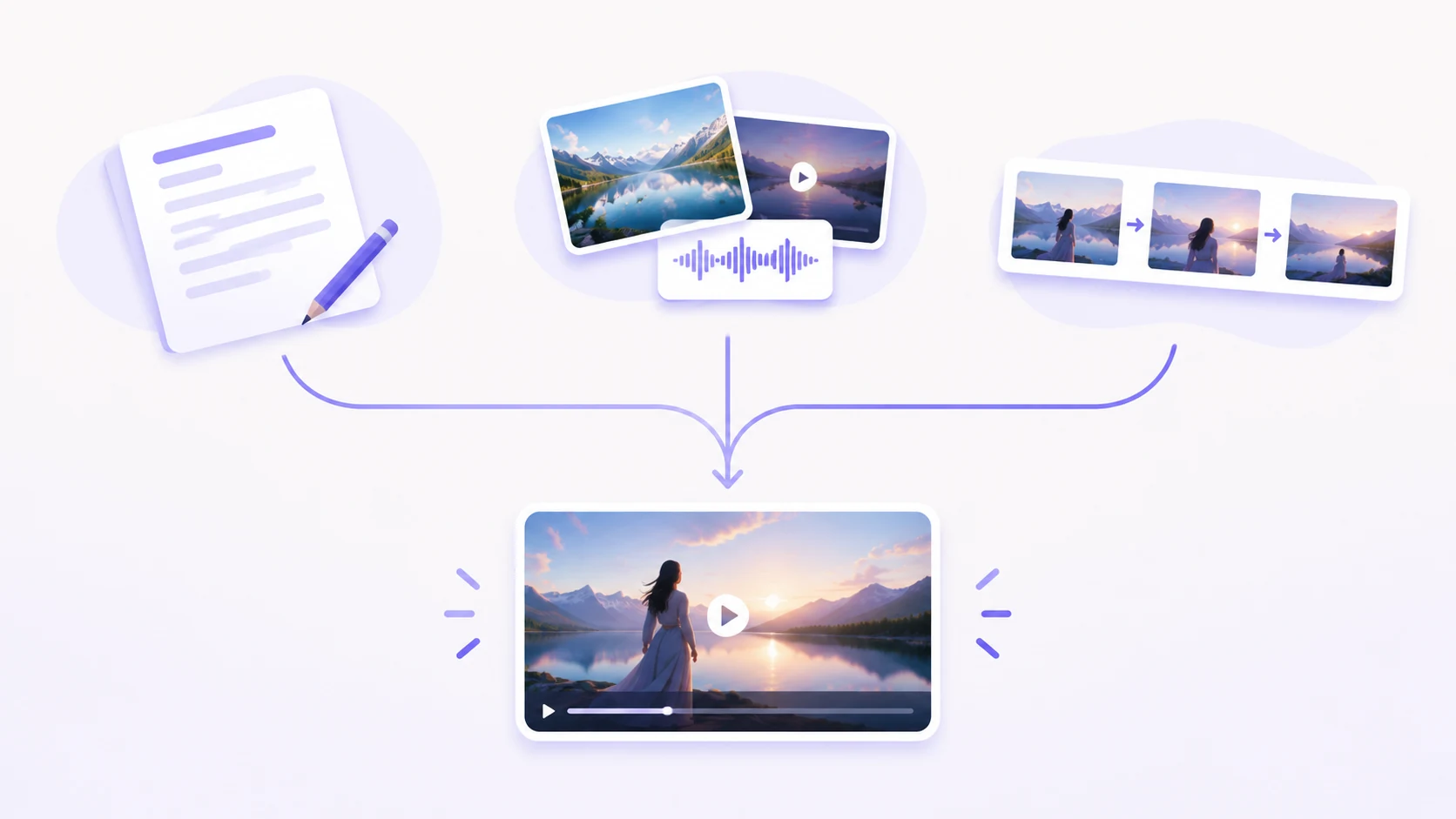
Use one primary action per shot. A reference should have a clear job—such as setting the product’s appearance, establishing the location, or guiding camera movement—rather than repeating the prompt in another format. Open Kling 4.0 on ZMS to choose a mode and check the live controls.
Choose Text to video for a scene you can describe
Choose Text to video for a new setting, a simple action, or an early visual concept. It needs no source media, so it is the quickest way to test whether the idea and camera direction are clear.
Choose Mixed references when source media carries useful information
Choose Mixed references when images, video, or audio should guide appearance, motion, or atmosphere. Name the role of each file in the prompt. For example: “Use image 1 for the room layout; use image 2 for the product; use audio 1 for distant surf.”
Choose Keyframes when moments must land in a certain order
Use Keyframes when the opening, transition, or final composition matters. Supply the required first image, then add only the middle or final frames that communicate a real change. Keyframes are visual anchors; the prompt still needs to describe the movement between them.
How to use Kling 4.0 on ZMS
Before you start: Have your prompt ready and, for Mixed references or Keyframes, prepare only the source files needed for the shot. The ZMS workspace displays a credit estimate before generation, so you can check cost before committing.
1. Open the Kling 4.0 workspace
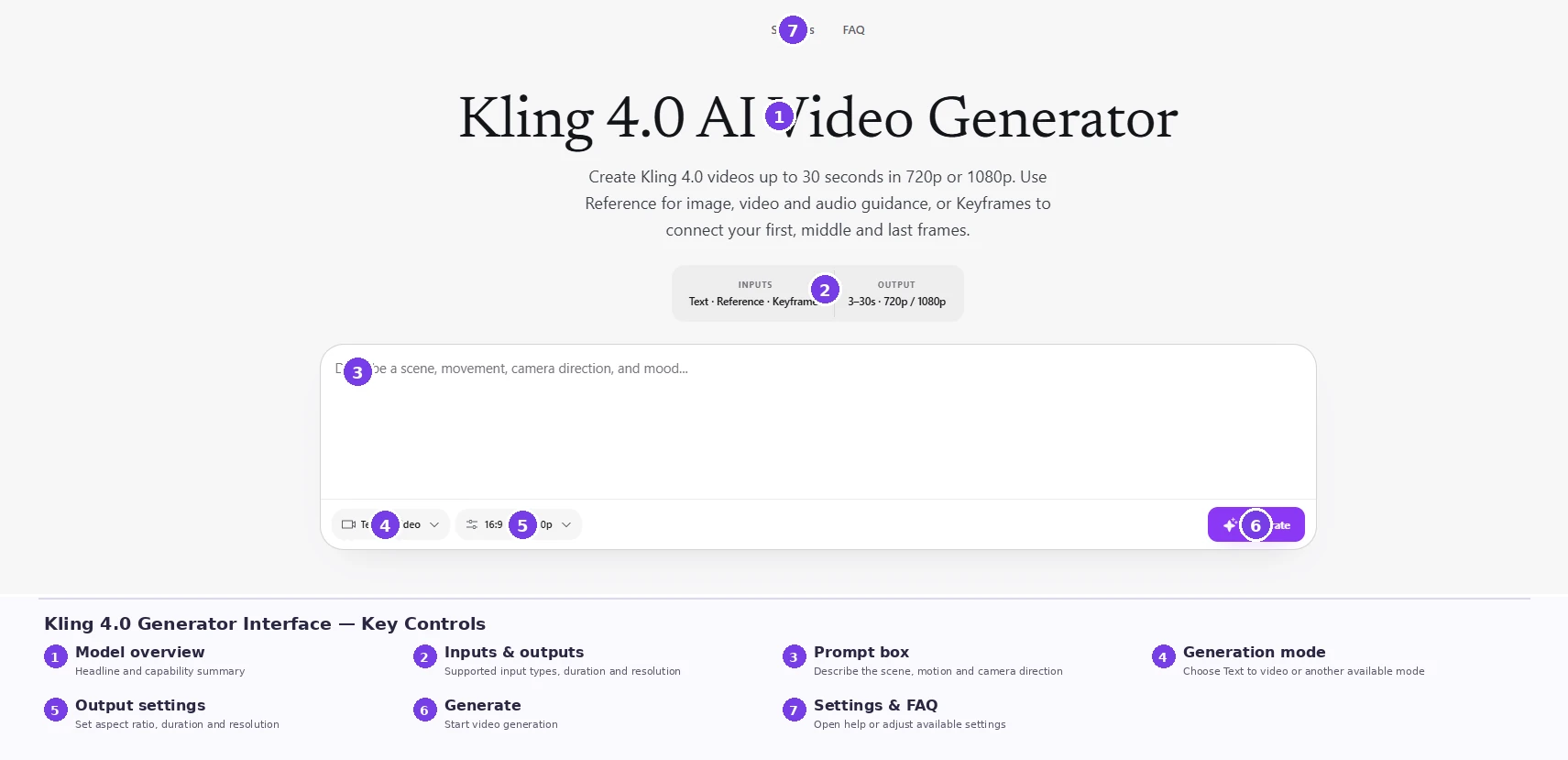
Sign in to ZMS, open its Kling 4.0 video generator, open the mode selector, and choose Text to video, Keyframes, or Mixed references. Decide the output aspect ratio and duration from the intended placement—for example, vertical for a phone-first social post or widescreen for a presentation.
2. Prepare only the references you need
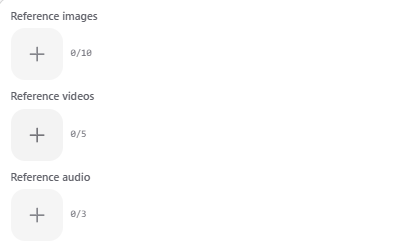
In the current ZMS workspace, image references accept PNG or JPEG files, video references accept MP4 or MOV, and audio references accept MP3 or WAV. The interface currently allows up to 10 images, 5 videos with a combined duration of 30 seconds or less, and 3 audio files of 5–30 seconds each. Images, videos, and audio together are capped at 15 files. Check the workspace for file-size and dimension requirements before uploading.
For keyframes, provide a first image. Middle and last images are optional. Use a short sequence of compatible frames that shows meaningful changes, such as a product shifting from a front view to a three-quarter view. The ZMS workspace limits the total to 10 frames and also ties the number of frames to the selected output duration.
3. Write a prompt like a shot brief
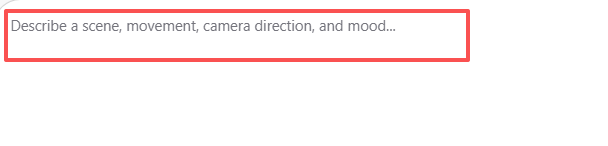
Name the subject, setting, action, camera movement, lighting, pacing, and sound. Give each reference a role by referring to it clearly, such as “Use image 1 for the bottle and image 2 for the warm window light.” Keep the movement physically simple and state what must remain unchanged. For a longer clip, split the action into timed beats so the model has a clear order to follow.
A reusable Kling 4.0 prompt outline:
Subject and setting: [who or what is in the scene, and where]
Reference roles: [what each uploaded image, video, or audio file should guide]
0–3 seconds: [opening action and framing]
3–6 seconds: [next action and camera movement]
6–8 seconds: [ending image or hold]
Look and light: [specific materials, colors, and lighting]
Sound: [dialogue, ambience, effects, or music]
Keep [important subject/product details] consistent.
Adjust beat times to match your selected duration. In Mixed references, name assets as they appear in the workspace (for example, “image 1”); state what to preserve and what information to take from each file. Kling’s official guide recommends descriptive positive instructions over long lists of negative prompts, since negative instructions can increase errors. If unwanted subtitles or background music matter, state those exclusions clearly and review the result.
Text-to-video example:
A small red paper boat floats down a narrow rainwater stream in a quiet city park after rain. One continuous low tracking shot follows it from behind at walking pace. Leaves drift past; the boat stays upright and centered. Soft overcast daylight, realistic water ripples, gentle rain ambience. No people, cuts, text, or music.
4. Use a real ZMS reference workflow as a starting point
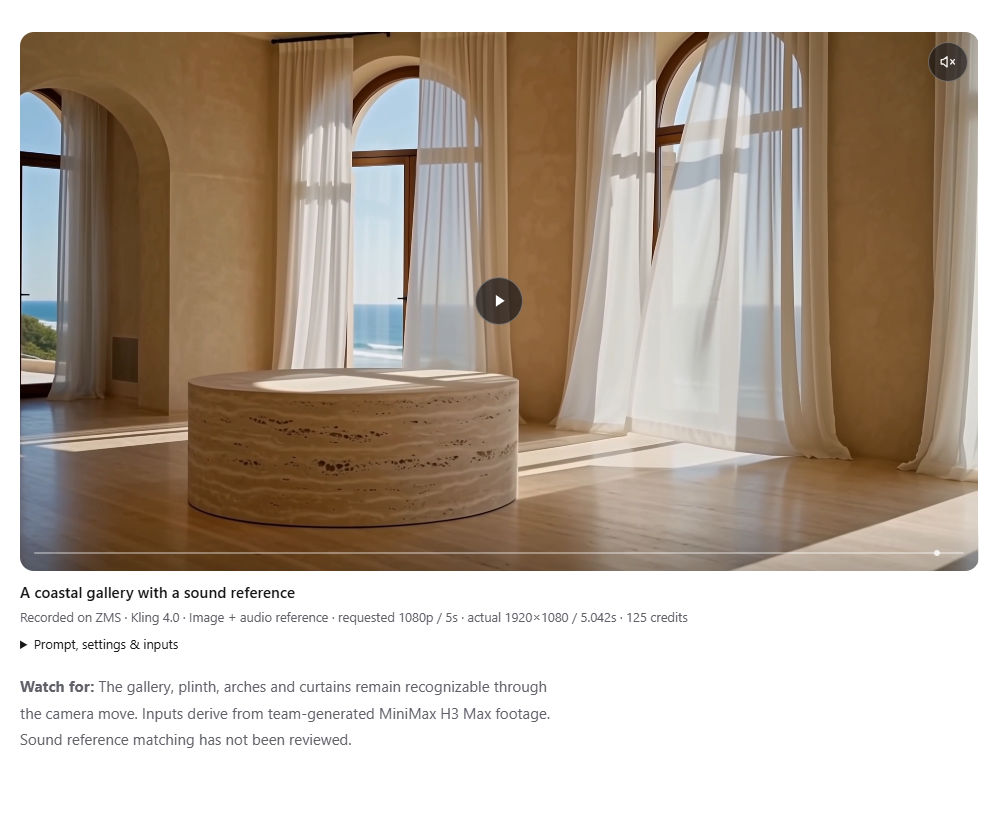
The ZMS Kling page includes a recorded five-second gallery clip made with a still image and an audio reference. Its prompt assigns the image to the gallery’s architecture, asks for one slow rightward camera glide, and uses the audio to guide quiet surf and room tone. The page records the requested 1080p/five-second settings and 125 credits, with an actual output of 1920 × 1080 and 5.042 seconds. It also notes which visual details were reviewed and that sound-reference matching was not reviewed. This is a documented example to learn from—not a controlled benchmark or a prediction for a new prompt.
For a similar brief, describe the supplied image’s role, one camera move, one small environmental action, and the intended sound. Avoid asking for a new location, several cuts, and multiple character actions in the same short shot.
5. Choose a duration and resolution
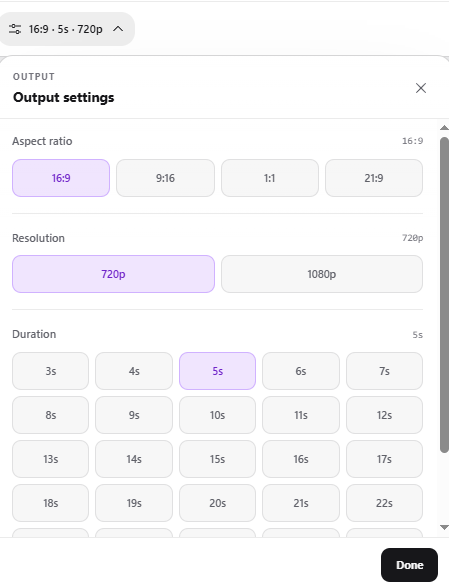
Click the output-settings control at the bottom of the prompt box (the selected values appear in a summary such as “16:9 · 5s · 720p”). In the settings panel shown in the current interface, choose an aspect ratio—16:9, 9:16, 1:1, or 21:9—then select 720p or 1080p and a duration from 3 to 30 seconds in one-second steps. Press Done to return to the prompt. The screenshot shows 16:9, 5 seconds, and 720p selected initially; your current defaults may differ. Confirm available choices in your selected mode.
6. Review the credit estimate before generating
The current ZMS rates are 20 credits per output second at 720p and 25 at 1080p when no reference video is used. With reference videos, the rates are 25 credits per billed second at 720p and 35 at 1080p; ZMS adds the output duration to all reference-video seconds and rounds the combined total up once. Audio reference seconds do not add to that duration total.
Example settings | Current estimate |
|---|---|
5 seconds, 720p, no reference video | 100 credits |
5 seconds, 1080p, no reference video | 125 credits |
5 seconds, 720p, plus 3.2 seconds of reference video | 225 credits (9 billed seconds) |
5 seconds, 1080p, plus 3.2 seconds of reference video | 315 credits (9 billed seconds) |
Confirm the estimate and your balance in the workspace before you submit; rates can change. As checked October 29, 2026, ZMS lists one-time credit packs of $10 for 1,000 credits, $30 for 3,500 credits, and $99 for 14,000 credits; purchased credits do not expire. Check ZMS pricing for current pack details before buying.
7. Watch the whole result
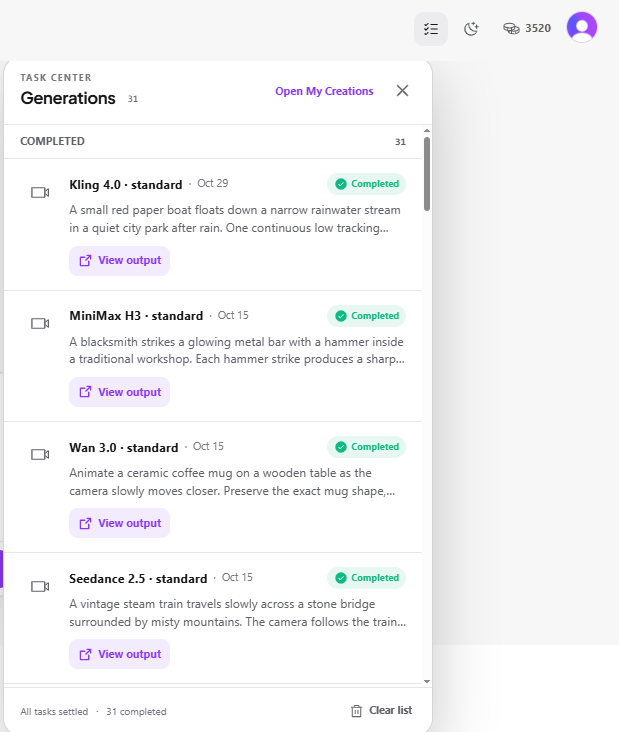
When generation finishes, review the clip from beginning to end. Check that the main action happens, the subject and product stay recognizable, the camera move feels intentional, and the soundtrack suits the brief. If something is off, change one variable at a time—such as the prompt, a conflicting reference, or the duration—so the next result is easier to assess. Find saved results in My Creations.
Prompt tips for more controlled Kling 4.0 videos
Give one clear job to each reference
Say what each file contributes: “image 1 defines the jacket,” “video 1 guides the lateral camera move,” or “audio 1 sets the room ambience.” Avoid references that disagree about the same subject or setting.
Use keyframes for visible changes
Choose frames that clarify the opening, a meaningful transition, and the ending. Keep the subject, setting, and style compatible across frames. A sequence of nearly identical frames adds little direction; an abrupt change in subject or location can create an unclear transition.
Separate subject movement from camera movement
“The cyclist turns left” describes the subject. “The camera pans left to follow” describes the camera. State both when both matter, and avoid stacking several camera moves into a short clip.
Make sound direction specific
Name the wanted sound—such as quiet room tone, footsteps, or distant traffic—and whether dialogue or music belongs. The ZMS Kling 4.0 workspace does not show a separate generate-audio switch. If you add an audio reference, check how the workspace handles any option to retain audio from a reference video.
Common Kling 4.0 problems and how to troubleshoot them
The clip adds an unrequested cut or action
Reduce the brief to one main action per beat. If you need one continuous shot, say so directly and describe one camera move. Remove references that suggest a different action or setting. A prompt cannot guarantee that a generated sequence will have no cuts, so inspect the full output.
A product or character changes between moments
Choose Mixed references and give the relevant image or video an explicit identity or appearance role. For a known sequence of visual states, choose Keyframes and use compatible images in order. Check silhouette, color, logo placement, and proportions throughout the clip before using it in a campaign.
The sound does not fit the picture
Name the intended dialogue, ambience, or effects in the prompt and avoid mixing contradictory audio directions. If sound is not a priority, review the result and plan to replace or finish audio in an editor.
A long prompt is hard to control
Split it into timed beats and give each beat one action and one camera instruction. If the concept still contains multiple locations or major story turns, consider generating separate clips and editing them together.
What are Kling 4.0’s current ZMS limits?
These are workspace-specific limits, not a complete list of Kling features across every service:
Control | Current ZMS workspace details |
|---|---|
Output | 3–30 whole seconds; 720p or 1080p |
Images | Up to 10 PNG/JPEG images |
Videos | Up to 5 MP4/MOV clips; 30 seconds combined |
Audio | Up to 3 MP3/WAV clips; each 5–30 seconds |
Total reference files | Up to 15 across images, videos, and audio |
Keyframes | First image required; up to 8 middle images and optional last image, subject to the 10-frame and duration limits |
Prompt | Up to 8,000 characters |
ZMS’s current workspace does not expose Flash, 4K, HDR, or repeated extension controls for this model. Check the live Kling 4.0 workspace for the latest accepted formats, estimates, and controls.
Frequently asked questions
Can I use Kling 4.0 on ZMS without reference images?
Yes. Choose Text to video and describe the scene, action, camera, and sound in the prompt. References and keyframes are optional for that mode.
Do Kling 4.0 keyframes require a start and end image?
The current ZMS workflow requires a first image. Middle and final frames are optional, subject to the workspace’s total-frame and duration limits.
How many credits does a Kling 4.0 video cost on ZMS?
It depends on resolution, output duration, and whether reference videos are included. The live estimate in the generator is the best figure to use before submitting.
Can I generate 4K Kling 4.0 video on ZMS?
The current ZMS Kling 4.0 workspace lists 720p and 1080p output. It does not currently list 4K for this model.
Create your first Kling 4.0 clip
Choose a single, observable action, pick the input mode that best communicates it, then confirm the settings and credit estimate. Start in the ZMS Kling 4.0 workspace.
If you are still deciding whether the model fits your needs, read our Kling 4.0 review for a workflow-focused assessment of ZMS controls and their limits.