Wan
Wan 3.0 on ZMS AI: Duration, Audio, and Prompt Guide
Learn how to create AI videos with Wan 3.0 on ZMS AI, from picking a duration and input mode to writing prompts that hold up across longer clips.
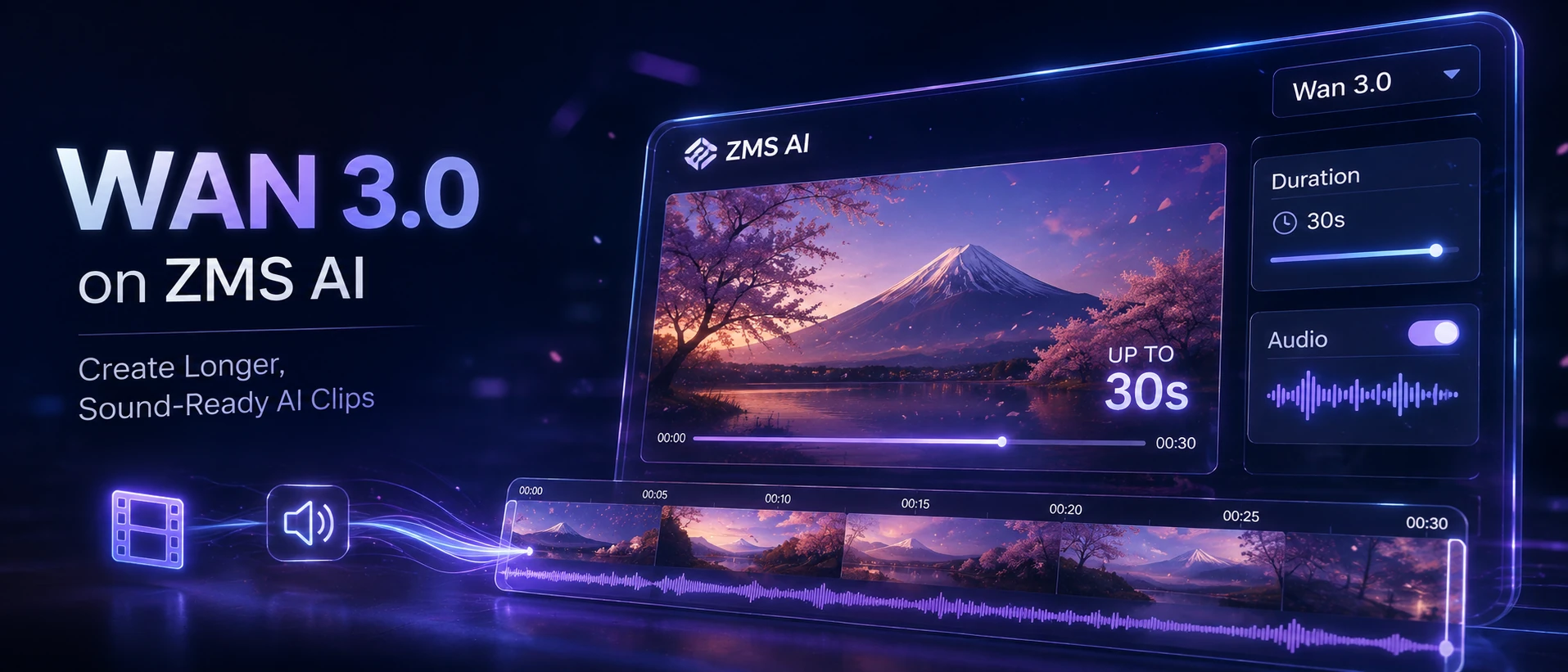
Most AI video models are built around a short clip — a few seconds of motion, then a cut. Wan 3.0 is built around the opposite problem: holding a single shot together for up to 30 seconds, with sound generated alongside the picture. On ZMS AI, that means the settings you’d normally treat as an afterthought — duration and audio — are the two decisions that shape everything else about the result.
This guide walks through the Wan 3.0 workspace on ZMS AI: how it’s set up, what each control actually changes, and how to write a prompt that still makes sense 20 seconds in.
Where Wan 3.0 Fits
Before opening the workspace, it’s worth knowing what Wan 3.0 is for, so you’re not fighting the model’s strengths.
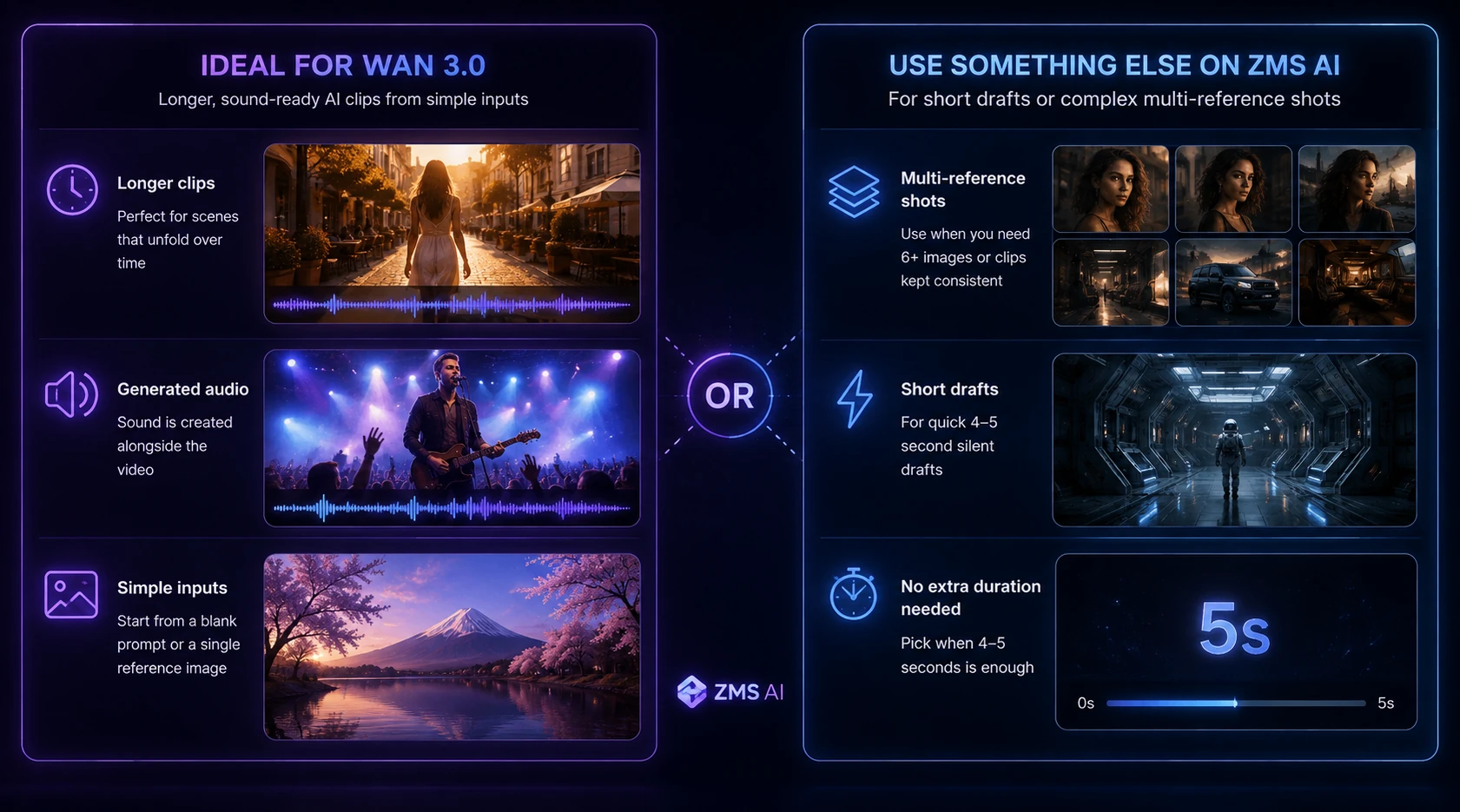
Reach for Wan 3.0 when:
The clip needs to run longer than a quick gesture — a walk, a pour, a sunrise, a full product reveal
You want generated audio alongside the picture, not a silent clip you’ll score later
You’re starting from a blank prompt, a single image, or up to 3 mixed references
Reach for something else on ZMS AI when:
You need more than 3 reference images or video clips held consistent across a shot (Seedance 2.5 accepts up to 30 images or 10 videos)
You only need a quick 4–5 second silent draft and don’t need the extra duration range
If Wan 3.0 sounds right for the shot, the rest of this guide covers the workspace itself.
The Wan 3.0 Workspace on ZMS AI
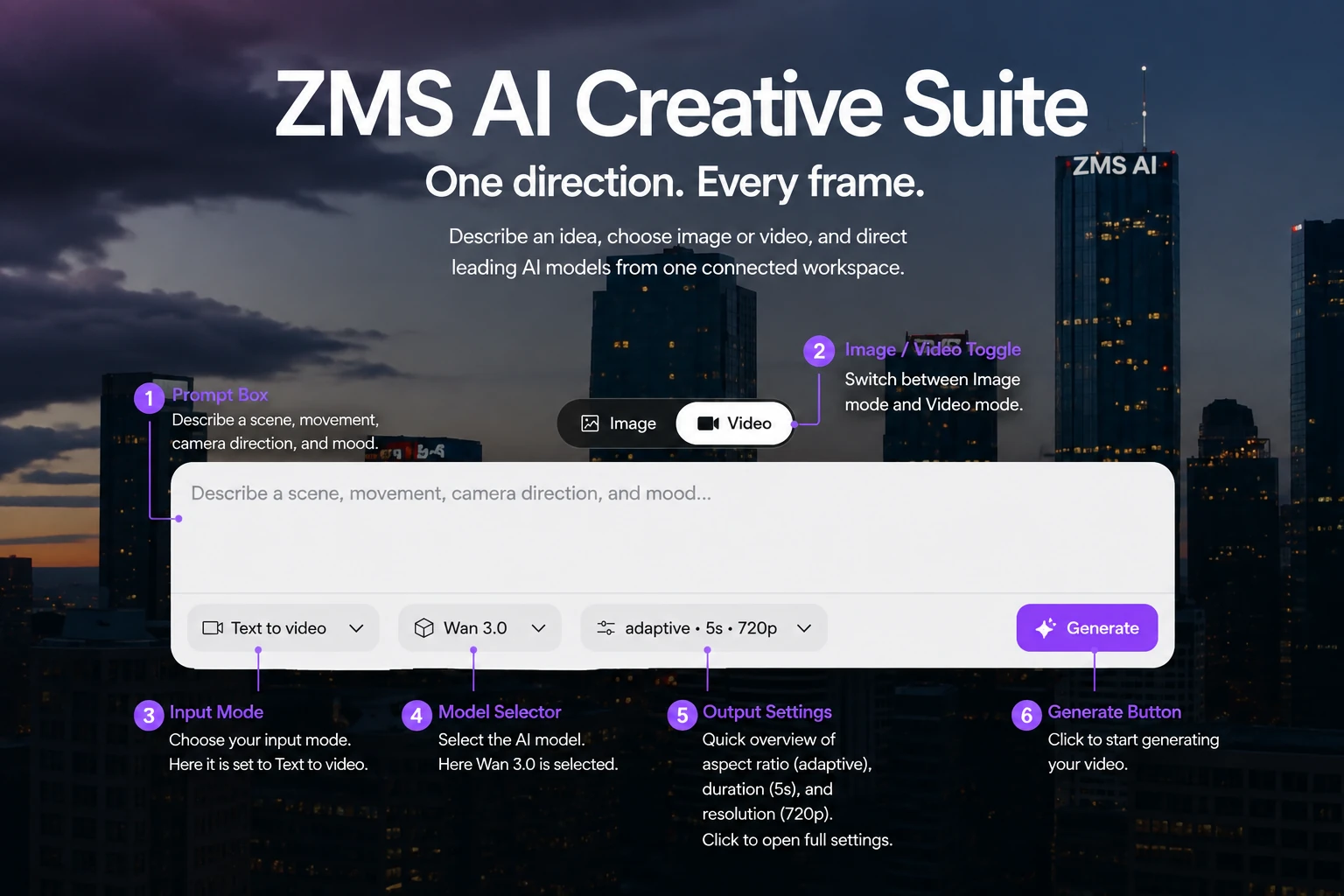
Wan 3.0 lives inside the shared AI Video Generator workspace, alongside Seedance and Veo — there isn’t a separate landing page to navigate to. At the top of the page, a Models control lists the available families (Seedance · Veo · Wan), and an Output control confirms you’re in Video mode.
Below that sits the working area:
A prompt field: “Describe a scene, movement, camera direction, and mood…”
Three dropdowns — input mode, model, and a summary of your current output settings (e.g. “adaptive · 5s · 720p”)
A Generate button
Everything you need for a single task is visible without opening a separate settings page, except the fuller output controls, which live behind that third dropdown.
Setting Up a Task
1. Switch to Video mode and select Wan 3.0
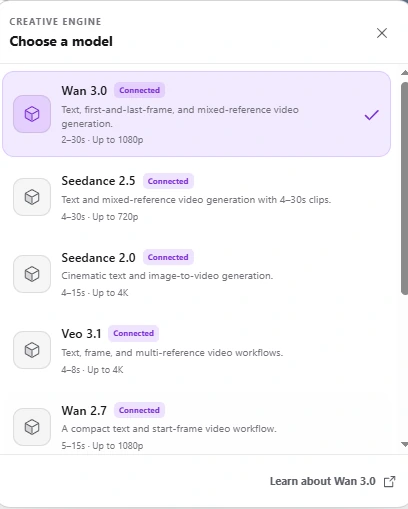
Open the AI Video Generator, confirm Output is set to Video, then open the model dropdown and choose Wan 3.0. If you generate with multiple models in the same session, double-check this label before hitting Generate — resolution and duration ranges aren’t identical across the Wan, Seedance, and Veo families.
2. Choose an input mode: text, image, or mixed references
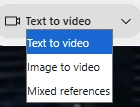
The first dropdown controls input mode, and Wan 3.0 has three:
Text to video — start from nothing but a written description.
Image to video — upload a single starting image and let the prompt describe what happens from that frame, not what’s already in it.
Mixed references — upload up to 3 images or video clips as combined reference material, useful when a subject’s identity or a specific look needs to carry into the new clip without redescribing it in words.
If you’re animating a specific product shot, brand asset, or character reference, image-to-video or mixed references will hold that identity far more reliably than describing it in text.
3. Write the prompt around a full arc, not a moment

Because Wan 3.0 can run up to 30 seconds, a prompt that only describes a static instant will run out of direction long before the clip ends. Structure it as:
Subject + Setting + how the action opens, develops, and resolves + Camera + what must not drift
A short clip can get away with:
A dancer spins on a rooftop at golden hour.
A longer one needs the arc spelled out:
A dancer begins a slow spin on a rooftop at golden hour, gradually building speed as the city skyline blurs behind her, camera circles halfway around at a low angle, she comes to a controlled stop facing the camera as the light fades toward dusk.
The second version gives the model a beginning, a middle, and a specific way to end — which matters more with every extra second of duration.
If you’re using mixed references, the prompt does less identity work and more direction work: the images or clips you upload already establish who or what the subject is, so the text should focus on what happens next — the action, the camera, and the pacing — rather than re-describing what’s already visible in the reference material. A prompt for a mixed-reference task might read: the person from the reference walks into frame and sits down at the table, camera holds a steady medium shot, warm afternoon light, sequence ends as they pick up the cup — no need to redescribe their appearance, since the references already carry that.
4. Set duration and audio together, then aspect ratio and resolution
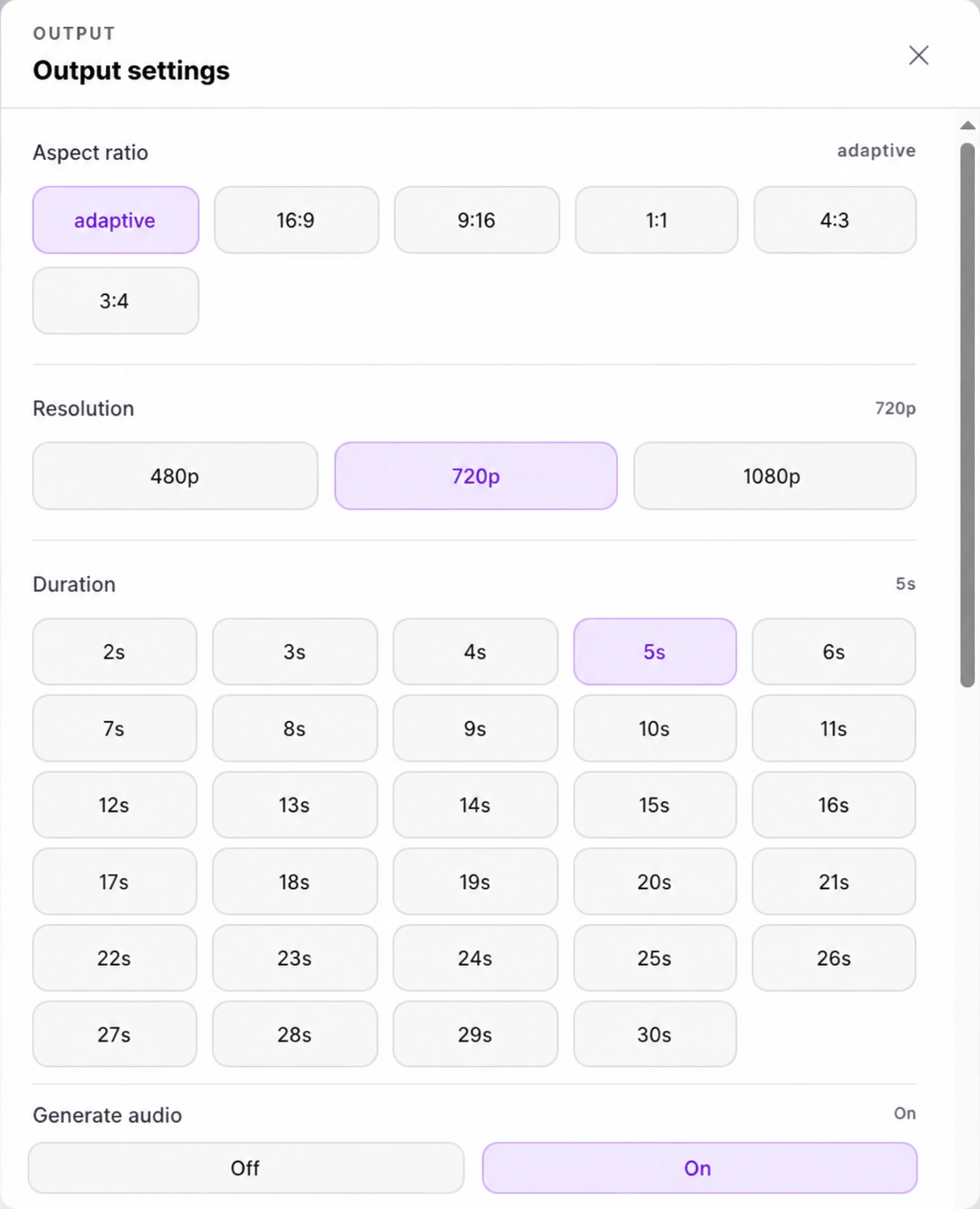
Open Output settings from the third dropdown. This is where Wan 3.0’s range shows up in full:
Control | Options |
|---|---|
Aspect ratio | Adaptive, 16:9, 9:16, 1:1, 4:3, 3:4 |
Resolution | 480p, 720p, 1080p |
Duration | 2–30 seconds, 1-second increments (default 5s) |
Generate audio | Off / On (on by default) |
Treat duration and audio as one decision, not two: a clip with Generate audio on should have a prompt that implies a soundscape (footsteps, waves, ambient chatter), or the generated audio will feel disconnected from the scene. If you’re planning to add your own voiceover or music track afterward, turn audio Off here rather than layering two soundtracks later.
For resolution, there’s little reason to jump straight to 1080p — confirm the motion and framing at 480p first, then regenerate the final pass at 1080p once the prompt is locked.
Click Done to confirm; your choices collapse back into the dropdown label so you can verify them at a glance before generating.
5. Generate, then review across the whole clip — not just the opening

Click Generate. Once the clip is ready, don’t stop at the first few seconds. Watch it through to the end and check:
Does the subject still look like the subject by the final second?
Does the camera move stay purposeful, or does it wander once the “obvious” motion runs out?
If audio is on, does it still match the scene by the midpoint?
Does the action actually resolve, or does it just stop?
Longer durations are exactly where drift shows up — a 5-second clip rarely has time to go wrong, but a 25-second one does.
Prompt Examples Across Duration Ranges
The same subject needs a differently shaped prompt depending on how much time you’ve given it. These four examples show how the level of detail scales with duration.
Short (4–6 seconds) — a single gesture
A barista taps the last of the foam off a milk pitcher onto a fresh espresso, camera holds a tight overhead shot, warm cafe lighting, no hands beyond the pitcher enter frame.
At this length, one clean action is enough. There’s no room for a beginning-middle-end arc, so don’t try to force one — a single well-observed motion reads better than a rushed sequence.
Medium (10–15 seconds) — a small arc
A cyclist rides along a coastal road as the sun sets over the ocean, camera tracks alongside at road level, golden light throughout, cyclist maintains a steady pace and stays in the right third of the frame, sequence ends as they crest a small hill and briefly silhouette against the sky.
This length supports a real opening state, a sustained middle, and a distinct ending — enough for the prompt structure (subject, setting, action over time, camera, constraints) to do real work.
Long (20–30 seconds) — a full scene
At this length, treat the prompt like a short scene with two beats rather than one continuous motion — here, “repairing the net” and “noticing the boat” — so the model has somewhere for the shot to go partway through.
Mixed references — carrying an identity forward
Using a product photo and a short video clip as mixed references: the bottle from the reference rotates slowly on a dark stone surface as it did in the clip, camera holds a steady eye-level shot, soft studio lighting sweeps across the label, background stays a solid deep gray, no text is added.
Here the references anchor what the bottle and its motion look like; the prompt only needs to describe the surrounding setting, lighting, and any changes from what the references already show.
What You Can Create with Wan 3.0
Because Wan 3.0 can hold a shot together for up to 30 seconds and generate audio in the same pass, it tends to fit projects that need a full moment rather than a quick cut.

Product and lifestyle clips.
A slow product reveal, an unboxing-style sequence, or a lifestyle scene that has time to develop instead of jumping straight to the payoff. Mixed references are useful here for keeping a specific product’s shape and label consistent.

Social content with a complete beat.
A 10–15 second clip gives a vertical Reels- or Shorts-style post room for a small narrative turn — someone noticing something, a reveal, a punchline — rather than just a looping gesture.

Story fragments and short scenes.

Longer durations suit testing how a scene plays before committing it to a full production: a character entering a space, a mood shift, a small piece of dialogue-free storytelling.

Ambient and background footage.
Slow, loop-friendly motion for a landing page hero or an ambient display, where the extended duration range means fewer visible seams if the clip is set to repeat.
Sound-forward content. Because audio generates in the same pass, Wan 3.0 suits clips where the soundscape is part of the pitch — rain on a window, a busy street, waves on a shore — rather than a purely visual test.
When a Clip Isn’t Working
Before rewriting the whole prompt, isolate what’s actually wrong:
If the problem is… | Try this instead of starting over |
|---|---|
The clip is fine at first, then loses coherence | Shorten the duration and confirm the core motion works before extending it again |
The generated audio feels mismatched | Turn Generate audio off and re-listen to whether the prompt actually implies sound; add explicit audio cues (footsteps, wind, chatter) if it doesn’t |
The subject drifts in appearance | Switch to image-to-video or mixed references with an anchor image instead of describing appearance in text |
The ending feels abrupt or arbitrary | Add an explicit resolution to the prompt — a stop, a turn, a fade, a held final pose |
The camera move feels aimless | Name one specific move (push in, track alongside, hold static) instead of general words like “dynamic” or “cinematic” |
Changing one variable at a time makes it possible to tell what actually fixed the result.
A related habit worth building early: keep a short note of which duration, resolution, and input mode produced a result you liked. Wan 3.0’s range is wide enough — 2 to 30 seconds, three resolutions, three input modes — that it’s easy to lose track of which combination actually worked, especially when you’re iterating on a prompt across several attempts in the same session.
Wan 3.0 FAQ
Where do I find Wan 3.0 on ZMS AI? It’s inside the shared AI Video Generator workspace — select it from the Models dropdown alongside Seedance and Veo, rather than a separate landing page.
How long can a Wan 3.0 clip be? Anywhere from 2 to 30 seconds, adjustable in one-second steps.
Does Wan 3.0 generate sound automatically? Yes, Generate audio is on by default. Turn it off in Output settings if you’re planning to add your own audio track separately.
Can I start from an image instead of a blank prompt? Yes — switch the input mode to image-to-video and upload a single starting image, or use mixed references to upload up to 3 images or video clips at once.
What’s the difference between image-to-video and mixed references? Image-to-video takes one starting image as the literal first frame. Mixed references takes up to 3 images or video clips as supporting material for identity or style, without treating any single one as the opening frame.
What resolutions are available? 480p, 720p, and 1080p.
Should I always generate at 1080p? Not for testing. Confirm the motion and framing at a lower resolution first, then regenerate the final version at 1080p once the prompt is settled.
How many references can I use with mixed references? Up to 3 images or video clips per task. If a shot needs more than that held consistent, Seedance 2.5 accepts up to 30 images or 10 videos instead.
Next Step
The workspace itself is simple; the judgment call is matching your prompt’s action to the duration you’ve picked, and deciding upfront whether audio belongs in this generation or a later edit. Start with a short test clip, confirm the motion holds, then extend the same prompt toward its full length.
Open the AI Video Generator on ZMS AI and select Wan 3.0 to try it with your own idea.