Seedance
How to Use Seedance 2.5 on ZMS AI: Step-by-Step Guide
Learn how to create AI videos with Seedance 2.5 on ZMS AI, from choosing an input mode and writing effective prompts to setting output controls and reviewing results.
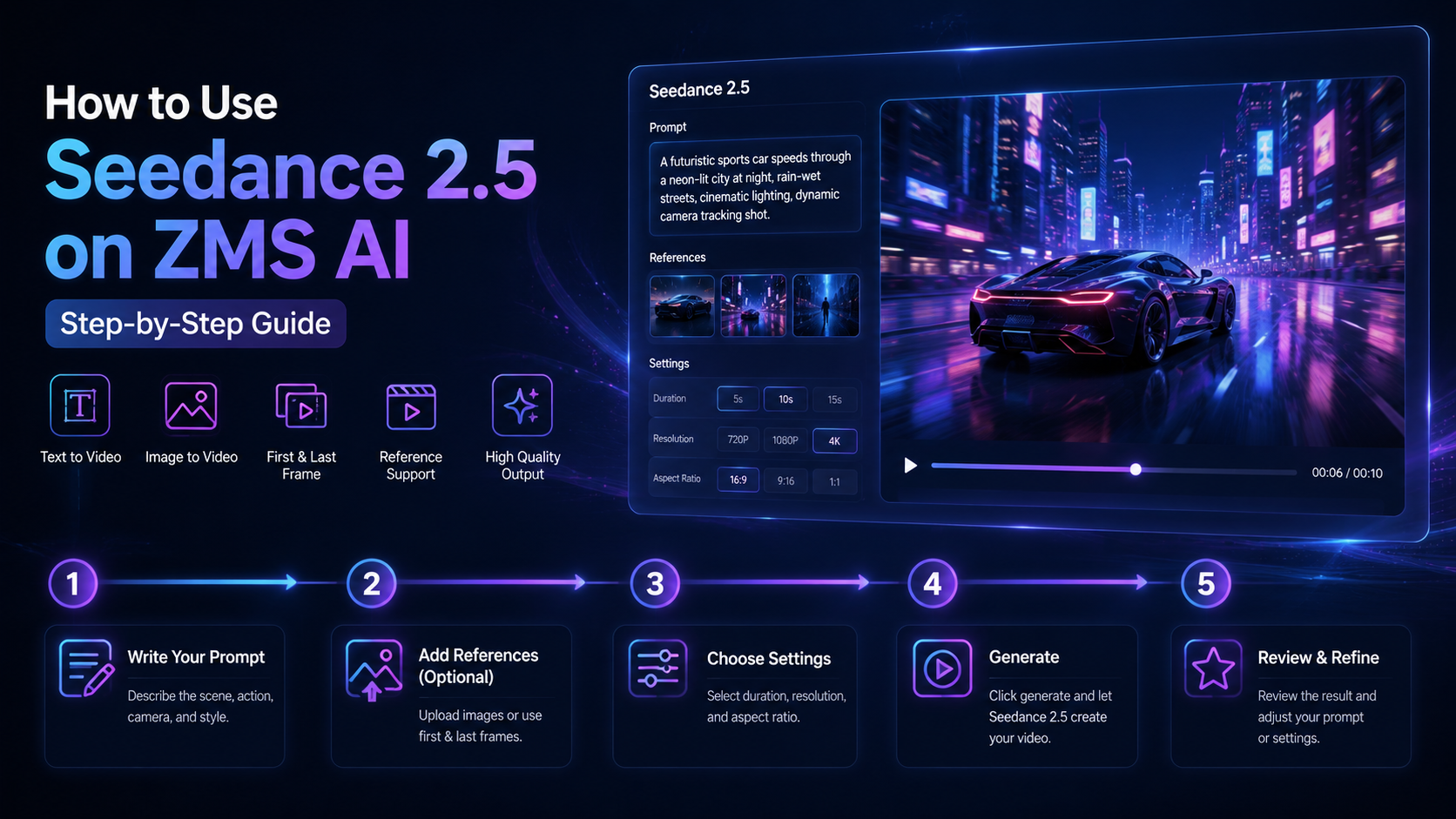
Seedance 2.5 turns a written shot brief, a first-and-last-frame pair, or image and video references into an AI-generated video, making it useful for product demos, social clips, narrative shorts, and campaign teasers.
With ZMS AI, you can access Seedance 2.5 from a connected creative workspace, enter your prompt or upload references, choose duration, resolution, and aspect ratio, and generate your clip without switching between separate tools.
In this guide, you’ll learn how to use Seedance 2.5 on ZMS AI step by step, how to choose the right output settings, and how to write prompts that hold up under review.
How to Use Seedance 2.5: Quick Guide

The basic workflow is simple:
Open ZMS AI.
Select Video mode.
Choose Seedance 2.5.
Pick an input mode: text, first-and-last-frame, or image/video reference.
Write your prompt.
Set aspect ratio, resolution, and duration.
Click Generate.
Review the clip frame by frame and refine.
In short:
Idea → Input mode → Prompt → Output settings → Generate → Review
For better results, describe not only the subject, but also the action, the camera behavior, and what must stay stable throughout the clip.
What Is Seedance 2.5?
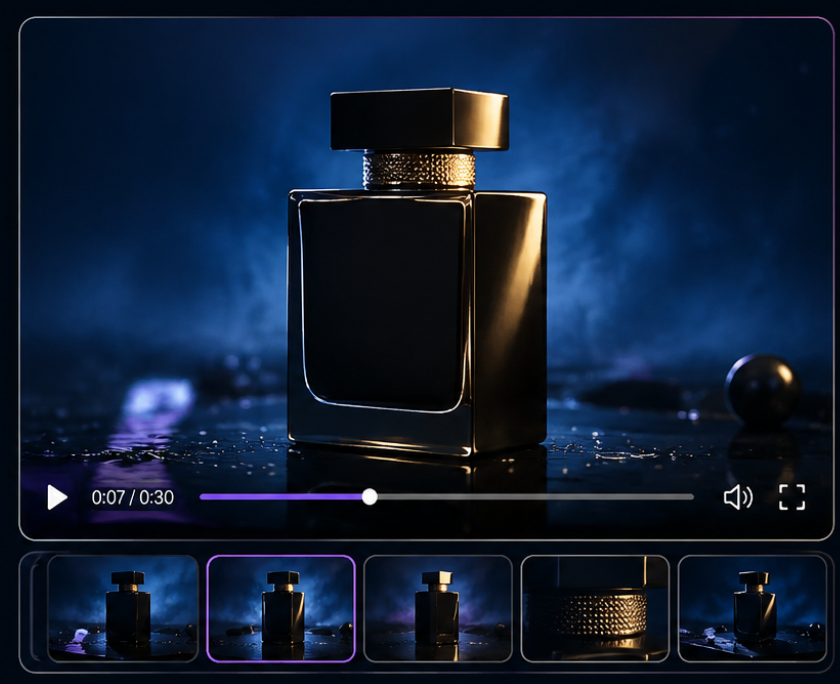
Seedance 2.5 is ByteDance’s audio-video joint generation model, built for 30-second storytelling with precise reference control.
Instead of manually storyboarding every frame, you describe the shot and let the model handle the motion.
For example, instead of:
A cool product video.
Try:
A matte black perfume bottle rotates slowly on a dark glass surface, soft rim light sweeping across the cap, camera pushes in gently, background stays a solid deep blue, no text or logos appear.
The second prompt gives Seedance 2.5 a clear beginning, a defined action, and stable constraints to hold onto.
On ZMS AI, Seedance 2.5 can be useful for:
Product showcase clips
Social media teasers
Narrative story fragments
Fashion and lifestyle motion content
Landing page background video
Concept previsualization
Continuing a still image into motion
Why Use Seedance 2.5 on ZMS AI?
ZMS AI brings image and video generation into the same creative workspace.
When using Seedance 2.5, you can select the model, choose an input mode, write your prompt or upload references, configure the output, and generate without leaving the page.
The current workflow provides:
Seedance 2.5 model selection
Text-to-video, first-and-last-frame, and reference-based input
Six aspect ratios plus adaptive
480p and 720p resolution
4 to 30 second duration in one-second steps
Audio-generation toggle
This keeps the process approachable for a first test clip and controllable enough for a full production batch.
How to Use Seedance 2.5 on ZMS AI Step by Step
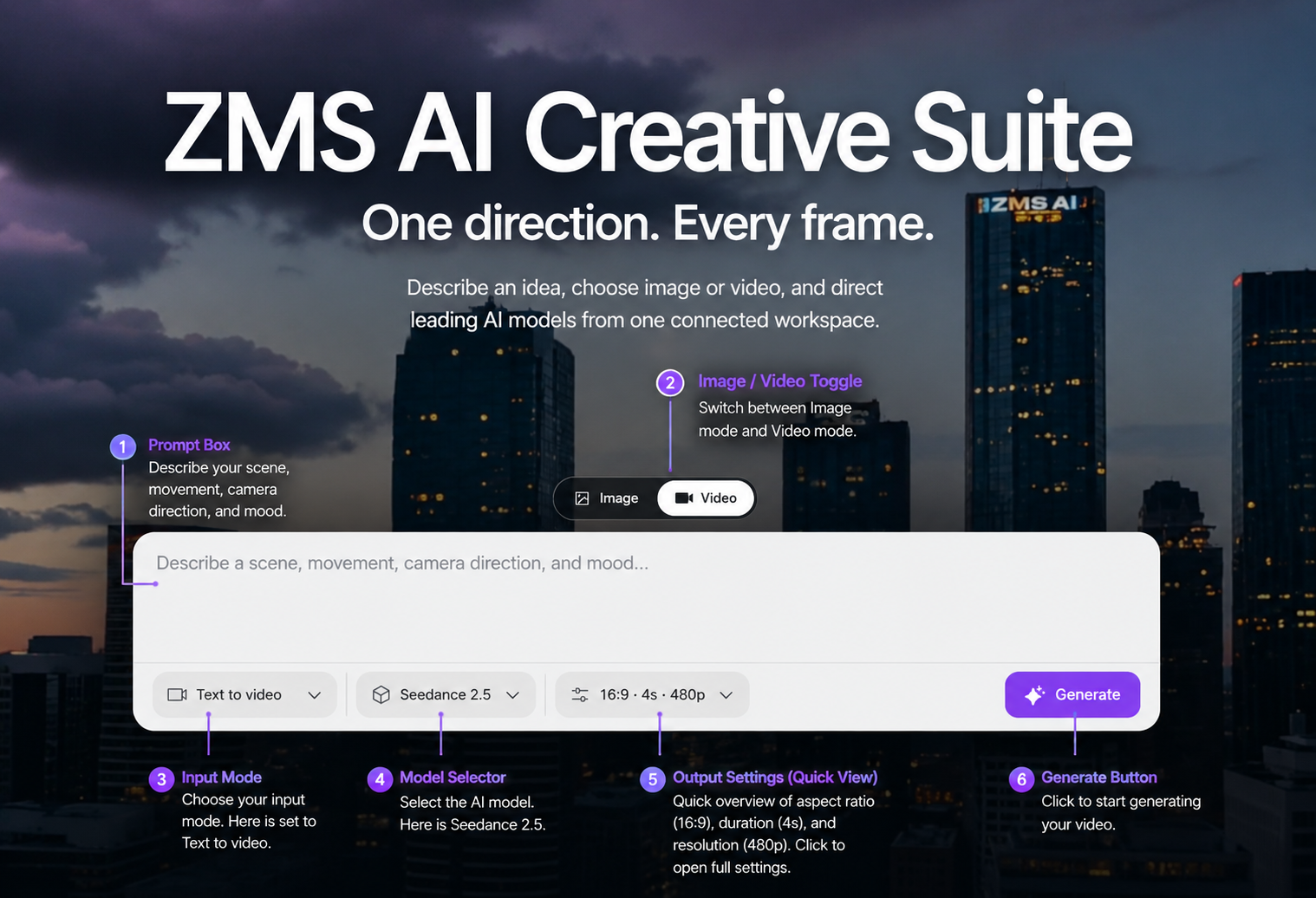
Step 1: Open ZMS AI and Select Video Mode
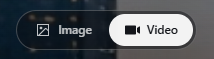
Open the ZMS AI Creative Suite and toggle the Quick create bar to Video, next to the Image option.
Before generating, think about where the clip will be used. A vertical social post, a widescreen landing-page background, and a square feed video all call for different framing and pacing.
Tip: Decide the final placement first. This makes the aspect ratio and shot length decisions easier later.
Step 2: Select Seedance 2.5
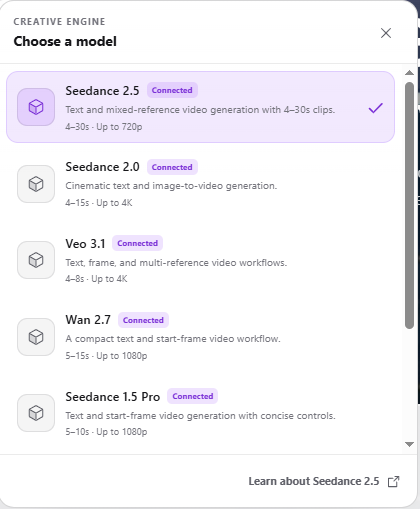
Open the model dropdown in the Quick create bar and choose:
Seedance 2.5
Your basic workflow should now look like:
Video → Seedance 2.5 → Input mode → Prompt → Output settings → Generate
Tip: If you switch between video models often, check the model label in the dropdown before generating — 2.5 and 2.0 have different resolution and duration limits.
Step 3: Choose Your Input Mode
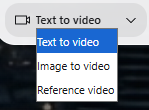
Seedance 2.5 on ZMS AI supports three ways to start a task, set from the mode dropdown next to the model selector:
Text to video — Use this when the scene is still open-ended. Write a prompt describing the subject, setting, action, and camera behavior. Supports six aspect ratios plus adaptive: 21:9, 16:9, 4:3, 1:1, 3:4, 9:16.
First-and-last-frame — Use this when the opening shot, and optionally the closing shot, already exists. The first frame is required; the last frame is optional. Framing on this path is set to adaptive automatically.
Image or video reference — Use this when a subject’s identity or a specific motion already needs to carry into the new clip. Upload up to 30 images, or up to 10 videos — not both in the same task.
Tip: Pick one input mode per task. Mixing image and video references, or combining references with first-and-last-frame, isn’t supported in a single generation.
Step 4: Write Your Prompt

The main prompt box asks you to describe a scene, movement, camera direction, and mood. You can use natural language — there’s no special syntax required.
A useful structure for video is:
Subject + Setting + Action over time + Camera + Stability constraints
For example:
A red vintage bicycle leans against a sunlit brick wall, a gentle breeze moves the nearby leaves, camera slowly tracks left to reveal a quiet café terrace, warm afternoon light throughout, wall color and bicycle position stay fixed.
Compare that with:
A nice street scene.
The first version tells Seedance 2.5 what happens, how the camera moves, and what must not drift — the second leaves everything open to guesswork.
Another example:
Basic prompt Make a coffee video.
Better prompt A ceramic cup sits on a wooden table as steam rises steadily, camera holds a static close-up, morning light comes from the left window, cup position and steam density stay consistent throughout, no hands enter frame.
Tip: Replace vague direction like “cinematic” or “epic” with a concrete opening state, a specific change over time, and an explicit ending.
Step 5: Set Aspect Ratio, Resolution, and Duration
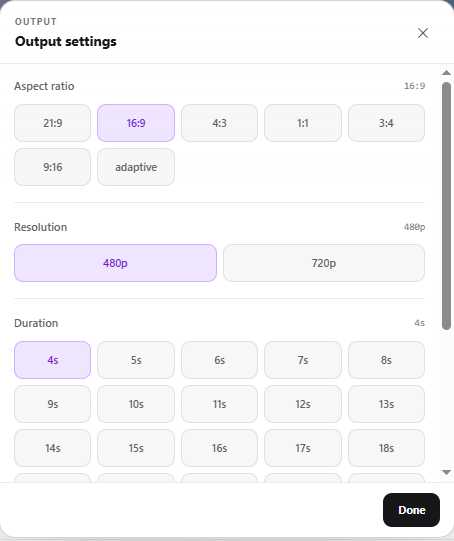
Open Output settings from the third dropdown in the Quick create bar.
The current ZMS AI interface for Seedance 2.5 includes:
Aspect ratio: 21:9, 16:9, 4:3, 1:1, 3:4, 9:16, or adaptive (adaptive is automatic on the first-and-last-frame path)
Resolution: 480p or 720p
Duration: 4 to 30 seconds, in one-second increments
Choose the format based on where the clip will appear — 9:16 for vertical social content, 16:9 for a landing-page hero or wide format, 1:1 for feed posts.
A practical approach for resolution and length:
480p, short duration while testing a prompt’s motion, framing, and subject stability.
720p, full duration once the shot is confirmed and ready for final use.
Click Done to confirm your selections — they’ll show in the collapsed dropdown so you can check them before generating.
Tip: Keep resolution and duration fixed while you compare prompt revisions, so any difference in the result comes from the prompt, not the settings.
Step 6: Generate Your Clip
Once everything is ready, check your settings:
Mode: Video
Model: Seedance 2.5
Input: Text, first-and-last-frame, or reference
Prompt: Ready
Aspect ratio: Selected
Resolution and duration: Selected
Then click Generate.
After the clip appears, review it carefully. Check whether:
The subject and action match the prompt
The camera move is smooth and purposeful
Lighting stays consistent across frames
The background and stability constraints hold
The action resolves cleanly by the final frame
If the result isn’t right, refine your prompt rather than starting over from scratch.
Step 7: Refine Your Result
Your first clip doesn’t need to be the final one.
If the result is close, identify the specific problem before rewriting anything.
For example:
Original prompt A car drives through the city at night.
Refined prompt A silver sedan drives down a rain-soaked city street at night, camera tracks alongside at a low angle, neon signs reflect on the wet road, headlights stay on and steady, car maintains lane position throughout, motion ends with the car turning a corner.
The refined version adds a specific camera angle, a defined path, and an explicit ending — the parts that were missing before.
Tip: Change one variable at a time — camera direction, duration, or a single stability constraint — so you can tell what caused the difference in the next result.
Best Seedance 2.5 Prompt Formula
For most projects, this formula works as a starting point:
[Subject] + [Setting] + [Action over time] + [Camera] + [Stability constraints]
For example:
A barista pours steamed milk into a cup of espresso, latte art slowly forms on the surface, camera holds a steady overhead angle, warm cafe lighting throughout, cup stays centered and does not move.
Here the prompt defines:
Subject: Barista and espresso cup
Setting: Cafe counter, warm lighting
Action over time: Milk pouring, art forming
Camera: Steady overhead angle
Stability constraints: Cup stays centered, lighting stays warm
You can add or remove elements depending on how much control the shot needs.
Seedance 2.5 Prompt Examples
Product Showcase A pair of white sneakers rotates slowly on a matte grey pedestal, soft studio lighting sweeps across the surface, camera holds a steady eye-level shot, background stays a solid light grey, no text appears in frame.
Vertical Social Teaser A skateboarder rides down a sunlit boardwalk, camera tracks from behind at a low angle, ocean visible in the background, motion ends as the rider glances back toward the camera, 9:16 vertical framing.
Narrative Fragment A woman opens a wooden door into a sunlit garden, camera follows from behind at shoulder height, wind gently moves the surrounding plants, sequence ends as she steps fully into the light, warm natural color grading throughout.
Landing Page Background Soft abstract clouds drift slowly across a gradient blue sky, camera holds a fixed wide shot, color tone shifts gently from blue to lavender, loopable motion with no sudden changes, 16:9 widescreen framing.
What Can You Create with Seedance 2.5?
Seedance 2.5 on ZMS AI can support a range of video workflows.
Product and Campaign
Clips Turn a product concept into a short rotating showcase, an unboxing-style moment, or a lifestyle scene with controlled camera movement.
Social Media Content
Use 9:16 for Reels and Shorts-style vertical clips, or 1:1 for feed posts, with duration matched to the platform’s typical attention span.
Story and Narrative Fragments
Continue a still reference into a short cinematic beat — a character stepping into a scene, an object being revealed, a mood shift over a few seconds.
Website and Landing Page Motion
Generate ambient, loop-friendly background clips for hero sections, using longer durations and gentle, non-distracting camera movement.
Concept Previsualization
Test a camera move, a lighting direction, or a shot composition before committing to full production elsewhere.
Common Seedance 2.5 Mistakes
Describing only the subject, not the action: A prompt that names what’s in frame but not what happens over time leaves the model to guess the motion. Always include a beginning, a change, and an ending.
Skipping stability constraints: Without naming what should stay fixed — face, logo, background, lighting direction — small details are more likely to drift across the clip.
Choosing duration before the action is defined: A 4-second slot forces a simple gesture; a 20-second slot needs a movement that can actually sustain that length. Match duration to the action, not the other way around.
Mixing input modes: Trying to combine image references with a first-and-last-frame path, or images with videos, isn’t supported in one task — pick a single path per generation.
Rewriting the whole prompt after one bad result: If only the camera move or the ending is off, change that one part and re-test, rather than starting from a blank prompt.
Seedance 2.5 FAQ
How do I use Seedance 2.5 on ZMS AI? Open ZMS AI, select Video mode, choose Seedance 2.5, pick an input mode, write your prompt or upload references, set aspect ratio, resolution, and duration, then click Generate.
Can Seedance 2.5 generate a video from a start or end frame? Yes. The first frame is required and the last frame is optional. Framing on this path is adaptive automatically.
What resolutions and durations are available? ZMS AI currently offers 480p and 720p resolution, with durations from 4 to 30 seconds in one-second increments.
Can I upload my own images or videos as references? Yes. You can upload up to 30 images or up to 10 videos in a single task — not both at once.
What’s the best Seedance 2.5 prompt format? A practical starting formula is: Subject + Setting + Action over time + Camera + Stability constraints
How is Seedance 2.5 different from Seedance 2.0? Seedance 2.5 supports longer clips (up to 30 seconds), first-and-last-frame input, audio generation, and larger reference sets, capped at 480p/720p. Seedance 2.0 reaches 1080p or 4K but is limited to 4–15 second clips.
How can I improve my Seedance 2.5 results? Be specific about the action over time and the camera move, and name what must stay stable. If a result is close, change one variable at a time instead of rewriting the entire prompt.
Final Thoughts
Learning how to use Seedance 2.5 is mainly about describing motion clearly — what starts, what changes, and how it ends.
On ZMS AI, the workflow is straightforward:
Video → Seedance 2.5 → Input mode → Prompt → Output settings → Generate → Review
Start with a clear subject and action, describe the camera behavior, and name what needs to stay stable, then choose the duration and resolution that fit your final use.
You can begin with a short duration at 480p while testing a prompt’s motion, and move to the full length at 720p once the shot is confirmed.
Most importantly, treat the first clip as a starting point. Review it frame by frame, refine what didn’t hold up, and iterate until the motion matches your intended direction.
Ready to create? Try Seedance 2.5 on ZMS AI and turn your next idea into an AI-generated video.
Use this guide
More from Seedance